
EPDM Workflow Best Practices are becoming mission-critical for engineering teams in 2026.
Whether you work in aerospace, manufacturing, tooling, heavy equipment, or product design, the way your team handles approvals, revisions, document control, and change management directly impacts project speed, cost, and quality.
In many engineering organizations, the biggest delays don’t come from design—it comes from inefficient workflows:
-
Wrong revision released
-
Broken references
-
No traceability
-
Parallel approvals stuck
-
Design–checker misalignment
-
Missing metadata or BOM mismatches
-
Files stuck in wrong states
This guide distills real-world best practices used in high-performance engineering companies, combined with SolidWorks PDM Professional (EPDM) workflow strategies to help teams build a robust, scalable, audit-ready system.
Introduction to EPDM Workflow Best Practices
Modern engineering teams operate in a distributed, high-pressure environment. A single mismatch in revision or an incorrectly approved drawing can create huge rework, NCRs, or production delays.
This is why mastering EPDM Workflow Best Practices is essential in 2026.
It ensures:
-
Faster approvals
-
Fewer design mistakes
-
Clear traceability
-
Consistent metadata
-
Secure access control
-
Automated documentation
In aerospace and regulated industries, EPDM workflows also support audit readiness, certification compliance, and configuration control.
How EPDM Workflows Actually Work (2026 Overview)
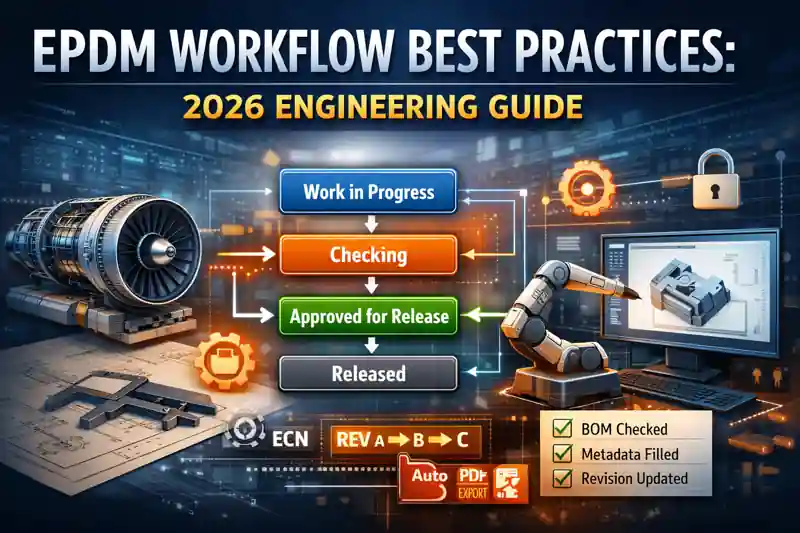
At its core, an EPDM workflow is built on four elements:
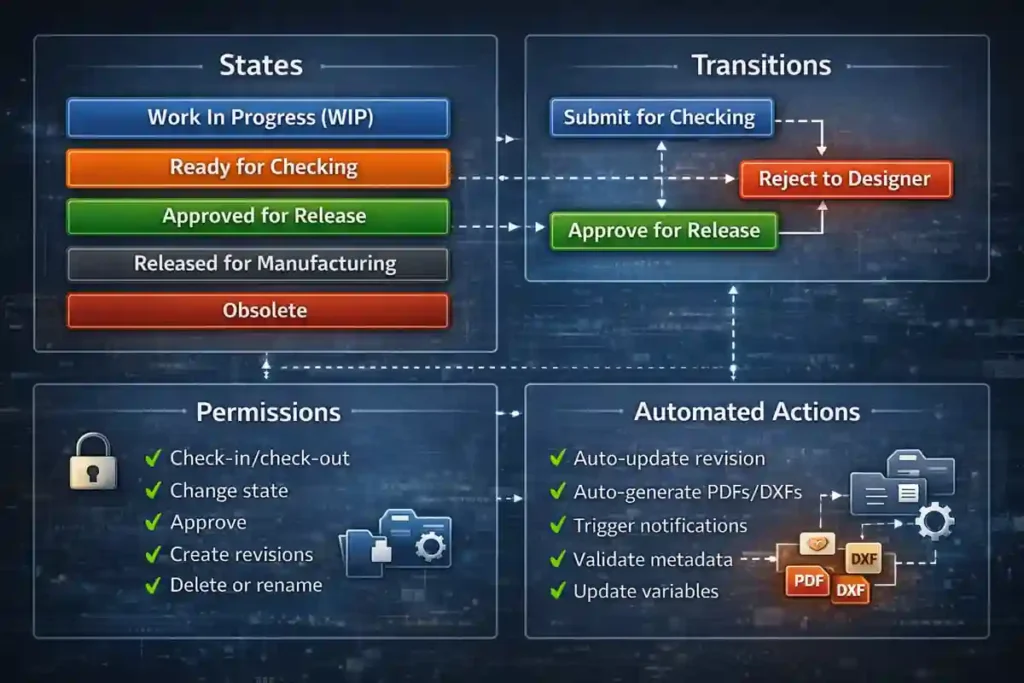
States
Examples:
-
Work In Progress (WIP)
-
Ready for Checking
-
Approved for Release
-
Released for Manufacturing
-
Obsolete
Each state defines:
✔ Who can access
✔ What changes are allowed
✔ What validations are required
Transitions
Transitions control movement between states, such as:
-
Submit for Checking
-
Reject to Designer
-
Approve for Release
Permissions
Permissions ensure only the right people can:
-
Check-in/check-out
-
Change state
-
Approve
-
Create revisions
-
Delete or rename
Automated Actions
Automations ensure workflow consistency:
-
Auto-update revision
-
Auto-generate PDFs/DXFs
-
Trigger notifications
-
Validate metadata
-
Update variables
Essential Elements of a EPDM Workflow Best Practices
A well-designed EPDM workflow must be simple, strict, scalable, and team-friendly.
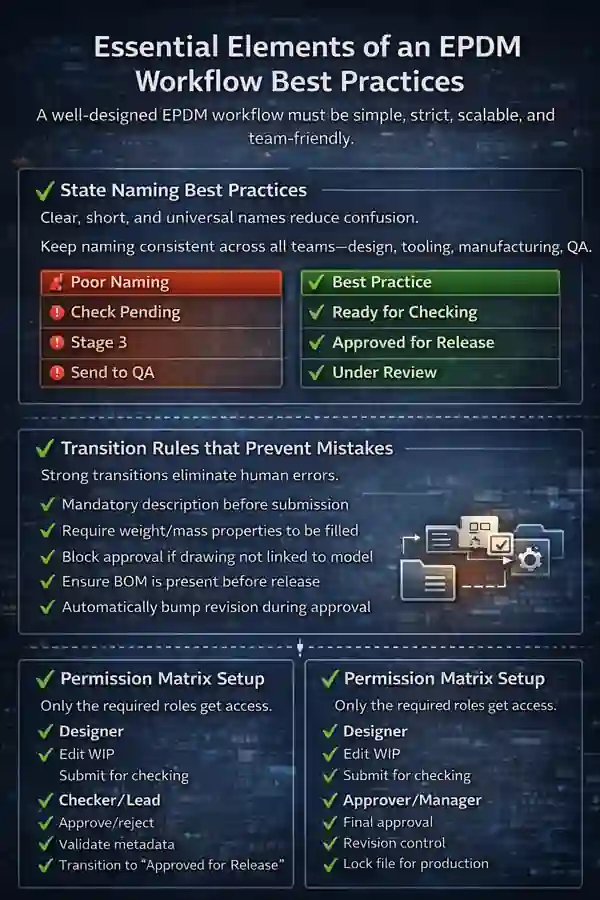
✔ State Naming Best Practices
Clear, short, and universal names reduce confusion.
| Poor Naming | Best Practice |
|---|---|
| “Check Pending” | “Ready for Checking” |
| “Stage 3” | “Approved for Release” |
| “Send to QA” | “Under Review” |
Keep naming consistent across all teams—design, tooling, manufacturing, QA.
✔ Transition Rules that Prevent Mistakes
Strong transitions eliminate human errors.
Best practices:
-
Mandatory description before submission
-
Require weight/mass properties to be filled
-
Block approval if drawing not linked to model
-
Ensure BOM is present before release
-
Automatically bump revision during approval
✔ Permission Matrix Setup
Only the required roles get access.
Designer:
-
Edit WIP
-
Submit for checking
Checker/Lead:
-
Approve/reject
-
Validate metadata
-
Transition to “Approved for Release”
Approver/Manager:
-
Final approval
-
Revision control
-
Lock file for production
Document Control:
-
Release to manufacturing
-
Move to archive
-
Handle ECO/ECN transitions
EPDM Workflow Best Practices for Designers
Designers handle 70% of EPDM interactions. Their consistency determines workflow stability.
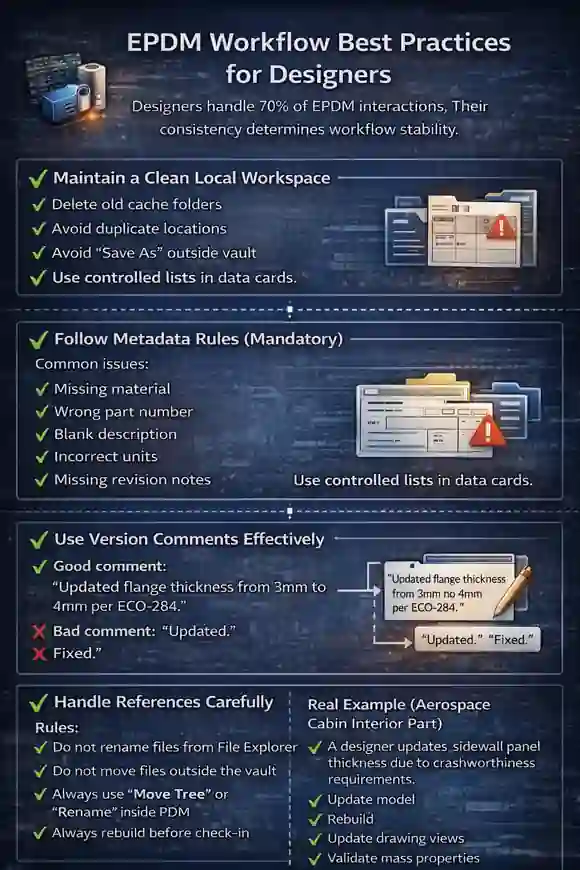
✔ Maintain a Clean Local Workspace
-
Delete old cache folders
-
Avoid duplicate locations
-
Avoid “Save As” outside vault
✔ Follow Metadata Rules (Mandatory)
Common issues:
-
Missing material
-
Wrong part number
-
Blank description
-
Incorrect units
-
Missing revision notes
Use controlled lists in data cards.
✔ Use Version Comments Effectively
Good comment:
“Updated flange thickness from 3mm to 4mm per ECO-284.”
Bad comment:
“Updated.”
“Fixed.”
✔ Handle References Carefully
Rules:
-
Do not rename files from File Explorer
-
Do not move files outside the vault
-
Always use “Move Tree” or “Rename” inside PDM
-
Always rebuild before check-in
Real Example (Aerospace Cabin Interior Part)
A designer updates a sidewall panel thickness due to crashworthiness requirements.
Steps:
-
Update model
-
Rebuild
-
Update drawing views
-
Validate mass properties
-
Add ECO reference
-
Submit for checking
This small discipline avoids downstream manufacturing failures.
EPDM Workflow Best Practices for Checkers & Leads
Checkers ensure engineering quality before approval.
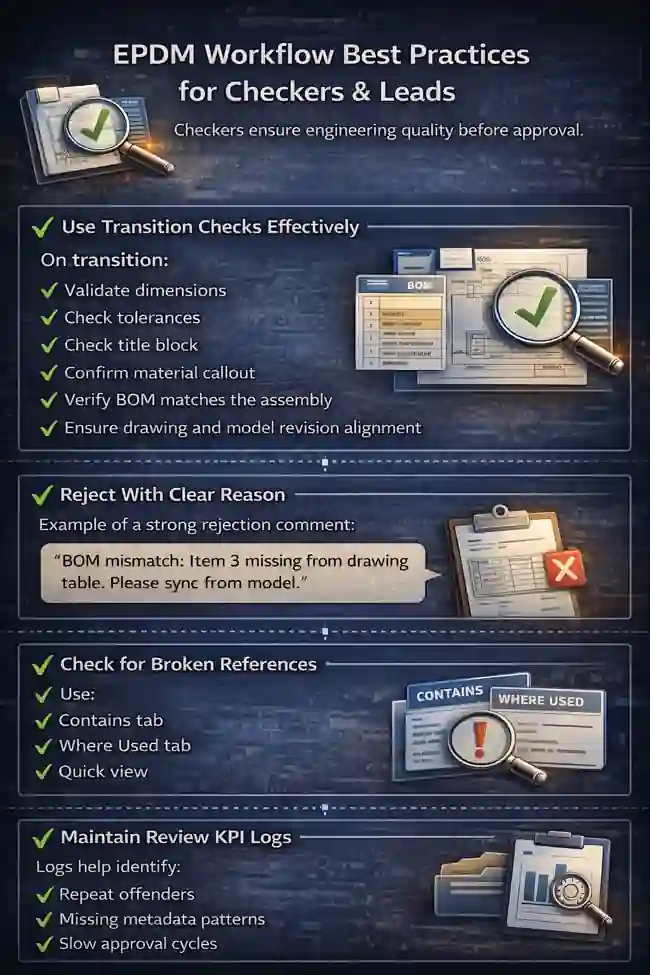
✔ Use Transition Checks Effectively
On transition:
-
Validate dimensions
-
Check tolerances
-
Check title block
-
Confirm material callout
-
Verify BOM matches the assembly
-
Ensure drawing and model revision alignment
✔ Reject With Clear Reason
Example of a strong rejection comment:
“BOM mismatch: Item 3 missing from drawing table. Please sync from model.”
✔ Check for Broken References
Use:
-
Contains tab
-
Where Used tab
-
Quick view
✔ Maintain Review KPI Logs
Logs help identify:
-
Repeat offenders
-
Missing metadata patterns
-
Slow approval cycles
EPDM Workflow Best Practices for Approvers
Approvers hold responsibility for releasing data to manufacturing, supply chain, or clients.
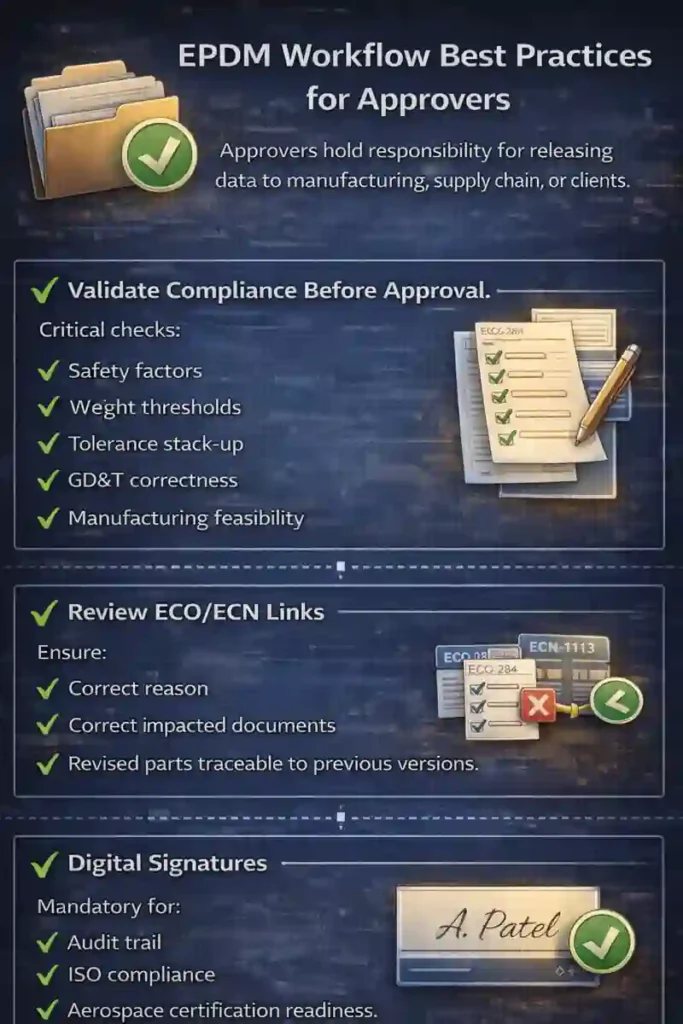
✔ Validate Compliance Before Approval
Critical checks:
-
Safety factors
-
Weight thresholds
-
Tolerance stack-up
-
GD&T correctness
-
Manufacturing feasibility
✔ Review ECO/ECN Links
Ensure:
-
Correct reason
-
Correct impacted documents
-
Revised parts traceable to previous versions
✔ Digital Signatures
Mandatory for:
-
Audit trail
-
ISO compliance
-
Aerospace certification readiness
EPDM Workflow Best Practices for Document Controller
Document Control bridges design, manufacturing, procurement, and quality.
✔ Vault Folder Structure
Ideal structure:
/01 Design
   /Project_X
      /Models
      /Drawings
      /Assemblies

/02 Manufacturing
   /Released
   /Obsolete
   /Change Requests (ECO/ECN)

/03 Reference
   /Templates
   /Standards
   /Supplier Specs
✔ Avoid Multiple Copies
Every released file must be:
-
Traceable
-
Unique
-
No duplicates in local drives
✔ Archive Strategy
Move outdated revisions into:
-
/Obsolete -
/Archive/YYYY
Keep vault clean and lightweight.
Engineering Change Management (ECN/ECO) in EPDM
Engineering changes are the heart of configuration control.
✔ Use Parallel Approval Paths
Example:
When updating an aircraft interior bracket:
-
Stress team
-
Manufacturing team
-
Quality
-
Supply chain
All must approve in parallel.
✔ Use Dynamic Revision Bumping
Workflow automatically jumps revision:
A → B → C
or
1 → 2 → 3
✔ Trigger Notifications
Notify:
-
Production
-
Tooling
-
Procurement
-
Supply chain
✔ Automate ECO Forms
Include:
-
Problem statement
-
Root cause
-
Impact analysis
-
Before/After revision screenshots
EPDM Automation Opportunities
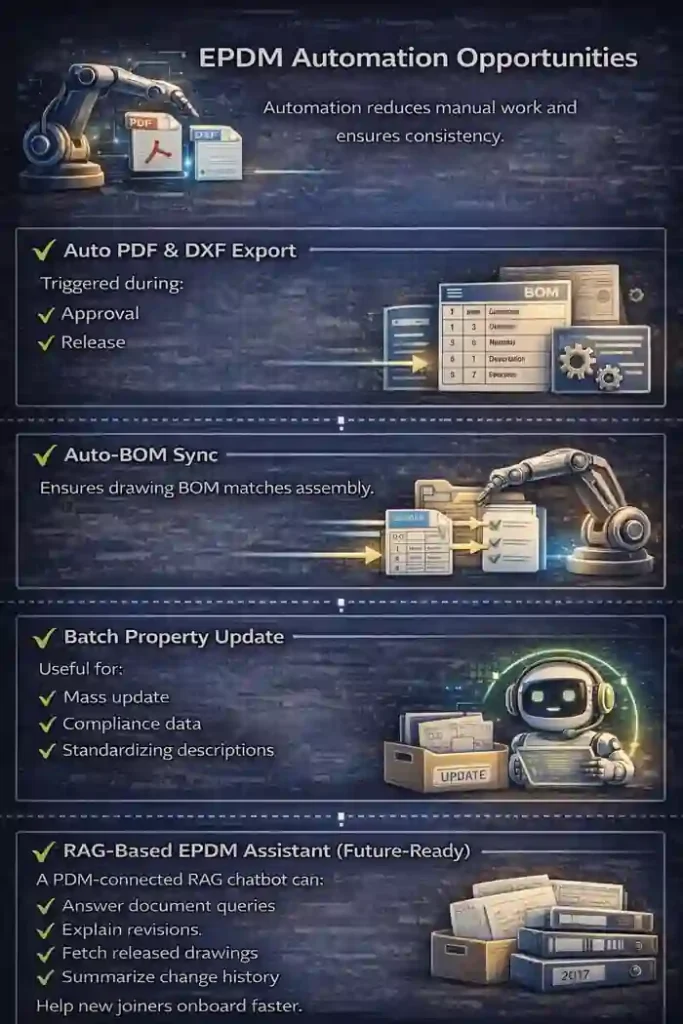
Automation reduces manual work and ensures consistency.
✔ Auto PDF & DXF Export
Triggered during:
-
Approval
-
Release
✔ Auto-BOM Sync
Ensures drawing BOM matches assembly.
✔ Batch Property Update
Useful for:
-
Mass update
-
Compliance data
-
Standardizing descriptions
✔ RAG-Based EPDM Assistant (Future-Ready)
A PDM-connected RAG chatbot can:
-
Answer document queries
-
Explain revisions
-
Fetch released drawings
-
Summarize change history
-
Help new joiners onboard faster
Common EPDM Workflow Mistakes and How to Fix Them
1. Files Stuck in Transition
Why it happens
-
Missing mandatory fields
-
Incorrect user permissions
-
Transition conditions not defined
-
Users trying to jump to next state without meeting criteria
Impact
-
Approval delays
-
Untraceable bottlenecks
-
Designers keep redoing steps because workflow rejects silently
Fix (Best Practices)
-
Add clear transition conditions (mandatory metadata, drawings linked, BOM verified)
-
Provide descriptive error messages
-
Use “Can be signed by” restrictions
-
Add automatic warnings before the transition
Real-world example
A designer submits an assembly for checking, but the system rejects because mass properties are missing. The workflow should clearly state:
“Mass/Material must be defined before submitting for checking.”
2. Designs Missing Metadata
Why it happens
-
Designers forget to fill fields
-
No mandatory enforcement
-
Poorly designed data cards
-
Free-text fields allow inconsistent naming
Impact
-
Wrong BOM entries
-
Incorrect material callouts
-
Delays in manufacturing and procurement
-
Revision confusion
Fix (Best Practices)
-
Make key fields mandatory:
-
Part Number
-
Description
-
Material
-
Revision
-
Mass
-
Drawing Number
-
-
Use controlled lists instead of free text
-
Add validation conditions in workflow
-
Provide auto-fill rules for common fields
Real-world example
Manufacturing receives a drawing with no material specified → NCR raised → design rework → schedule delay.
3. Wrong Revision Released
Why it happens
-
Manual editing of revision field
-
Checker misses revision mismatch
-
Drawing not updated after model changes
-
Release transition not linked to revision bump
Impact
-
Old files used in manufacturing
-
Costly rework
-
Audit failures
-
Configuration control breakdown
Fix (Best Practices)
-
Automate revision bumping in workflow
-
Make revision read-only for designers
-
Ensure drawing revision = model revision
-
Add a validation rule:
“Drawing must reference latest model version.”
Real-world example
A tooling vendor manufactures a mold using Rev A instead of Rev C because the wrong PDF got released.
4. Designers Bypass Checker
Why it happens
-
Direct transitions available
-
Permissions not tightened
-
Designers have access to approval transitions
-
Emergency shortcuts not controlled
Impact
-
Errors enter production
-
No formal design verification
-
Safety and compliance risks
Fix (Best Practices)
-
Lock transitions so designers cannot approve
-
Segregate duties clearly (Designer ≠ Checker ≠ Approver)
-
Remove shortcut transitions (“Fast Release”)
-
Use workflow routing to force review
Real-world example
A designer submits a part directly to “Approved”—skipping checking → missing dimension → machining delay.
5. Duplicate Files in Vault
Why it happens
-
“Save As” outside vault
-
Copying files manually
-
Old revisions uploaded as new files
-
No archive rules
Impact
-
Conflicts in “Where Used”
-
Assembly references break
-
Users select wrong files during manufacturing
Fix (Best Practices)
-
Enforce use of PDM “Save As” functions only
-
Implement strict archive rules
-
Add duplicate detection scripts (file hash comparison)
-
Train designers on file structure and naming
Real-world example
Two versions of the same bracket exist:Bracket_01.SLDPRT and Bracket_Final.SLDPRT → assembly picks wrong one → wrong machine program generated.
6. Slow Approvals
Why it happens
-
Serial approval (one-by-one)
-
Approvers overloaded
-
No reminders/notifications
-
Too many approval states
Impact
-
Project delays
-
Production scheduling issues
-
Work stuck in “Review” for weeks
Fix (Best Practices)
-
Use parallel approval paths
-
Stress + Manufacturing + QA review simultaneously
-
-
Add automated notifications and reminders
-
Minimize approval states
-
Define approval SLAs (e.g., 24–48 hours)
Real-world example
An ECN requires approval from 5 teams—serial approval causes 12-day delay. Parallel workflow reduces it to 2 days.
7. Broken References
Why it happens
-
Designers move/rename files outside the vault
-
Copy-pasting assemblies incorrectly
-
Missing library files
-
“Suppress + delete” misuse
Impact
-
Assemblies fail on open
-
Drawings show empty views
-
BOM incorrect
-
Manufacturing receives incomplete models
Fix (Best Practices)
-
Train designers on proper “Move Tree” and “Rename” usage
-
Lock renaming outside vault
-
Avoid storing library files outside PDM
-
Use “Contains” and “Where Used” to verify before release
Real-world example
A designer renames a part from Windows Explorer → 48 drawings lose references → checker rejects entire batch.
| Mistake | Root Cause | Impact | Fix (Best Practices) |
|---|---|---|---|
| Files stuck in transition | Missing metadata, wrong permissions | Slow approvals, workflow block | Add transition conditions, clear error messages |
| Designs missing metadata | No mandatory fields, poor data card design | Wrong BOM, rework | Make key fields mandatory, use dropdown lists |
| Wrong revision released | Manual entry, mismatch between model/drawing | Wrong parts manufactured | Automate revision bumping, lock revision fields |
| Designers bypass checker | Permissions too open | Errors in production | Lock transitions, segregate duties |
| Duplicate files in vault | Incorrect Save As practices | Confusion, wrong parts | Archive rules, duplicate detection, training |
| Slow approvals | Serial flow, overloaded approvers | Delays, bottlenecks | Use parallel approvals, notifications |
| Broken references | Renaming outside vault | Missing components | Enforce PDM rename rules, training |
Workflow Templates (Aerospace & Manufacturing)
✔ Aerospace Workflow Template
States:
-
WIP
-
Checking
-
Stress Review
-
DQA Review
-
Approved for Release
-
Released to Production
✔ Manufacturing Workflow Template
States:
-
WIP
-
Tooling Review
-
Production Review
-
Quality Review
-
Released
EPDM Workflow Optimization Checklist
Designer
-
Filled all metadata
-
Updated BOM
-
Mass properties validated
-
Comments added
-
Drawing linked to model
Checker
-
Dimensions correct
-
Tolerances checked
-
Title block updated
-
Revision correct
Approver
-
ECO linked
-
Feasibility checked
-
Digital signature added
Document Control
-
Correct state
-
Correct folder
-
PDF/DXF exported
Conclusion
EPDM Workflow Best Practices help engineering teams eliminate rework, increase traceability, reduce approval delays, and deliver higher-quality designs.
In 2026, workflows are not just file-control—they’re the digital backbone of engineering operations.
Efficient EPDM workflow =
Faster releases → fewer errors → better collaboration → stronger compliance.
Related Articles
External References
FAQs for SolidWorks EPDM Workflow Best Practices
1. What are the core principles behind EPDM Workflow Best Practices?
The core principles behind EPDM Workflow Best Practices include clean state definitions, controlled transitions, strict metadata standards, traceability, and automated revision updates. Together, they ensure accuracy and reduce errors during design-to-release cycles.
2. How many workflow states should a SolidWorks EPDM system ideally include?
Most teams following EPDM Workflow Best Practices use 5–7 states: WIP → Checking → Review → Approval → Release → Archive. Too many states slow approvals, too few reduce control.
3. How do EPDM Workflow Best Practices help prevent wrong revision releases?
They enforce automated revision bumping, mandatory metadata checks, drawing–model alignment rules, and controlled approval transitions—removing human error from the revisioning process.
4. Can small engineering teams also benefit from EPDM Workflow Best Practices?
Yes. Even a 3–5 person team benefits from improved traceability, reduced rework, standard naming conventions, and repeatable release processes.
5. How do I reduce approval delays using EPDM Workflow Best Practices?
Use parallel approval paths, automated notifications, SLA-based review cycles, and simplified transition rules to accelerate decision-making.
6. Why do designs often get stuck in workflow transitions, and how do best practices fix it?
This typically happens when conditions are missing or metadata is incomplete. Following EPDM Workflow Best Practices, you configure transition conditions, error messages, and mandatory fields to avoid bottlenecks.
7. Are EPDM Workflow Best Practices different for aerospace and manufacturing industries?
The fundamentals remain same, but aerospace emphasizes traceability, ECO links, and multi-level approvals, while manufacturing focuses on fast release cycles and BOM accuracy.
8. How do EPDM Workflow Best Practices help new designers and interns?
They provide a structured path—clear states, mandatory fields, automated checks—making onboarding easier and reducing dependency on senior engineers for routine processes.
9. What role does metadata play in EPDM Workflow Best Practices?
Metadata drives part numbering, material control, BOM accuracy, revision history, searchability, and compliance. Missing metadata is one of the biggest workflow failures.
10. Can automation tools strengthen EPDM Workflow Best Practices?
Absolutely. Automatic PDF/DXF generation, mass-property checks, BOM synchronization, batch property updates, and even RAG-powered assistants make workflows faster and more reliable.
11. How often should EPDM workflows be reviewed or updated?
Teams following EPDM Workflow Best Practices review workflows every 12–18 months—or immediately when new product lines, compliance rules, or team structures change.
12. How do EPDM workflows ensure cross-functional collaboration?
By routing design data through clearly defined states accessible to design, checking, manufacturing, quality, supply chain, and document control—ensuring everyone works on the same revision.
13. Can EPDM Workflow Best Practices reduce duplicate or inconsistent files?
Yes. Enforcing rename/move rules, version control, mandatory metadata, and archive policies drastically reduces duplication and improves directory hygiene.
14. What is the best way to train teams on EPDM Workflow Best Practices?
Use a combination of workflow diagrams, hands-on vault sessions, short SOP videos, onboarding sessions, and modified PDM cards that guide users step-by-step.
15. How do EPDM Workflow Best Practices support engineering change management (ECN/ECO)?
They create controlled routes for initiating, reviewing, approving, and releasing changes. Automation ensures the correct parts, drawings, PDFs, and BOM updates follow the proper ECO process.