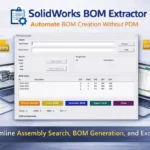

The SolidWorks BOM Extractor Tool is a lightweight CAD automation utility designed to help engineers quickly extract assembly Bills of Materials (BOMs), verify manufacturing file availability, and export structured BOM reports without requiring a Product Data Management (PDM) system.
In many engineering environments, generating BOM data from assemblies can still be a repetitive manual process. Engineers often need to search through folders, open assemblies, inspect child components, verify drawing files, and manually compile BOM information into Excel spreadsheets. These tasks consume valuable engineering time and increase the risk of missing documentation.
The Tech Thinker’s SolidWorks BOM Extractor Tool simplifies this workflow by automating several key steps. By allowing engineers to search assemblies by ID, verify related file availability, and automatically extract assembly components, the tool enables faster and more reliable BOM generation for engineering teams working in folder-based SolidWorks environments.
What Is the SolidWorks BOM Extractor Tool
The SolidWorks BOM Extractor Tool is a CAD automation utility built using the SolidWorks API. It helps engineers automate the extraction of component lists from assemblies and verify associated manufacturing files.
Instead of manually opening assemblies and compiling BOM data, engineers can use the tool to quickly generate structured BOM lists with only a few steps.
The tool is particularly useful for organizations that manage SolidWorks data through traditional folder structures rather than full PDM systems.
Key capabilities include:
• Searching assemblies using a part or assembly ID, Name
• Verifying the presence of related documentation files
• Extracting assembly child components automatically
• Generating structured BOM lists
• Exporting BOM reports to Excel
By combining file verification and assembly structure extraction, the tool provides a practical workflow solution for engineers working in real-world production environments.
Engineering Problem This Tool Solves
In many design and manufacturing companies, the process of generating a BOM involves multiple manual steps.
A typical manual workflow may include:
| Task | Manual Method |
|---|---|
| Locate assembly | Search through folders |
| Open assembly | Launch SolidWorks |
| Identify components | Expand assembly tree |
| Check drawings | Manually inspect file locations |
| Verify DXF files | Search for manufacturing files |
| Create BOM | Manually compile data in Excel |
For assemblies containing dozens or even hundreds of components, this workflow can take significant time and effort.
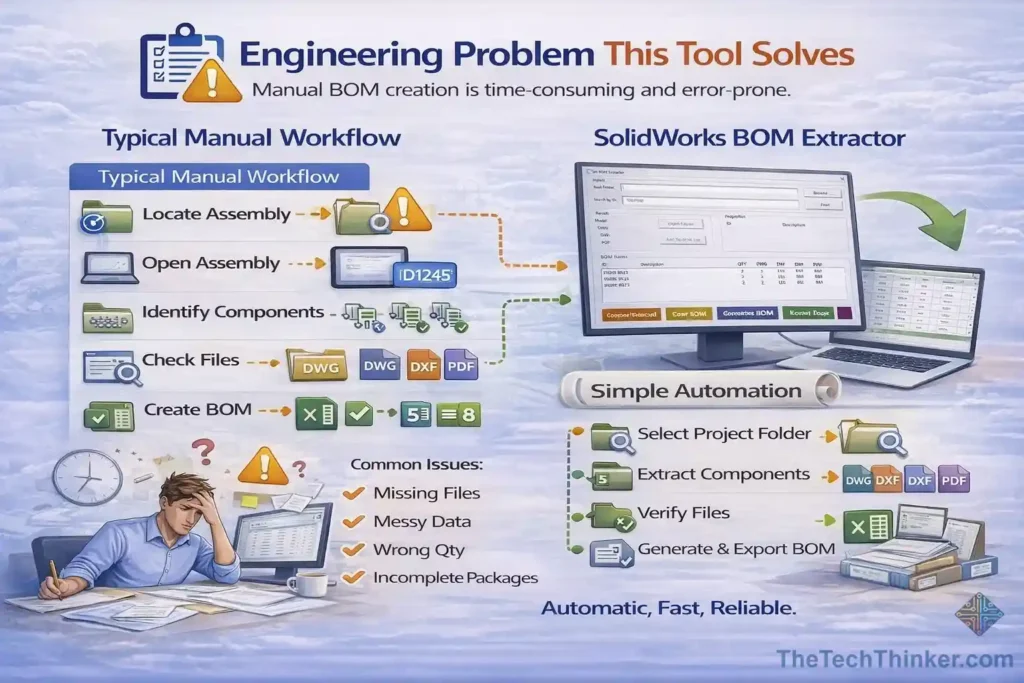
Manual BOM creation also introduces potential problems such as:
• missing documentation files
• inconsistent component naming
• incorrect quantity information
• incomplete manufacturing packages
The SolidWorks BOM Extractor Tool addresses these issues by automating the most repetitive parts of the process, allowing engineers to focus more on design and less on manual data compilation.
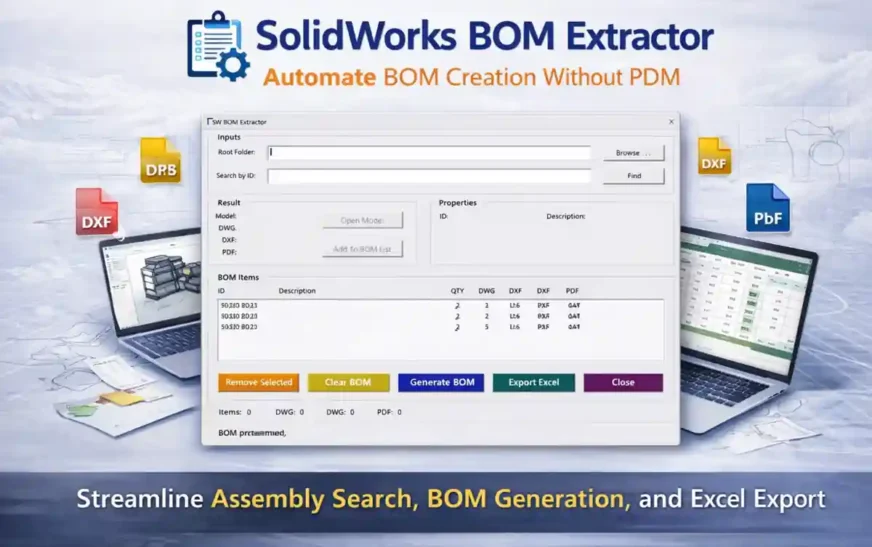
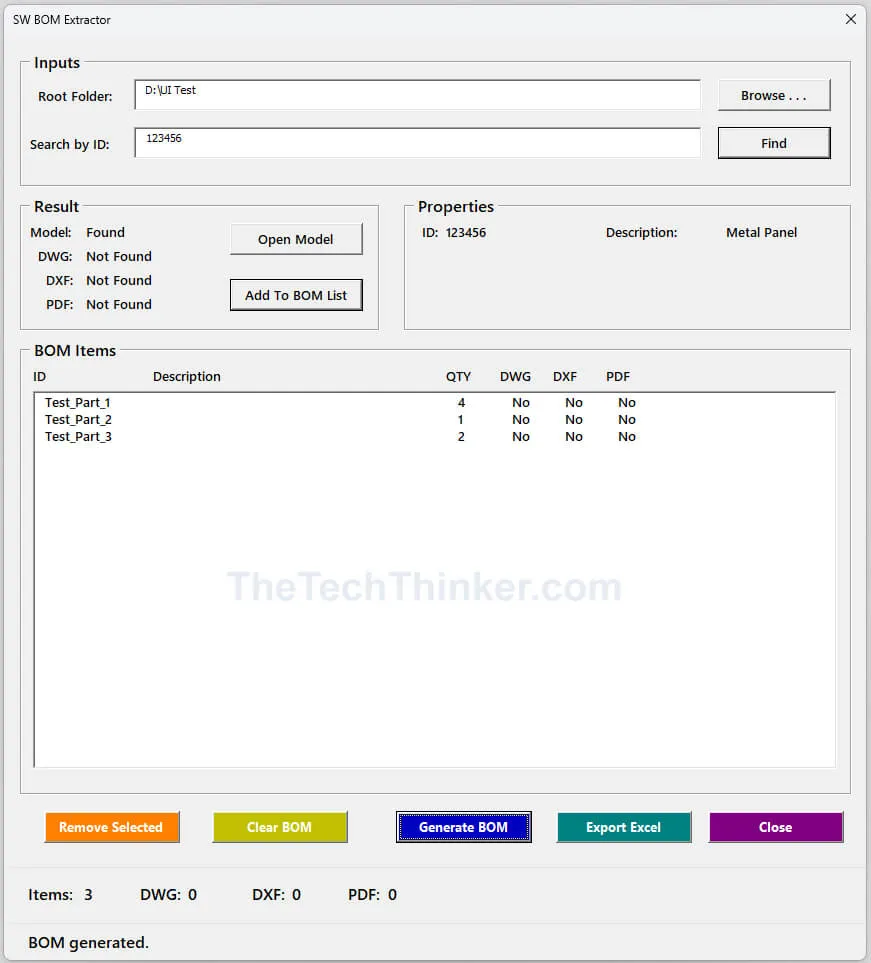
Tool Interface Overview
The tool provides a simple and practical interface designed specifically for engineering workflows.
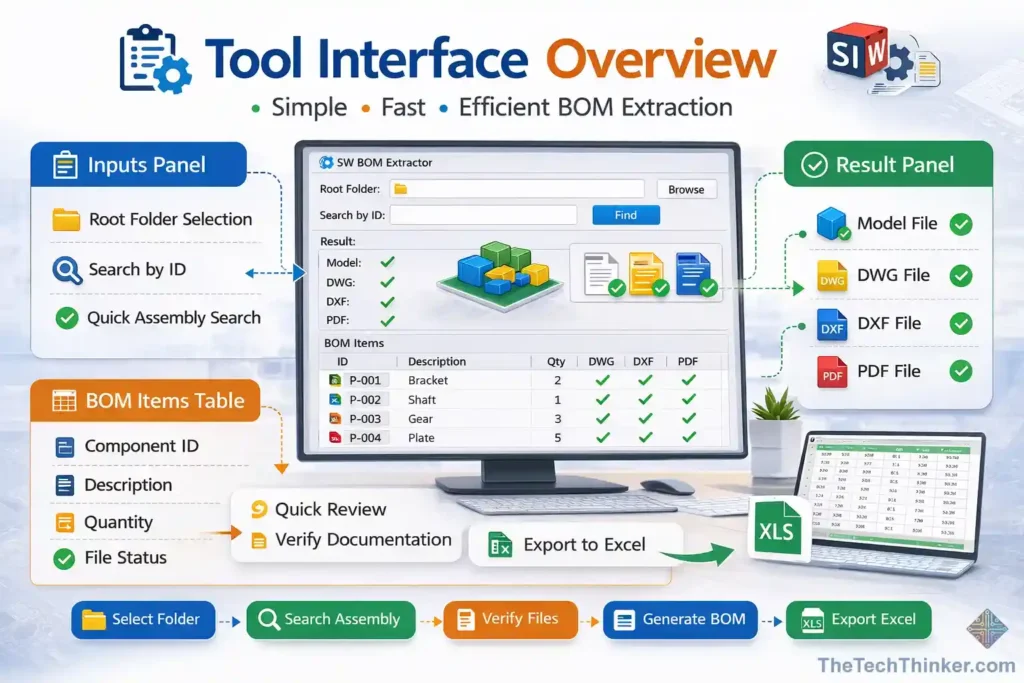
The interface consists of three main sections:
- Inputs Panel
- Result Panel
- BOM Items Table
Each section supports a specific stage of the BOM extraction process.
Inputs Panel
The Inputs Panel allows users to define the location of SolidWorks files and search for assemblies.
Main functions include:
Root Folder Selection
Users can select the folder containing SolidWorks models and assemblies.
Search by ID
Engineers can quickly locate an assembly by entering a part or assembly ID.
This feature is particularly useful in organizations where file naming conventions follow structured part numbering systems.
Result Panel
The Result Panel displays the availability of files associated with the selected assembly.
The tool verifies the presence of several important file types:
Model file
DWG drawing file
DXF manufacturing file
PDF documentation
By checking the availability of these files, the tool helps engineers ensure that all required manufacturing documentation exists before generating a BOM.
This verification step can help reduce production delays caused by missing files.
BOM Items Table
Once an assembly is selected and processed, the extracted components are displayed in the BOM Items table.
Typical columns include:
| Column | Description |
|---|---|
| ID | Component identifier |
| Description | Component name or description |
| QTY | Quantity within the assembly |
| DWG | Drawing availability |
| DXF | Manufacturing file availability |
| Documentation file availability |
This structured table allows engineers to quickly review component information and verify documentation readiness before exporting the BOM.
Workflow of the SolidWorks BOM Extractor Tool
The workflow of the SolidWorks BOM Extractor Tool is designed to be straightforward and efficient.
The process typically involves the following steps.
Step 1 – Select Root Folder
The user begins by selecting the root directory containing the SolidWorks models and assemblies.
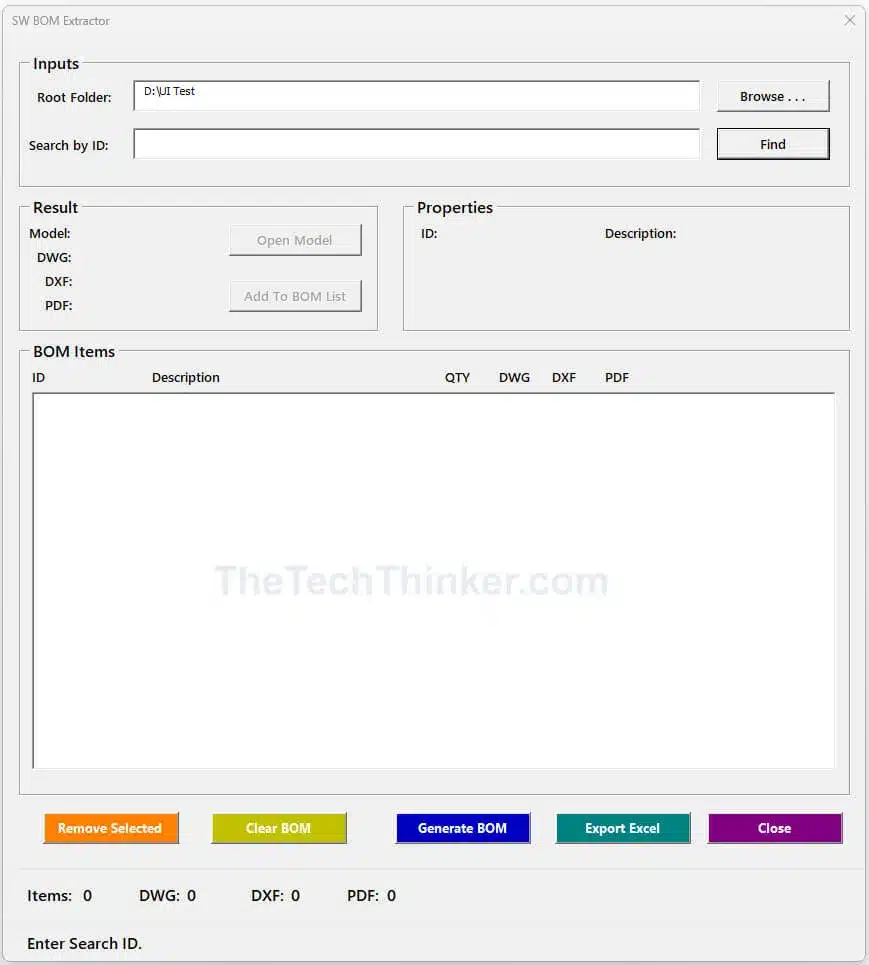
This folder serves as the search location for the tool when identifying assemblies and related files.
Step 2 – Search Assembly by ID
The engineer enters a part or assembly ID into the search field.
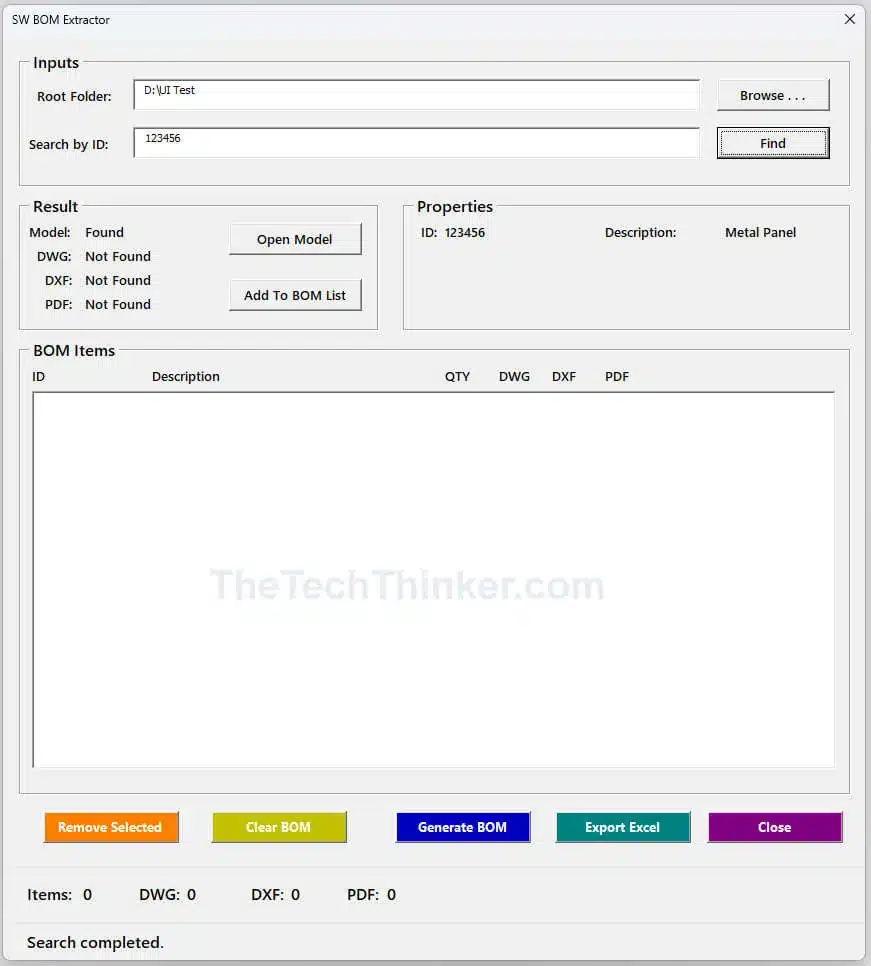
The tool scans the selected folder and identifies the corresponding assembly file.
Once located, the assembly can be inspected directly within the tool.
Step 3 – Add Assembly to BOM List
After confirming that the correct assembly has been found, the engineer can add the assembly to the BOM list.
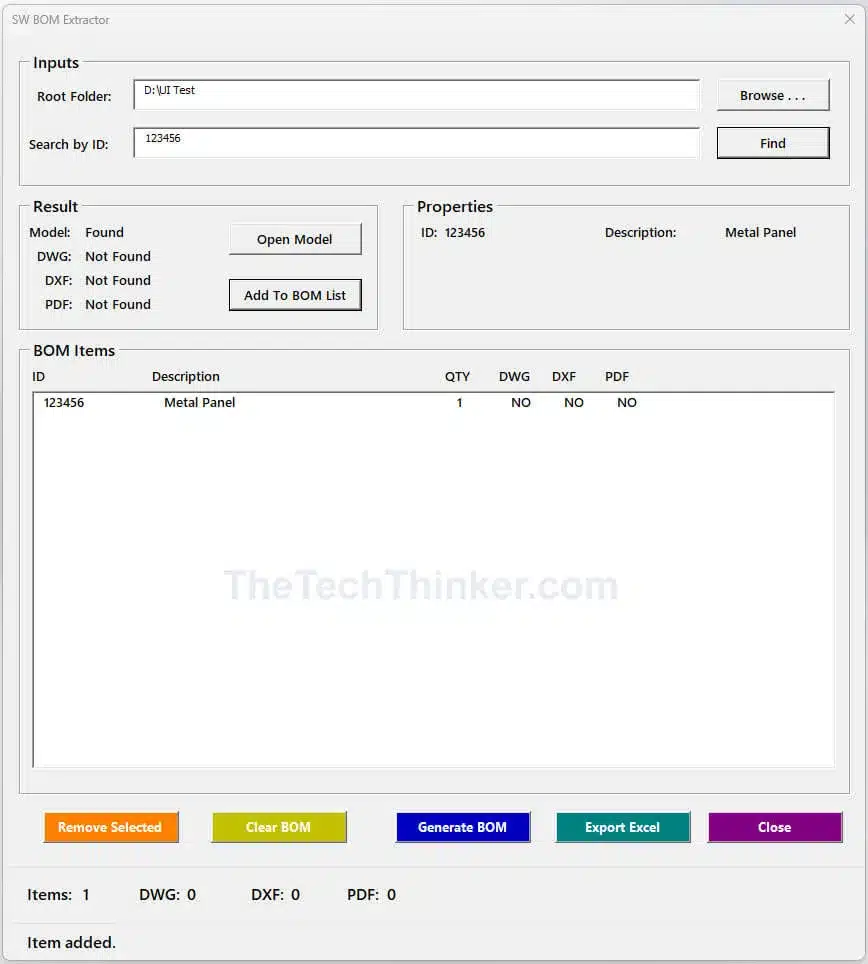
This allows multiple assemblies to be prepared for processing if needed.
Step 4 – Extract Assembly Components
When the user initiates the BOM extraction process, the tool reads the assembly structure using the SolidWorks API.
The tool automatically identifies:
• child components
• component quantities
• component references
This eliminates the need to manually inspect the assembly tree.
Step 5 – Generate BOM
Once the component structure has been read, the tool composes a structured BOM.
Each component is listed along with its associated information and file availability indicators.
Step 6 – Export BOM to Excel
Finally, the user can export the generated BOM to Excel.
The exported file can then be used for:
• manufacturing documentation
• procurement planning
• production preparation
• project tracking
Excel export ensures that the BOM can be easily shared with other departments.
Key Features of the SolidWorks BOM Extractor Tool
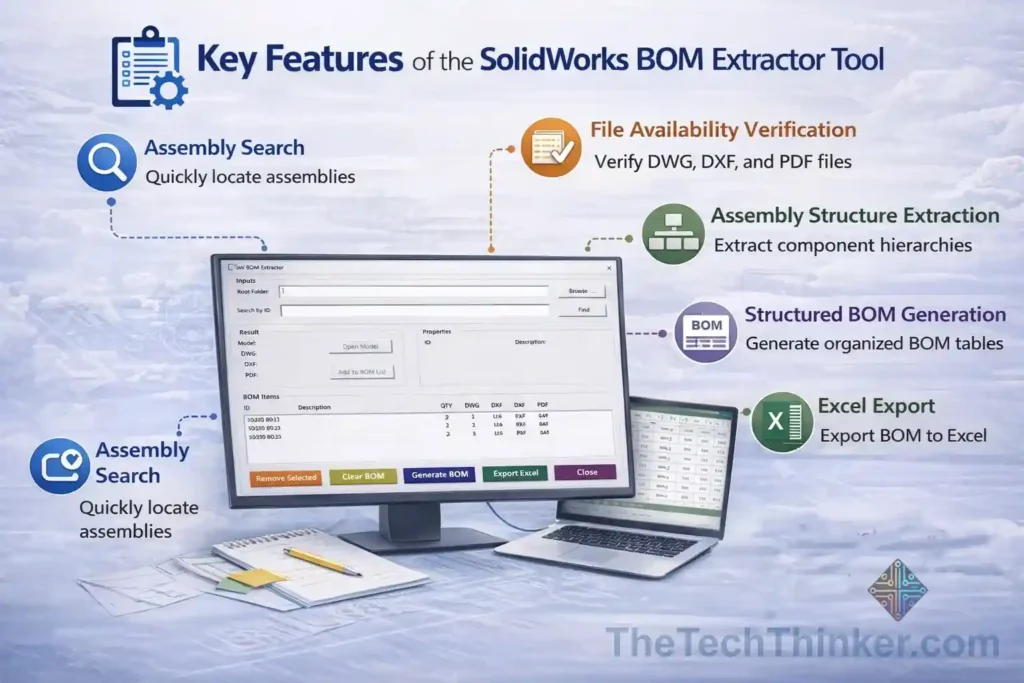
The SolidWorks BOM Extractor Tool provides several practical features designed to simplify engineering workflows.
Assembly Search
Engineers can quickly locate assemblies by entering part or assembly IDs.
This feature simplifies file navigation within large folder structures.
File Availability Verification
The tool automatically checks whether key documentation files are present.
These may include:
• DWG drawing files
• DXF manufacturing files
• PDF documentation
This helps engineers confirm that all required files exist before releasing assemblies for manufacturing.
Assembly Structure Extraction
Using the SolidWorks API, the tool reads assembly structures and identifies child components automatically.
This eliminates the need to manually inspect component hierarchies.
Structured BOM Generation
The tool generates organized BOM tables that display component data in a clear and structured format.
Engineers can easily review quantities, component IDs, and documentation status.
Excel Export
The tool supports exporting BOM data directly to Excel.
Excel export enables easy sharing of BOM data with:
• manufacturing teams
• procurement departments
• project managers
Benefits for Engineering Teams using SolidWorks BOM Extractor Tool
The SolidWorks BOM Extractor Tool provides several practical benefits for engineering teams.

These benefits include:
• reducing repetitive engineering tasks
• accelerating BOM generation
• improving documentation visibility
• helping verify manufacturing readiness
• simplifying collaboration between design and production teams
• supporting organizations without full PDM systems
For teams managing CAD files through folder-based structures, automation tools like this can significantly improve workflow efficiency.
Example Engineering Workflow
Consider an engineering team preparing a machine assembly for production.
Without automation, the engineer must manually inspect the assembly, identify all components, verify associated files, and compile a BOM.
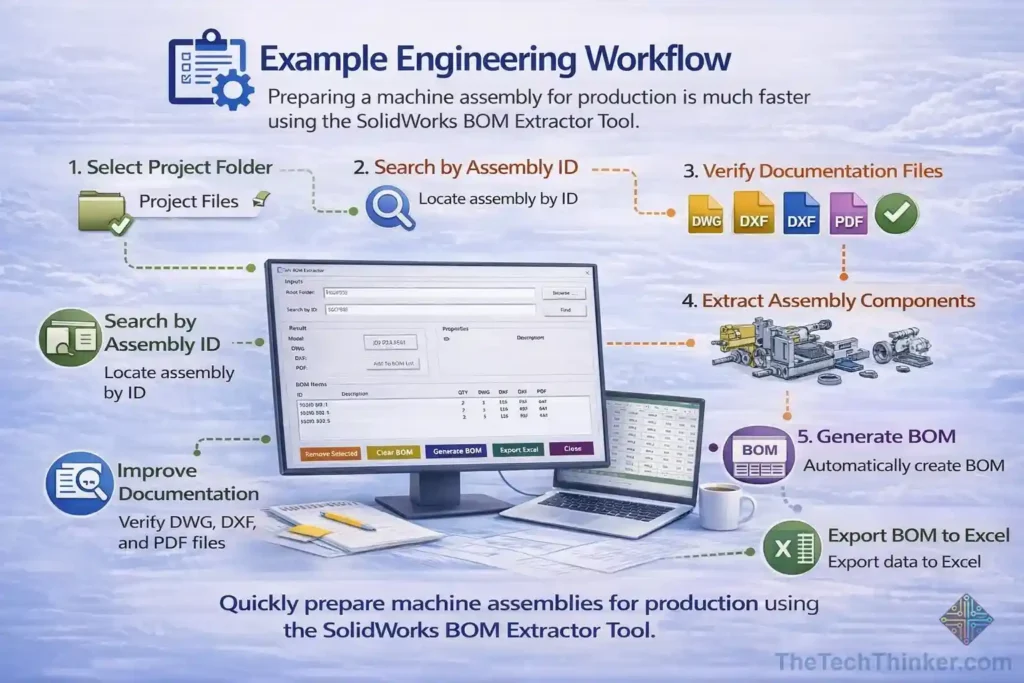
Using the SolidWorks BOM Extractor Tool, the workflow becomes much simpler:
-
Select the project folder
-
Search for the assembly using its ID
-
Verify the availability of DWG, DXF, and PDF files
-
Extract the assembly components
-
Generate the BOM
-
Export the BOM to Excel
This process can reduce BOM generation time from several minutes to just a few seconds.
Why Lightweight CAD Automation Tools Matter
Not every organization uses advanced Product Data Management systems.
Many companies continue to manage CAD files through folder-based structures due to:
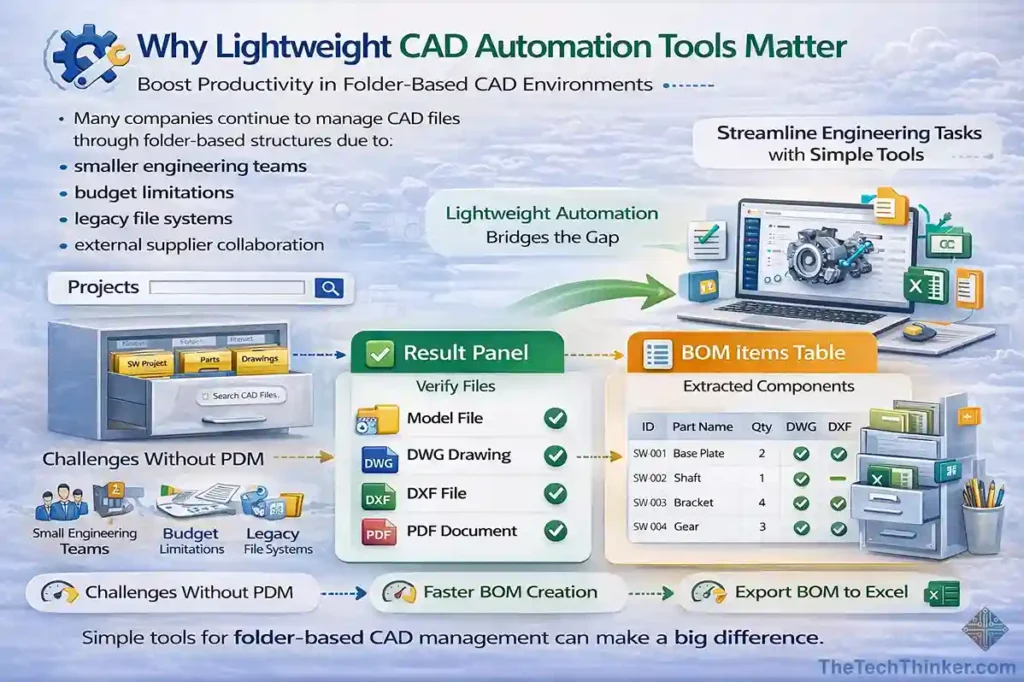
• smaller engineering teams
• budget limitations
• legacy file systems
• external supplier collaboration
In these environments, lightweight automation tools can significantly improve productivity.
The SolidWorks API provides engineers with the ability to build custom automation utilities that streamline repetitive workflows.
Tools like the SolidWorks BOM Extractor Tool demonstrate how simple automation solutions can provide meaningful productivity improvements without requiring complex infrastructure.
Future Improvements
While the current version of the SolidWorks BOM Extractor Tool already simplifies BOM generation, several potential enhancements could further expand its capabilities.
Possible future improvements include:
• hierarchical BOM visualization
• missing file highlighting
• batch processing of multiple assemblies
• automatic export of DXF and PDF files
• integration with PDM systems
These features could provide even greater automation and workflow efficiency.
About the Developer
This tool is part of a collection of engineering automation tools by Ramu Gopal shared through The Tech Thinker, a platform focused on CAD automation, engineering productivity, and workflow optimization.
The platform explores how tools built using technologies such as the SolidWorks API can help engineers simplify repetitive tasks and improve design workflows.
Automation tools, workflow guides, and technical insights are shared to support engineers working in real-world design and manufacturing environments.
SolidWorks BOM Extractor Tool: Automate BOM Without PDM

SolidWorks BOM Extractor Tool helps engineers extract BOMs, verify DWG/DXF/PDF availability, and export structured BOM without requiring PDM.
Price Currency: USD
Operating System: Windows
Application Category: EngineeringApplication
Pros
- Automates assembly BOM extraction
- Works without requiring PDM
- Verifies DWG, DXF, and PDF availability
- Exports BOM data directly to Excel
- Supports folder-based engineering workflows
- Reduces repetitive manual BOM tasks
- Simple interface for engineering teams
Cons
- Best suited for folder-based workflows
- Advanced PDM integration is not included
- Feature scope depends on project-specific implementation
FAQ on SolidWorks BOM Extractor Tool
1. What is the SolidWorks BOM Extractor Tool?
The SolidWorks BOM Extractor Tool is a CAD automation utility that automatically extracts Bill of Materials (BOM) data from SolidWorks assemblies and exports the component information to Excel. It helps engineers generate BOM reports without manually creating BOM tables inside SolidWorks drawings.
2. Why use a SolidWorks BOM Extractor instead of the built-in BOM table?
The built-in BOM table in SolidWorks typically requires a drawing file. A BOM extractor tool allows engineers to generate BOM data directly from assemblies without creating drawings, which saves time and simplifies workflows for teams without PDM systems.
3. Can the SolidWorks BOM Extractor work without SolidWorks PDM?
Yes. The SolidWorks BOM Extractor Tool is designed for environments that do not use Product Data Management (PDM). It scans folders, locates assemblies, and extracts component data directly from model files.
4. What information does the SolidWorks BOM Extractor Tool extract?
The tool can extract several key BOM attributes including:
• Component ID
• Part name
• Quantity
• Description
• Drawing availability
• DXF availability
• PDF availability
These fields help engineers track documentation and manufacturing readiness.
5. Can the SolidWorks BOM Extractor export BOM data to Excel?
Yes. One of the main features of the SolidWorks BOM Extractor Tool is exporting the generated Bill of Materials directly to Excel, enabling engineers to review, share, and edit BOM information outside SolidWorks.
6. How does the Search by ID feature work in the BOM Extractor Tool?
The Search by ID feature allows users to locate a specific part or assembly using a component ID. The tool scans the selected root folder and identifies the corresponding SolidWorks model file.
7. Can the SolidWorks BOM Extractor verify drawing and DXF files?
Yes. The tool can check whether associated files such as DWG, DXF, or PDF drawings exist for each component. This helps ensure that manufacturing documentation is complete.
8. What types of SolidWorks files can the BOM Extractor analyze?
The tool typically works with:
• Part files (.SLDPRT)
• Assembly files (.SLDASM)
These files are scanned to extract component information for the BOM list.
9. How does the BOM generation process work in the tool?
The workflow generally follows these steps:
-
Select root folder
-
Search assembly or component by ID
-
Verify related files
-
Add components to BOM list
-
Generate BOM
-
Export BOM to Excel
This structured process allows engineers to quickly produce BOM reports.
10. Who developed the SolidWorks BOM Extractor Tool?
The SolidWorks BOM Extractor Tool was developed by Ramu Gopal, a mechanical design engineer specializing in CAD automation and SolidWorks API tools, as part of engineering workflow optimization initiatives.
11. What problems does the SolidWorks BOM Extractor solve for engineers?
The tool helps engineers solve several common problems:
• Manual BOM creation
• Missing documentation files
• Time-consuming assembly inspection
• Lack of PDM systems
• Difficulty tracking component documentation
12. Can small engineering teams benefit from a BOM extractor tool?
Yes. Small design teams and companies without advanced PLM or PDM systems can benefit significantly from a BOM extractor tool because it provides automated BOM generation with minimal infrastructure.
13. Is the SolidWorks BOM Extractor Tool suitable for manufacturing workflows?
Yes. By verifying documentation files and generating structured BOM lists, the tool supports manufacturing workflows such as procurement planning, documentation verification, and production preparation.
14. Does the SolidWorks BOM Extractor require programming knowledge to use?
No. The tool is designed with a graphical interface so engineers can select folders, search models, generate BOM lists, and export results without needing programming knowledge.
15. How can engineers improve productivity using a SolidWorks BOM Extractor Tool?
Engineers can significantly improve productivity by automating repetitive tasks such as assembly inspection, BOM creation, and documentation verification. This reduces manual effort and speeds up engineering reporting workflows.
Related Articles:
- SolidWorks Automation
- SolidWorks Drawing BOM Availability
- CAD Automation
- SolidWorks API Functions
- SolidWorks Custom Properties Manager
External References: