

Introduction: Why DriveWorks SOLIDWORKS Automation Is Often Misunderstood
DriveWorks SOLIDWORKS automation is frequently discussed in engineering teams whenever the topic of design automation comes up. Some see it as a magic tool that removes repetitive work. Others dismiss it as a limited configurator that cannot handle real engineering logic. Both views are incomplete.
The truth is more nuanced.
Automation inside SolidWorks is not a single concept. It spans a wide spectrum—from simple parameter updates to full-scale product configuration, and from rule-based generation to deep API-driven engineering intelligence. DriveWorks occupies a very specific and intentional position within this spectrum.
This article explains DriveWorks SOLIDWORKS automation as it is actually used in real engineering environments, not how it is marketed. If you are an engineer, CAD administrator, automation lead, or technical manager trying to decide whether DriveWorks is worth the investment—or whether custom SOLIDWORKS API automation is unavoidable—this guide is written for you.
What Is DriveWorks SOLIDWORKS Automation?

At its core, DriveWorks is a rules-based design automation and product configurator platform built specifically for SOLIDWORKS. Its primary goal is to automatically create SOLIDWORKS parts, assemblies, and drawings using predefined rules and logic instead of manual modeling.
In practical engineering terms, DriveWorks works like this:
A user provides inputs → rules evaluate those inputs → SOLIDWORKS files are generated automatically.
DriveWorks does not replace SOLIDWORKS. It does not redesign geometry on its own. Instead, it controls how SOLIDWORKS behaves when generating new designs based on structured logic.
This distinction matters because DriveWorks automation is deterministic. Given the same inputs and the same rules, it will always produce the same outputs. That predictability is both its greatest strength and its primary limitation.
Design Automation for SOLIDWORKS: The Specific Problem DriveWorks Solves
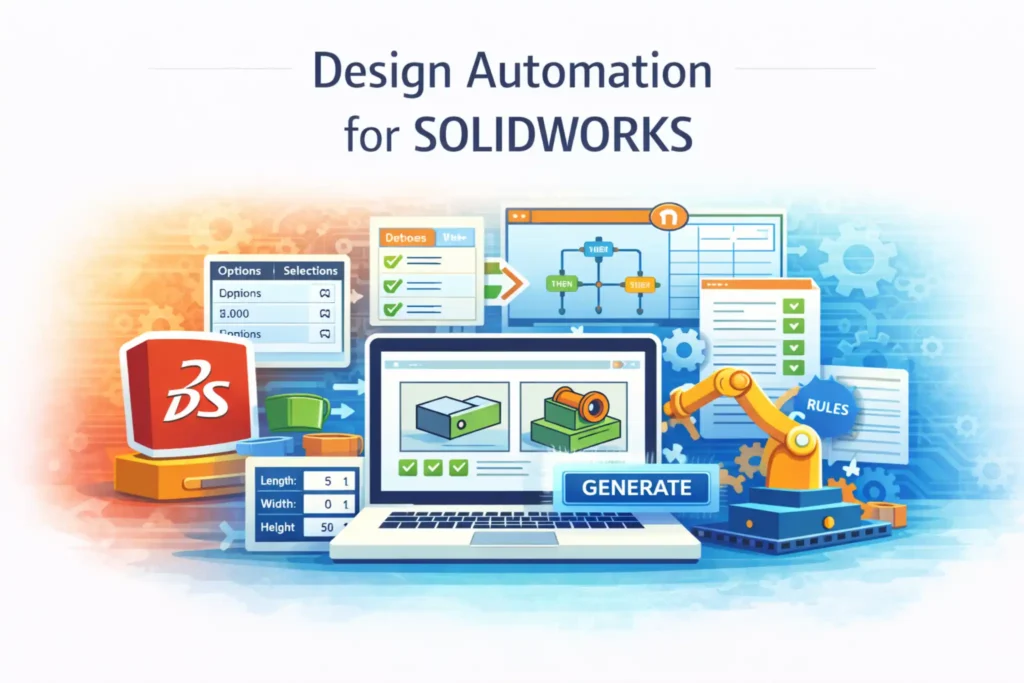
DriveWorks SOLIDWORKS automation is designed to solve repetitive design creation, not engineering validation.
In many manufacturing companies, engineers spend a significant portion of their time doing the following:
-
Modifying similar models repeatedly
-
Updating dimensions based on customer requirements
-
Replacing components in standard assemblies
-
Creating near-identical drawings for different sizes or options
-
Exporting PDFs, DWGs, and DXFs manually
These tasks are not intellectually challenging, but they are time-consuming and error-prone. DriveWorks targets exactly this layer of work.
Problems DriveWorks Solves Well
-
Manual repetition in SOLIDWORKS modeling
-
Configuration errors caused by inconsistent edits
-
Slow turnaround from sales to engineering
-
Inconsistent drawing outputs across teams
Problems DriveWorks Does Not Solve
-
Engineering correctness validation
-
Drawing quality assurance
-
Sheet metal compliance checks
-
PDM governance and lifecycle enforcement
Understanding this boundary is essential before evaluating whether DriveWorks SOLIDWORKS automation is worth it.
How DriveWorks SOLIDWORKS Automation Works
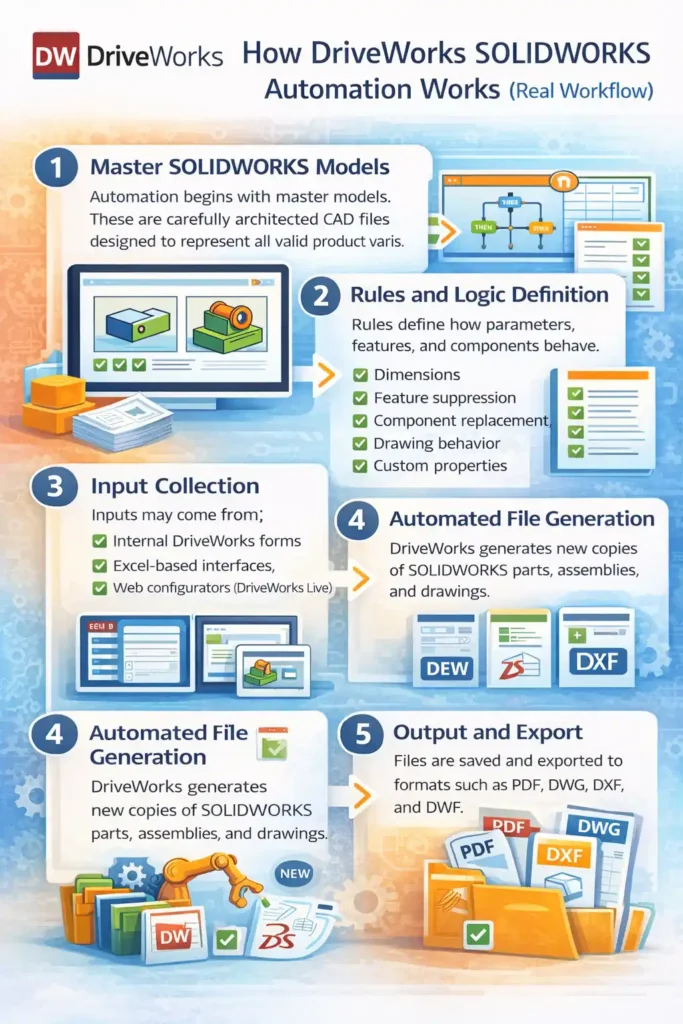
DriveWorks automation follows a structured, rule-driven workflow that mirrors disciplined engineering processes.
1. Master SOLIDWORKS Models
Automation begins with master models. These are not casual CAD files; they must be carefully architected to represent all valid product variations. Poor master models lead to fragile automation, regardless of the tool used.
2. Rules and Logic Definition
Rules define how parameters, features, and components behave. These rules can control:
-
Dimensions
-
Feature suppression
-
Component replacement
-
Drawing behavior
-
Custom properties
No VBA macros or API coding is required, but logical discipline is mandatory.
3. Input Collection
Inputs may come from:
-
Internal DriveWorks forms
-
Excel-based interfaces
-
Web configurators (DriveWorks Live)
This is where DriveWorks integrates well with sales-driven workflows.
4. Automated File Generation
DriveWorks generates new copies of SOLIDWORKS parts, assemblies, and drawings. Master files remain untouched.
5. Output and Export
Files are saved according to predefined rules and can be automatically exported to formats such as PDF, DWG, DXF, and DWF.
Eliminating Errors with DriveWorks SOLIDWORKS Automation
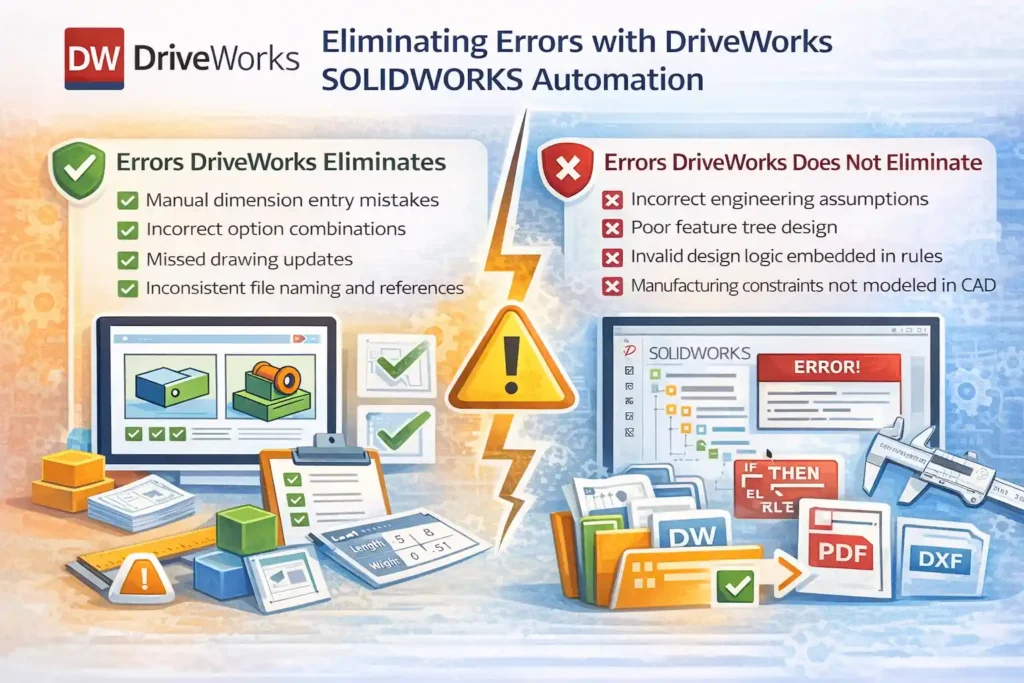
One of the most common claims about DriveWorks SOLIDWORKS automation is that it “eliminates VBA errors.” This statement is true—but only when properly understood.
Errors DriveWorks Eliminates
-
Manual dimension entry mistakes
-
Incorrect option combinations
-
Missed drawing updates
-
Inconsistent file naming and references
Because rules drive the process, engineers are not repeatedly making the same edits under time pressure.
Errors DriveWorks Does Not Eliminate
-
Incorrect engineering assumptions
-
Poor feature tree design
-
Invalid design logic embedded in rules
-
Manufacturing constraints not modeled in CAD
DriveWorks removes human repetition errors, not engineering responsibility. If a rule is wrong, automation will faithfully reproduce the wrong result—faster and at scale.
Saving Time with DriveWorks SOLIDWORKS Automation
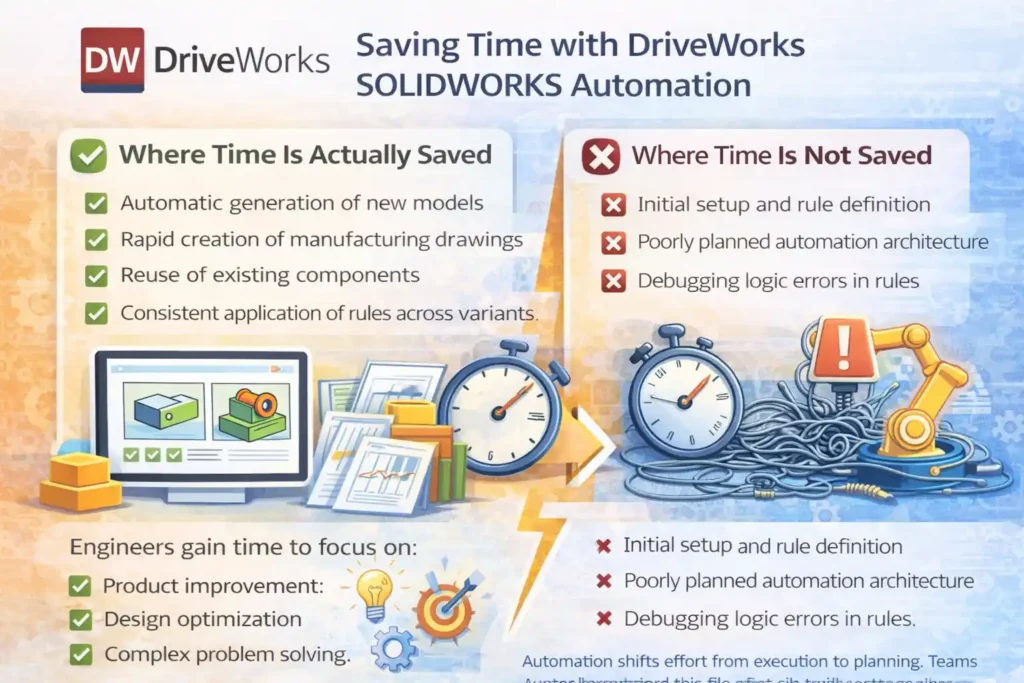
Time savings are real when DriveWorks is used in the right context.
Where Time Is Actually Saved
-
Automatic generation of new models
-
Rapid creation of manufacturing drawings
-
Reuse of existing components
-
Consistent application of rules across variants
Engineers gain time to focus on:
-
Product improvement
-
Design optimization
-
Complex problem solving
Where Time Is Not Saved
-
Initial setup and rule definition
-
Poorly planned automation architecture
-
Debugging logic errors in rules
Automation shifts effort from execution to planning. Teams that underestimate this shift often struggle in the early stages.
“No Code” Does Not Mean “No Engineering”
DriveWorks SOLIDWORKS automation is often described as “no code,” and technically that is correct. There are no VBA macros, no design tables, and no API calls.
However, this does not mean automation is simple.
Engineers still need to:
-
Understand dependencies
-
Manage configurations
-
Design robust logic
-
Anticipate edge cases
DriveWorks removes syntax complexity, not engineering complexity. This is why DriveWorks projects succeed or fail based on engineering maturity, not software features.
Advanced SOLIDWORKS Drawing Automation with DriveWorks
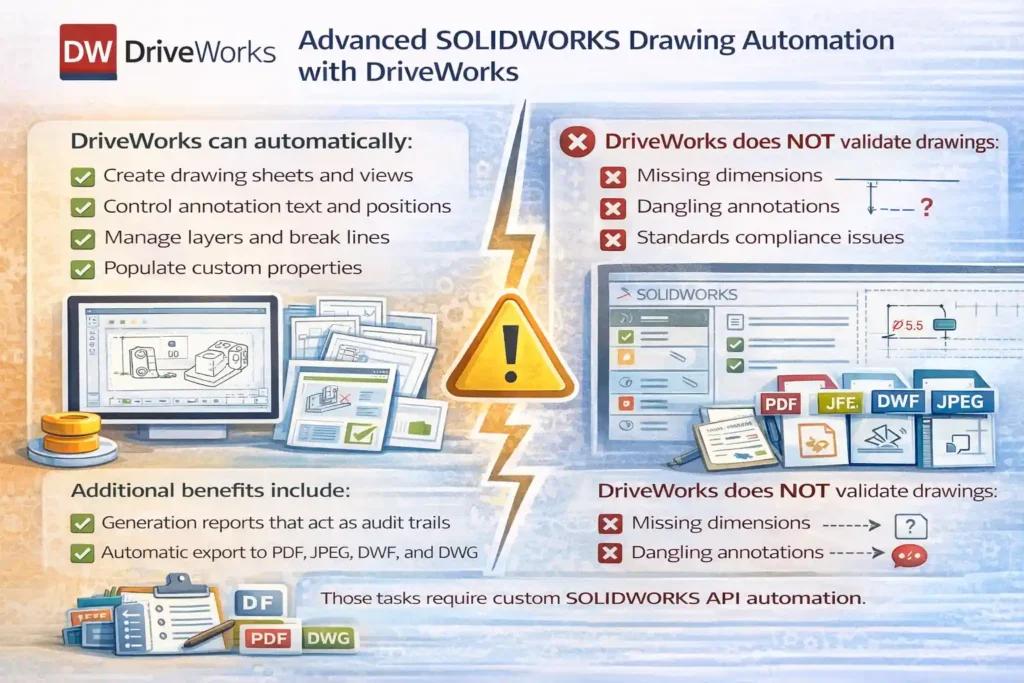
Drawing automation is one of DriveWorks’ strongest capabilities.
DriveWorks can automatically:
-
Create drawing sheets and views
-
Control annotation text and positions
-
Manage layers and break lines
-
Populate custom properties
Additional benefits include:
-
Generation reports that act as audit trails
-
Automatic export to PDF, JPEG, DWF, and DWG
This significantly improves drawing consistency and turnaround time.
However, DriveWorks does not validate drawings. It does not check for:
-
Missing dimensions
-
Dangling annotations
-
Standards compliance issues
Those tasks require custom SOLIDWORKS API automation.
Master SOLIDWORKS Files: Why DriveWorks’ Architecture Is Safe
DriveWorks uses a copy-based generation model, which is one of its most important architectural strengths.
Key Characteristics
-
Master files are never overwritten
-
Generated files are saved to new locations
-
References remain consistent
-
Risk of data corruption is minimized
This approach makes DriveWorks suitable for large-scale automation without compromising data integrity.
Replacement Components and Modular Assembly Automation
DriveWorks SOLIDWORKS automation supports both:
-
Static component replacement
-
Dynamic, rule-driven replacements
This allows:
-
Unlimited configuration combinations
-
Simplified master assemblies
-
Easy expansion of product options
For modular product families, this capability is essential.
Intelligent Component Reuse and File Management
DriveWorks can intelligently decide whether to:
-
Create a new SOLIDWORKS file
-
Reuse an existing one
Benefits include:
-
Faster generation times
-
Reduced file duplication
-
Controlled propagation of design changes
Over time, this enables the creation of a structured component library that improves efficiency across projects.
Generation Tasks: Controlled Automation Execution
DriveWorks includes more than 30 generation tasks that control how models and drawings are created.
These tasks allow:
-
Granular control of automation steps
-
Looping logic for generative modeling
-
Structured execution order
This makes DriveWorks more than a configurator—it becomes a controlled automation workflow engine.
DriveWorks SOLIDWORKS Automation vs SOLIDWORKS API Automation
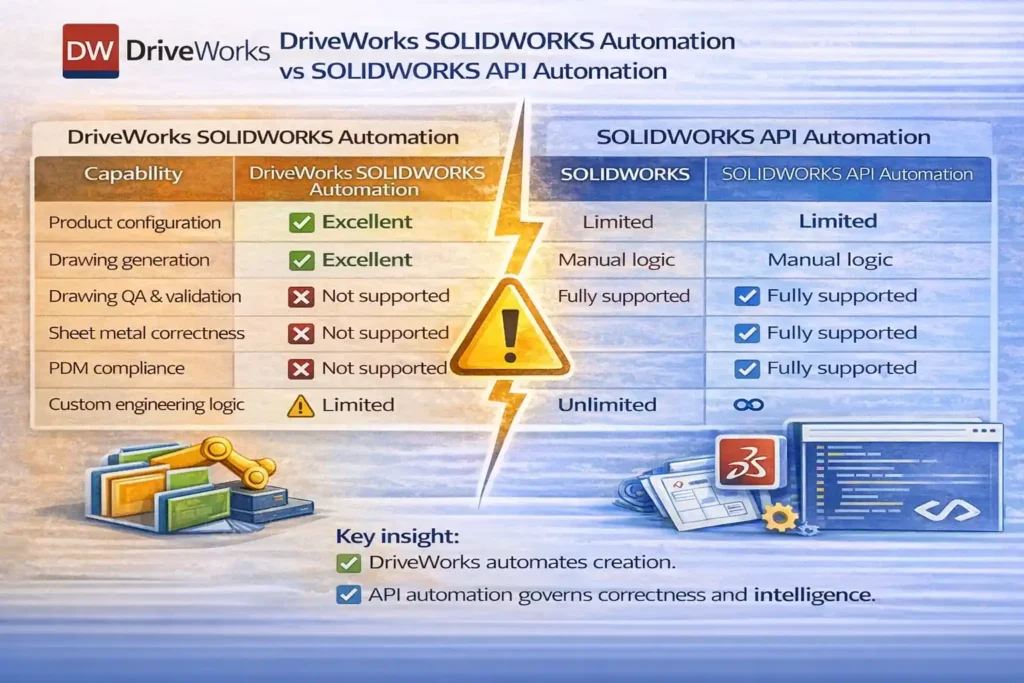
This comparison determines whether DriveWorks is sufficient or whether custom automation is unavoidable.
| Capability | DriveWorks SOLIDWORKS Automation | SOLIDWORKS API Automation |
|---|---|---|
| Product configuration | Excellent | Limited |
| Drawing generation | Excellent | Manual logic |
| Drawing QA & validation | Not supported | Fully supported |
| Sheet metal correctness | Not supported | Fully supported |
| PDM compliance | Not supported | Fully supported |
| Custom engineering logic | Limited | Unlimited |
Key insight:
DriveWorks automates creation.
API automation governs correctness and intelligence.
When DriveWorks SOLIDWORKS Automation Is Worth It
DriveWorks is worth the investment when:
-
Products are configurable and rule-driven
-
Speed and consistency are critical
-
Sales-to-engineering automation is required
-
Programming resources are limited
In these cases, DriveWorks delivers measurable ROI.
When DriveWorks Is Not Enough
DriveWorks is not suitable when:
-
Engineering validation is required
-
Drawing comparison and QA are critical
-
Sheet metal accuracy must be verified
-
Compliance and governance are mandatory
These scenarios require custom SOLIDWORKS API automation.
Career Perspective: Should Engineers Learn DriveWorks?
From a career standpoint:
-
DriveWorks is a valuable tool skill
-
SOLIDWORKS API knowledge is a systems skill
Engineers focused on automation leadership benefit from understanding both—but long-term authority comes from mastering the underlying system, not just the tool.
DriveWorks SolidWorks Automation Learning Path
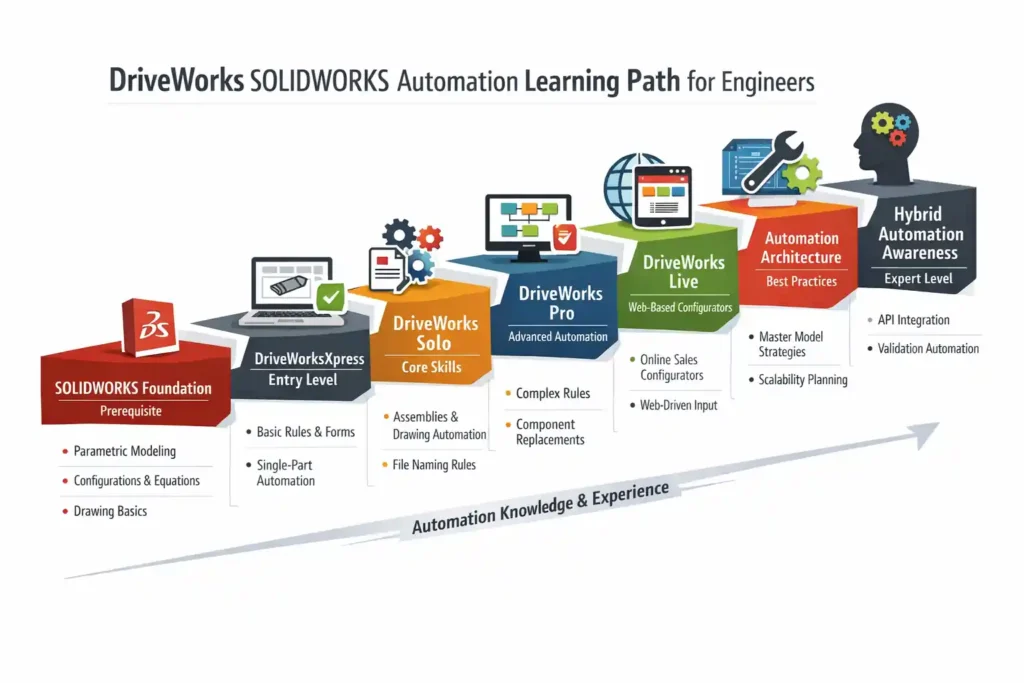
1️⃣ SOLIDWORKS Foundation (Prerequisite)
-
Parametric modeling
-
Feature hierarchy discipline
-
Configurations & equations
-
Drawing basics (views, annotations, properties)
Without strong SOLIDWORKS fundamentals, DriveWorks automation will fail.
2️⃣ DriveWorksXpress (Entry Level)
-
Understand rule-based automation
-
Simple dimension control
-
Basic forms
-
Single-part automation
Goal:
Learn how DriveWorks thinks (logic over geometry)
3️⃣ DriveWorks Solo (Core Skills)
-
Multi-part automation
-
Assembly control
-
Basic drawing automation
-
File naming & save rules
-
Introduction to Generation Tasks
Goal:
Automate real engineering work, not demos
4️⃣ DriveWorks Pro (Advanced Desktop Automation)
-
Complex rule logic
-
Component replacement strategies
-
Reuse vs create logic
-
Advanced drawing control
-
Generation reports & audit trails
Goal:
Build stable, production-ready configurators
5️⃣ DriveWorks Live (Web-Based Automation)
-
Web forms for sales/engineering
-
Online configurators
-
Controlled input validation
-
Automated output delivery
Goal:
Connect sales → engineering → manufacturing
6️⃣ Automation Architecture & Best Practices (Expert Level)
-
Master model design strategies
-
Automation failure modes
-
Rule maintainability
-
Scalability planning
-
Integration thinking (PDM, ERP, QA tools)
Goal:
Avoid fragile automation and long-term technical debt
7️⃣ Hybrid Automation Awareness
-
Understand DriveWorks limits
-
Know when SOLIDWORKS API automation is required
-
Separate creation automation from verification automation
-
Design complementary systems
Goal:
Make correct tool decisions — not emotional ones
Final Verdict: Is DriveWorks SOLIDWORKS Automation Worth It or a Waste?
DriveWorks SOLIDWORKS automation is worth it when used for what it is designed to do: fast, reliable, rule-based design creation.
Conclusion: Automation Maturity Matters More Than Tools
DriveWorks is a strong and well-engineered design automation platform for SOLIDWORKS. But it is not a universal solution.
Successful automation depends on:
-
Clear architectural boundaries
-
Proper tool selection
-
Engineering discipline
DriveWorks automates creation.
Engineering automation governs truth.
Used correctly, DriveWorks accelerates design. Used incorrectly, it hides problems behind speed.
Related Posts
- SolidWorks Add-in
- SolidWorks VBA Macro Object Library
- SolidWorks VBA Macro
- Common SolidWorks VBA Errors
- Link Drawing Views to BOM in SolidWorks
External References
FAQs on DriveWorks SOLIDWORKS Automation
1. How does DriveWorks differ from traditional SOLIDWORKS macros?
DriveWorks focuses on rule-driven configuration and automated model creation, while macros are typically task-specific scripts written in VBA. Macros are better suited for custom checks and utilities, whereas DriveWorks is designed for scalable, repeatable product generation.
2. Can DriveWorks replace SOLIDWORKS API automation completely?
No. DriveWorks is excellent for configuration and design generation, but API automation is still required for validation, drawing comparison, quality checks, and advanced engineering logic that depends on model state or feature analysis.
3. Is DriveWorks suitable for complex engineering design logic?
DriveWorks works best when design rules are predictable and stable. For complex engineering logic involving conditional validation, feature interrogation, or cross-document checks, API-based automation provides greater flexibility and control.
4. How does DriveWorks help reduce design and engineering costs?
By automating repetitive modeling and drawing tasks, DriveWorks reduces manual effort, minimizes rework, and shortens turnaround time. These efficiencies directly translate into lower engineering costs per project.
5. Does DriveWorks improve overall workflow performance in SOLIDWORKS?
Yes, when implemented correctly. Automation reduces manual interaction, ensures consistent configurations, and speeds up design creation. However, poorly structured master models can negatively impact performance even with automation.
6. Can DriveWorks improve profitability for manufacturing companies?
DriveWorks improves profitability by enabling faster response to customer requirements, reducing engineering hours per order, and allowing teams to handle higher volumes without increasing headcount.
7. Is VBA still relevant if a company uses DriveWorks?
Absolutely. VBA remains useful for custom tools, batch processing, legacy workflows, and validation tasks that DriveWorks does not address. Many companies use both together.
8. How does DriveWorks handle configuration management?
DriveWorks controls configuration logic through rules, ensuring only valid combinations are generated. This reduces configuration errors and improves consistency across models, assemblies, and drawings.
9. What kind of automation skills increase an engineer’s salary?
Engineers who understand DriveWorks, VBA, and SOLIDWORKS API automation typically command higher salaries because they deliver measurable productivity gains and help companies reduce operational costs.
10. Is learning DriveWorks enough to build a career in automation?
DriveWorks is a strong tool skill, especially for configurable products. However, long-term automation careers benefit from deeper knowledge of SOLIDWORKS API, system architecture, and engineering validation logic.
11. Can DriveWorks reduce dependency on senior engineers?
DriveWorks reduces the need for senior engineers to perform repetitive work, but it does not replace their expertise. Senior engineers are still required to define rules, validate logic, and maintain automation quality.
12. How does DriveWorks impact design quality?
Design quality improves when automation enforces consistent rules and reduces manual errors. However, DriveWorks does not replace design reviews or engineering judgment, which remain critical.
13. Is DriveWorks a good investment for small engineering teams?
Yes, if the team handles repeatable or configurable products. Even small teams can see strong returns through time savings, reduced errors, and faster delivery.
14. Can DriveWorks be integrated with other automation tools?
DriveWorks can coexist with custom API tools, PDM systems, and external processes. Mature automation setups often use DriveWorks for creation and custom tools for verification and governance.
15. What are the biggest risks when implementing DriveWorks?
The biggest risks include poorly designed master models, undocumented rules, and unrealistic expectations. Successful implementations treat DriveWorks as an engineering system, not a shortcut.