
SolidWorks VBA Macro Object Library
When you write a macro in VBA for SolidWorks, you’re essentially telling the software,
“Hey SolidWorks, here’s what I want you to do.”
To make that possible, SolidWorks exposes a huge set of objects, methods, and properties called the API (Application Programming Interface) — and this is what you access via VBA.
Let’s break down how the SolidWorks Object Model works in VBA, and what objects you’ll use 90% of the time.
🧩 What is the SolidWorks VBA Object Library?
The SolidWorks VBA Object Library is a collection of predefined objects like:
-
Application (
SldWorks) -
Documents (
ModelDoc2,PartDoc,AssemblyDoc,DrawingDoc) -
Sketches (
SketchManager,SketchSegment) -
Features (
FeatureManager,Feature) -
Selections (
SelectionMgr) -
Views & Sheets
-
Export, Config, Dimension Objects
-
…and many more
You declare these objects in your VBA macro and then call methods/functions on them to control SolidWorks.
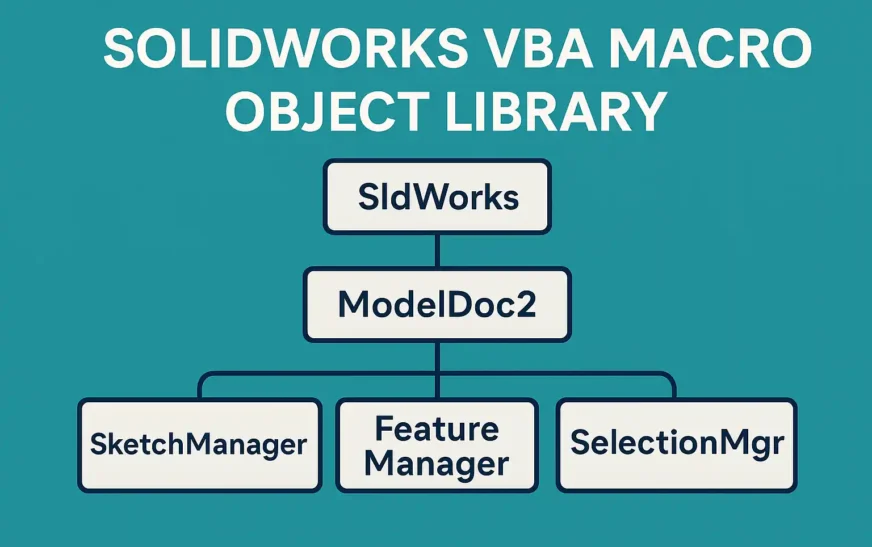
📘 Core Object Hierarchy (Object Model)
Here’s a simplified object hierarchy of a SolidWorks macro:
SldWorks (application)
│
├── ModelDoc2 (active document - part/asm/drw)
│   ├── SketchManager (to create sketches)
│   ├── FeatureManager (to add features)
│   ├── Extension (advanced functions: selection, property, etc.)
│   └── SelectionMgr (user selection context)
│
└── Documents (collection of open docs)
This means:
-
You start with
SldWorksto connect to the application. -
From there, you get the active document using
ActiveDoc. -
Then you dive deeper—like opening a sketch, drawing a circle, and making a feature.
🔑 Most Common Objects (with Purpose)
| Object | Description |
|---|---|
SldWorks |
Root object that controls the app (open, close, new doc) |
ModelDoc2 |
Base object for part, assembly, or drawing |
PartDoc, AssemblyDoc, DrawingDoc |
Type-specific document extensions |
SketchManager |
Used to draw geometry like lines, circles, rectangles |
FeatureManager |
Used to add features like extrudes, fillets |
SelectionMgr |
Handles selections made by user or program |
ModelDocExtension |
Advanced operations (e.g., custom props, selections) |
ConfigurationManager |
Handles configurations of the model |
🔁 Common Object Patterns You’ll Use Often
These are reusable code patterns that appear in almost every macro:
Set swApp = Application.SldWorks
Set swModel = swApp.ActiveDoc
Set swSketchMgr = swModel.SketchManager
Set swFeatMgr = swModel.FeatureManager
Set swSelMgr = swModel.SelectionManager
Set swExt = swModel.Extension
Each line sets up a different layer of control:
-
swAppconnects you to SolidWorks -
swModelgives access to the active file -
swSketchMgrlets you draw -
<strong>swFeatMgr</strong>lets you create extrudes, fillets, etc. -
<strong>swSelMgr</strong>helps you pick or filter selections -
swExtgives you access to advanced tools like renaming features, custom properties, and saving files
📌 Additional Object Layer Tips
-
ModelDoc2 is your base: You can typecast it to
PartDoc,AssemblyDoc, orDrawingDocas needed. -
Use
.Extensionfor extras: Custom properties, feature renaming, and advanced selections. -
Explore object methods: For example,
swModel.GetTitleorswSketchMgr.CreateLine(...)
🧠 You’re now using:
-
SketchManagerto draw -
FeatureManagerto extrude -
ModelDocExtensionto select planes
Set swApp = Application.SldWorks
Set swModel = swApp.NewDocument("C:\Path\Part.prtdot", 0, 0, 0)
swModel.Extension.SelectByID2 "Front Plane", "PLANE", 0, 0, 0, False, 0, Nothing, 0

Set swSketchMgr = swModel.SketchManager
swSketchMgr.InsertSketch True
swSketchMgr.CreateCircleByRadius 0, 0, 0, 0.05
swSketchMgr.InsertSketch True

Set swFeatMgr = swModel.FeatureManager
swFeatMgr.FeatureExtrusion2 True, False, False, 0, 0, 0.1, 0, False, False, False, False, _
    0, 0, False, False, False, False, True, True, True, 0, 0, False
🧪 Example: Real Macro Showing Object Flow
Dim swApp As SldWorks.SldWorks
Dim swModel As ModelDoc2
Dim swSketchMgr As SketchManager
Dim swFeatMgr As FeatureManager

Sub main()
    Set swApp = Application.SldWorks
    Set swModel = swApp.ActiveDoc

    ' Access sketch and feature managers
    Set swSketchMgr = swModel.SketchManager
    Set swFeatMgr = swModel.FeatureManager

    MsgBox "Using VBA Object Model Successfully!"
End Sub
This small macro:
-
Connects to SolidWorks
-
Accesses the open document
-
Loads the two most common managers: sketch and feature
🧠Tips
-
Use
swApp.ActiveDocto always get the currently open model. -
Always check if the doc is
Nothingto avoid errors. -
Use
ObjectBrowser(F2 in VBA Editor) to explore all SolidWorks API objects. -
Reference the SOLIDWORKS XX Type Library under Tools → References.
📚 Learn More:
Read Also:
Getting Started with SolidWorks VBA Macro: #1 Best Guide
Top 5 Reasons to Use VBA in SolidWorks for Smarter CAD Automation
How to Cut-Extrude from Sketch in SolidWorks using VBA macro?