

SolidWorks API Cheat Sheet 2026 is a practical reference for engineers who want to understand SolidWorks automation, API objects, VBA macros, features, drawings, assemblies, custom properties, BOMs, PDM, and CAD automation workflows.
Created by Ramu Gopal, this guide is designed for mechanical engineers, CAD automation learners, design engineers, CAD administrators, and automation developers who want a clear starting point for building reliable SolidWorks API workflows.
SolidWorks API is not only for writing small macros. It can become the foundation for structured engineering automation: reading CAD data, updating metadata, checking drawings, extracting BOMs, validating model features, and supporting release workflows.
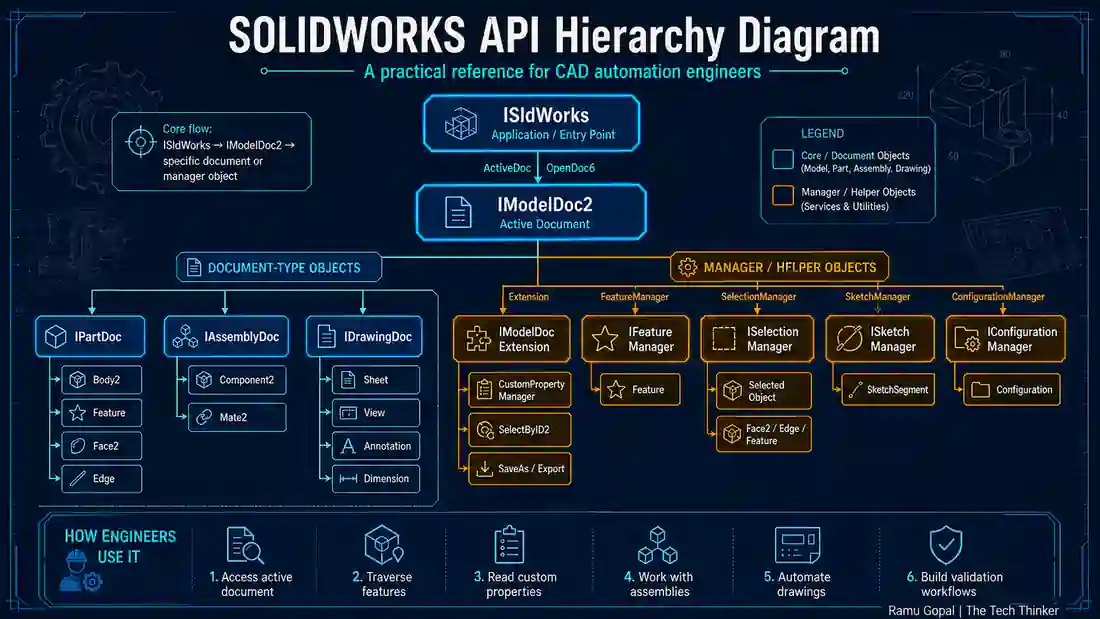
The official SOLIDWORKS API object model identifies ISldWorks as the top-level application object, with other API objects accessed from that hierarchy. That is why understanding the object structure is the first step before writing serious macros or automation tools.
Use this SolidWorks API Cheat Sheet 2026 as a daily reference when learning macros, building automation tools, or moving from one-click scripts toward validation-first CAD automation systems.
What Is SolidWorks API Cheat Sheet 2026?
The SolidWorks API Cheat Sheet 2026 is a universal quick-reference guide for engineers working with SolidWorks automation. It explains the most important API concepts in one place: object hierarchy, document types, VBA macro structure, features, assemblies, drawings, custom properties, BOM logic, and automation best practices.
A cheat sheet should not be limited to one use case. SolidWorks API can be used for many workflows, including:
- Part automation
- Assembly automation
- Drawing automation
- BOM extraction
- Custom property management
- Sheet metal checks
- Drawing export
- PDM-related workflows
- Engineering validation systems
The purpose of this guide is to help engineers understand the structure behind SolidWorks API instead of copying macros blindly.
Once the basic API flow is clear, it becomes easier to read examples, modify code, troubleshoot errors, and build tools that match real engineering needs.
The SolidWorks API Cheat Sheet 2026 is therefore useful for both beginners and intermediate users who want a structured foundation.
Why Engineers Need SolidWorks API in 2026
Engineering teams are expected to work faster, but speed alone is not enough. Design data must also be accurate, consistent, traceable, and ready for downstream use.
Many CAD tasks are repetitive:
- Updating file properties
- Exporting drawings
- Checking drawing sheets
- Reading assembly components
- Creating BOM reports
- Validating title blocks
- Preparing PDF, DXF, or DWG outputs
- Checking whether required metadata is available
When these tasks are done manually, small mistakes can easily enter the workflow. A missing revision, wrong material, incomplete description, or outdated drawing export can create confusion during manufacturing, procurement, or quality review.
SolidWorks API helps engineers automate these repeated actions. But the goal should not be only to “run faster.” The better goal is to build automation that checks, reports, and supports engineering decisions.
That is why the SolidWorks API Cheat Sheet 2026 is positioned as more than a macro reference. It is a foundation for CAD automation systems where engineering logic, API access, and validation thinking work together.
SolidWorks API Object Hierarchy Explained
The SolidWorks API object hierarchy is the most important concept for beginners. If you understand the hierarchy, macro examples become easier to read.
A simplified structure looks like this:
ISldWorks → ModelDoc2 → PartDoc / AssemblyDoc / DrawingDoc → Feature / SelectionMgr / CustomPropertyMgr
In this structure, ISldWorks represents the SolidWorks application. ModelDoc2 represents the active document. From that active document, the macro can work with parts, assemblies, drawings, features, selections, configurations, and properties.
The official SOLIDWORKS API Help documents IModelDoc2 members for working with model documents, including properties and methods used across part, assembly, and drawing workflows.
| API Level | Object | Purpose |
|---|---|---|
| Application | ISldWorks |
Connects to the SolidWorks application |
| Document | ModelDoc2 |
Represents the active document |
| Part | PartDoc |
Handles part-specific operations |
| Assembly | AssemblyDoc |
Handles components, mates, and assembly data |
| Drawing | DrawingDoc |
Handles sheets, views, annotations, and tables |
| Feature | Feature |
Represents extrudes, cuts, holes, bends, and patterns |
| Selection | SelectionMgr |
Works with selected entities |
| Properties | CustomPropertyMgr |
Reads and writes custom properties |
Many macro errors happen because the developer skips this structure. A macro may try to run drawing logic on a part file or assembly logic on a drawing file. A reliable tool should always understand the document and object context first.
SolidWorks API Cheat Sheet 2026-API Heirarchy Diagram
Basic VBA Macro Structure for SolidWorks API
Most engineers begin with VBA because it is the quickest way to start SolidWorks API automation. VBA macros are useful for learning, testing, and building internal automation tools.
A basic macro usually starts by connecting to SolidWorks and reading the active document.
Sub main()

    Dim swApp As SldWorks.SldWorks
    Dim swModel As SldWorks.ModelDoc2

    Set swApp = Application.SldWorks
    Set swModel = swApp.ActiveDoc

    If swModel Is Nothing Then
        MsgBox "No SolidWorks document is open."
        Exit Sub
    End If

    MsgBox "Active Document: " & swModel.GetTitle

End Sub
This small structure teaches four important points:
swAppconnects to the SolidWorks application.swModelrepresents the current active document.ActiveDocreturns the open document.- A
Nothingcheck prevents the macro from running when no file is open.
This is a simple example, but it is the starting pattern for many larger tools. A BOM extractor, drawing checker, property manager, or sheet metal validation macro will usually begin with the same idea: connect to SolidWorks, get the active document, confirm the context, then run the logic.
That is why the SolidWorks API Cheat Sheet 2026 should be treated as a foundation, not just a visual reference.
Important SolidWorks API Objects
SolidWorks API has many interfaces, but engineers do not need to learn everything on day one. Start with the objects that appear in most automation workflows.
| API Object | What It Does | Practical Use |
|---|---|---|
ModelDoc2 |
Works with the active document | File name, type, rebuild, save, title |
PartDoc |
Works with part files | Bodies, features, geometry, sheet metal |
AssemblyDoc |
Works with assembly files | Components, mates, references |
DrawingDoc |
Works with drawings | Sheets, views, notes, annotations |
Feature |
Reads design tree features | Feature traversal and validation |
SelectionMgr |
Reads selected items | User-driven macros |
CustomPropertyMgr |
Reads and writes properties | Metadata and title block automation |
ConfigurationMgr |
Handles configurations | Product variants and design tables |
Component2 |
Represents assembly components | BOM and reference checks |
For example, a drawing automation tool may start with ModelDoc2, confirm the file is a drawing, then use DrawingDoc to inspect sheets and views. A BOM automation tool may use AssemblyDoc and Component2 to extract components and quantities.
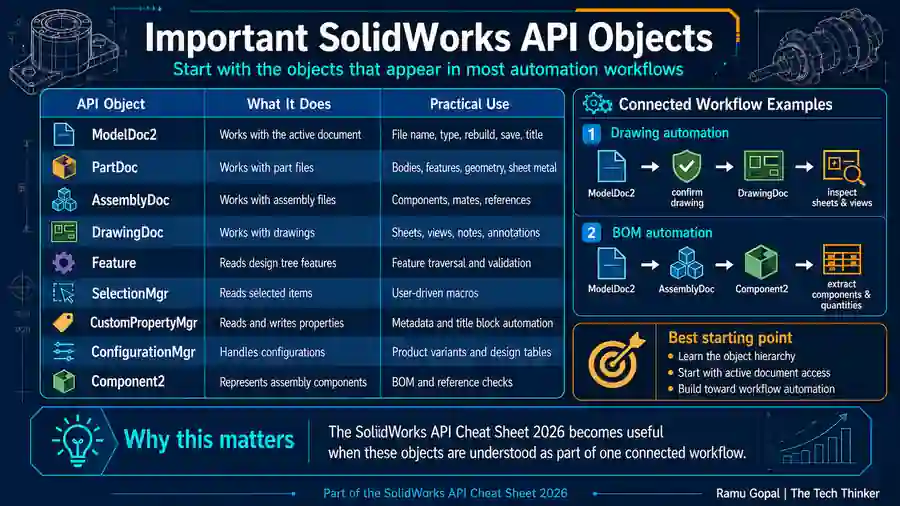
The SolidWorks API Cheat Sheet 2026 becomes useful when these objects are understood as part of one connected workflow.
Document Types in SolidWorks API Cheat Sheet 2026
A good macro should always check the file type before running its main operation. SolidWorks files are commonly handled as parts, assemblies, or drawings.
| Document Type | Constant | Typical Automation |
|---|---|---|
| Part | swDocPART |
Features, bodies, sheet metal, custom properties |
| Assembly | swDocASSEMBLY |
Components, mates, BOMs, references |
| Drawing | swDocDRAWING |
Sheets, views, notes, dimensions, title blocks |
Example:
Select Case swModel.GetType

    Case swDocPART
        MsgBox "Part document detected."

    Case swDocASSEMBLY
        MsgBox "Assembly document detected."

    Case swDocDRAWING
        MsgBox "Drawing document detected."

    Case Else
        MsgBox "Unsupported document type."

End Select
This check looks small, but it is very important. A drawing checker should not run on a part. An assembly extractor should not run on a drawing. A sheet metal validation tool should first confirm that the active file is a part and then verify that sheet metal features exist.
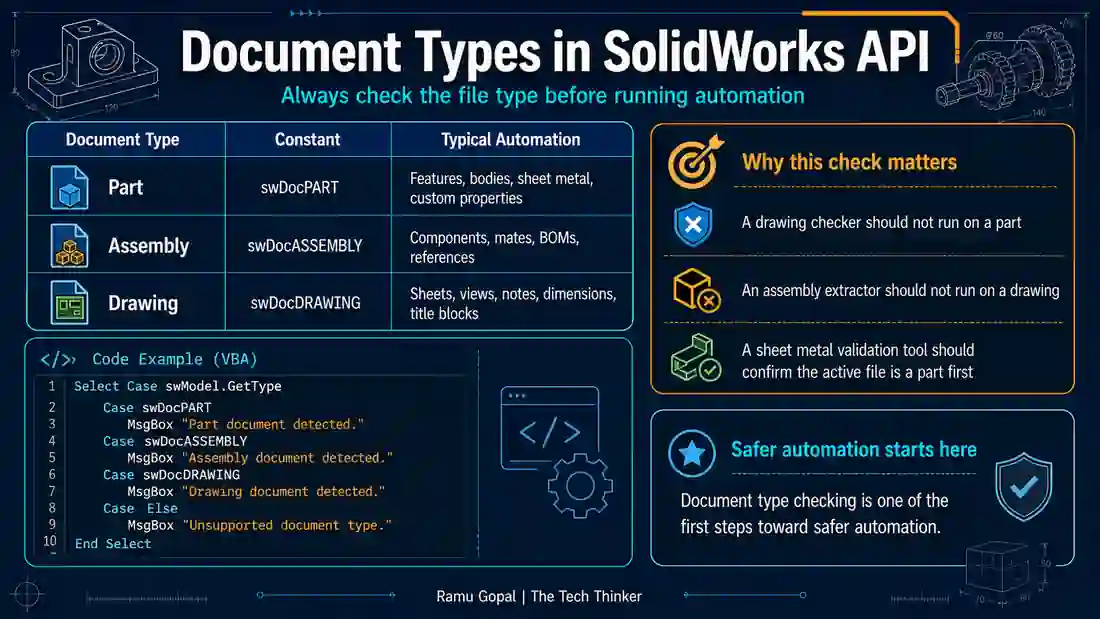
Document type checking is one of the first steps toward safer automation.
Feature Traversal in SolidWorks API
Feature traversal means reading the SolidWorks feature tree using code. Instead of manually checking every extrude, cut, hole, bend, pattern, or flat pattern, a macro can loop through the feature tree and collect information.
Dim swFeat As SldWorks.Feature

Set swFeat = swModel.FirstFeature

Do While Not swFeat Is Nothing

    Debug.Print swFeat.Name & " : " & swFeat.GetTypeName2

    Set swFeat = swFeat.GetNextFeature

Loop
Feature traversal can support:
- Model quality audits
- Feature naming checks
- Sheet metal validation
- Hole and pattern checks
- Design rule validation
- Manufacturing readiness checks
- Automated engineering reports
This is where SolidWorks API becomes powerful for validation-first engineering systems.
For example, a macro can read features in a part file, identify sheet metal features, inspect bend-related parameters, and generate a report. The same approach can be extended to check design standards, naming conventions, feature presence, or manufacturing requirements.
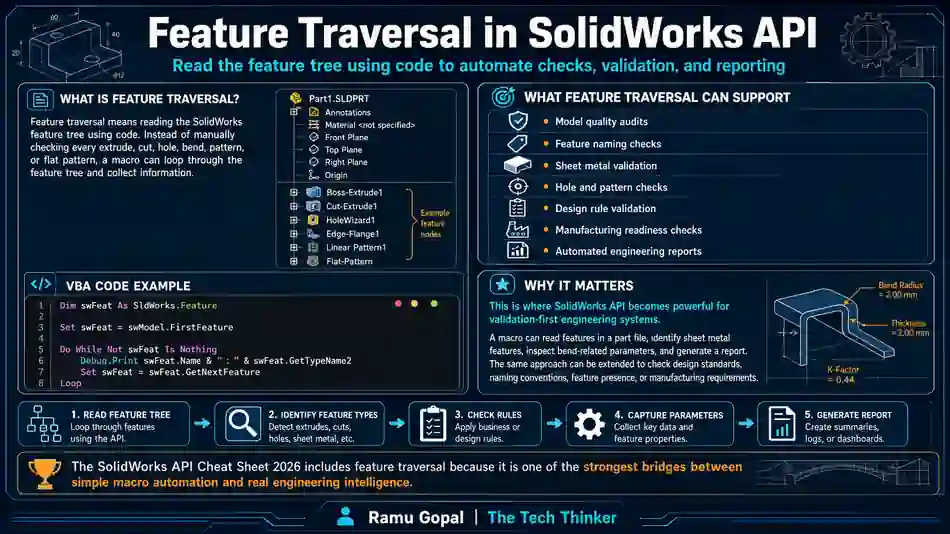
The SolidWorks API Cheat Sheet 2026 includes feature traversal because it is one of the strongest bridges between simple macro automation and real engineering intelligence.
SolidWorks API 2026-Custom Properties Automation
Custom properties are one of the most practical areas for SolidWorks API automation. They connect CAD files with drawings, BOMs, ERP systems, PDM workflows, and manufacturing documentation.
Common custom properties include:
- Part Number
- Description
- Material
- Weight
- Revision
- Drawn By
- Checked By
- Finish
- Manufacturing Process
- Project Number
When custom properties are missing or inconsistent, downstream issues can happen. A drawing title block may show wrong information. A BOM may miss key details. Procurement may receive incomplete data. Manufacturing may work with unclear part descriptions.
SolidWorks API can help engineers:
- Batch update custom properties
- Export properties to Excel
- Import corrected metadata
- Fill drawing title blocks
- Standardize BOM fields
- Support revision tracking
- Prepare manufacturing reports
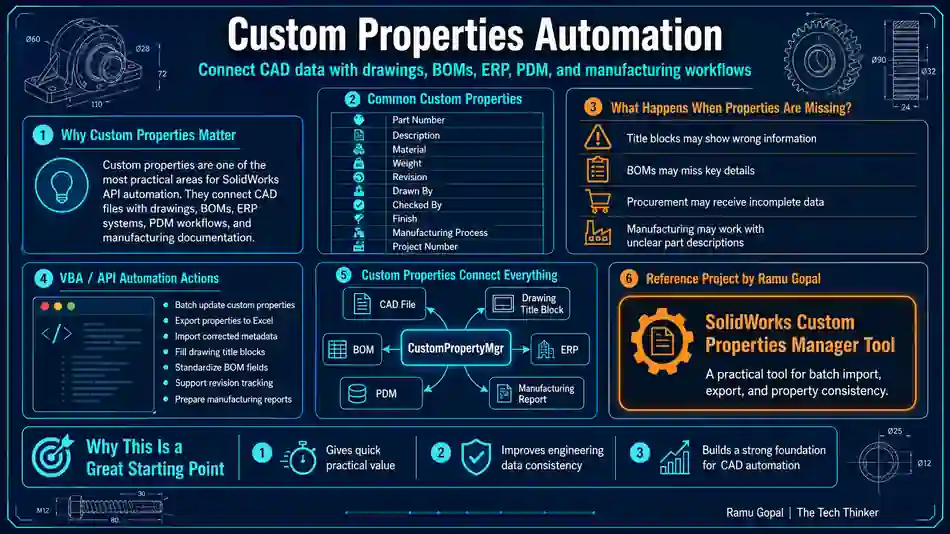
Reference Project by Ramu Gopal: SolidWorks Custom Properties Manager Tool
This is one of the best starting points for practical CAD automation because it gives quick value and improves data consistency across the engineering workflow.
SolidWorks Cheat Sheet 2026-Assembly Automation Basics
Assembly automation is important when engineering teams work with large product structures, repeated product variants, or customer-specific configurations.
SolidWorks API can help engineers read assembly information such as components, paths, quantities, and custom properties. This is useful for BOM preparation, file validation, material planning, and release checks.
Assembly automation can include:
- Extracting all components
- Reading suppressed components
- Checking missing references
- Listing component file paths
- Reading child part properties
- Traversing sub-assemblies
- Preparing BOM reports
- Checking released vs working files
A basic assembly macro may only list components. A stronger automation system checks whether the assembly is ready for downstream use.
For example, it can answer:
- Are all components available?
- Are any referenced files missing?
- Are part numbers filled?
- Are drawings available?
- Are PDF or DXF exports missing?
- Are quantities correct?
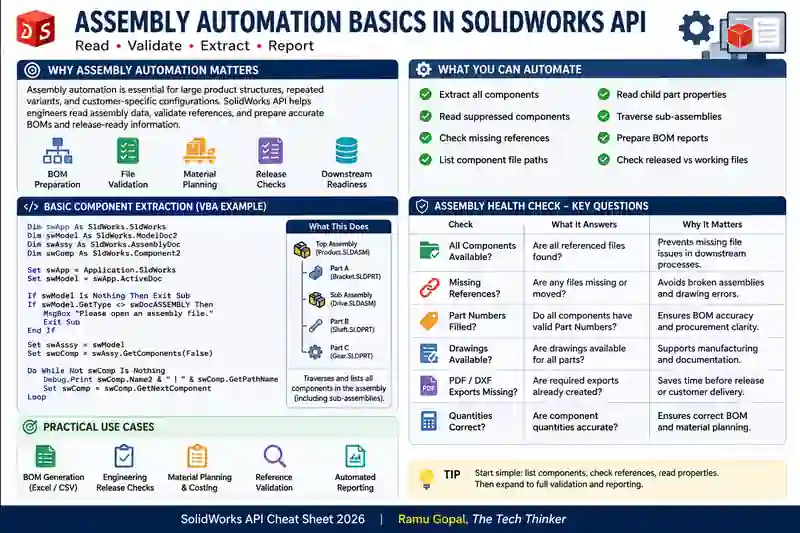
This is how assembly automation connects directly to BOM intelligence and engineering release quality.
SolidWorks API Cheat Sheet-Drawing API Essentials
Drawings are manufacturing communication documents. A model may be correct, but if the drawing is incomplete, the engineering output is still not ready for production.
Drawing API automation can help review drawing structure, sheets, views, notes, title block data, revision details, and export requirements.
| Drawing Area | Automation Possibility |
|---|---|
| Title Block | Validate part number, revision, material, drawn by |
| Sheets | Check sheet size, format, and scale |
| Views | Read drawing views and referenced models |
| Notes | Review general notes and manufacturing notes |
| Dimensions | Support dimension presence checks |
| Revision Table | Check revision and approval details |
| Exports | Generate PDF, DWG, or DXF outputs |
Drawing automation should not be seen only as “Save as PDF.” It can become part of engineering quality control.
A drawing checker can help identify missing views, incomplete title blocks, outdated revisions, or missing notes. A drawing export macro can help standardize output naming and reduce manual export errors.
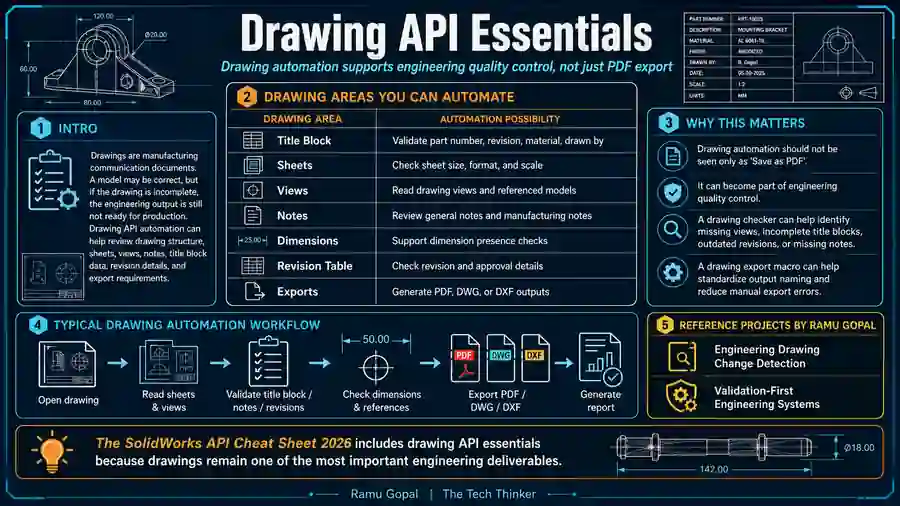
Reference Project by Ramu Gopal:
- Engineering Drawing Change Detection
- Validation-First Engineering Systems
The SolidWorks API Cheat Sheet 2026 includes drawing API essentials because drawings remain one of the most important engineering deliverables.
SolidWorks API Cheat Sheet 2026-BOM and Metadata Automation
BOM automation is one of the most valuable uses of SolidWorks API. A BOM connects design data with purchasing, planning, production, costing, and manufacturing.
A basic BOM export gives rows and quantities. A better BOM automation system also checks whether the data is complete and useful.
SolidWorks API can support:
- Component extraction
- Quantity calculation
- Part number reading
- Description reading
- Material checking
- Custom property validation
- Missing drawing checks
- PDF/DXF availability checks
- Excel report generation
A practical BOM tool should not only export a table. It should help engineers understand whether the BOM is ready for the next process.
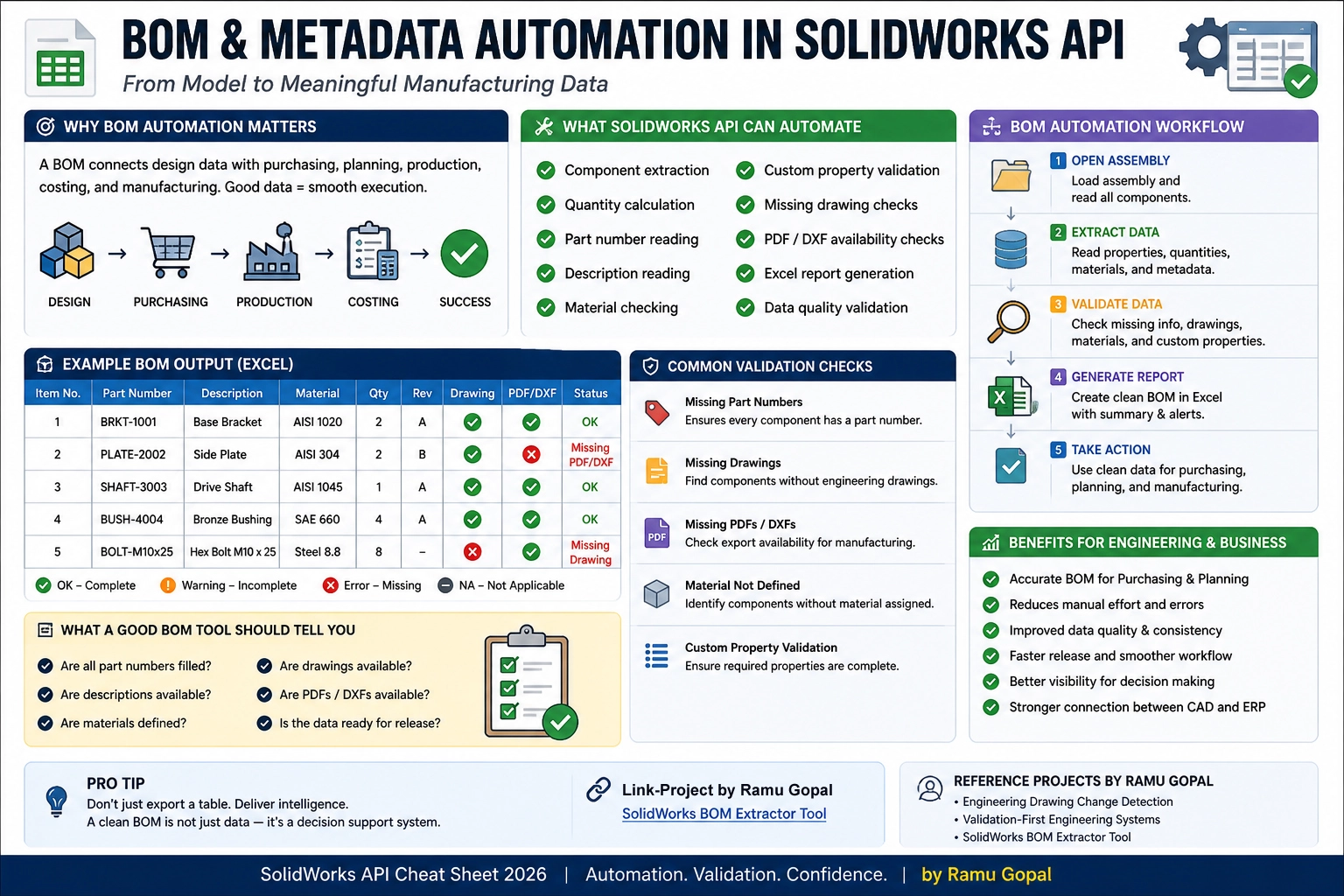
Reference Project by Ramu Gopal: SolidWorks BOM Extractor Tool
For example, if an assembly has 200 components, an automated BOM workflow can quickly identify missing metadata, missing drawings, or incomplete file references.
This is where SolidWorks API moves from convenience automation to engineering decision support.
PDM and Workflow Automation Possibilities
PDM and workflow automation are important when engineering data must move through controlled states such as work in progress, review, released, revised, or obsolete.
Not every company needs advanced PDM automation immediately, but engineers should understand the workflow mindset. Once files are controlled by revision, approval, and release processes, automation should respect those states.
PDM-related automation may include:
- File state checks
- Revision consistency checks
- Approval workflow visibility
- Check-in and check-out awareness
- Released vs work-in-progress separation
- Metadata validation
- Controlled export workflows
SOLIDWORKS provides API documentation for PDM Professional, and the SOLIDWORKS 2026 API release notes provide quick access to API enhancements for the release year.
This is where CAD automation connects with enterprise engineering systems.
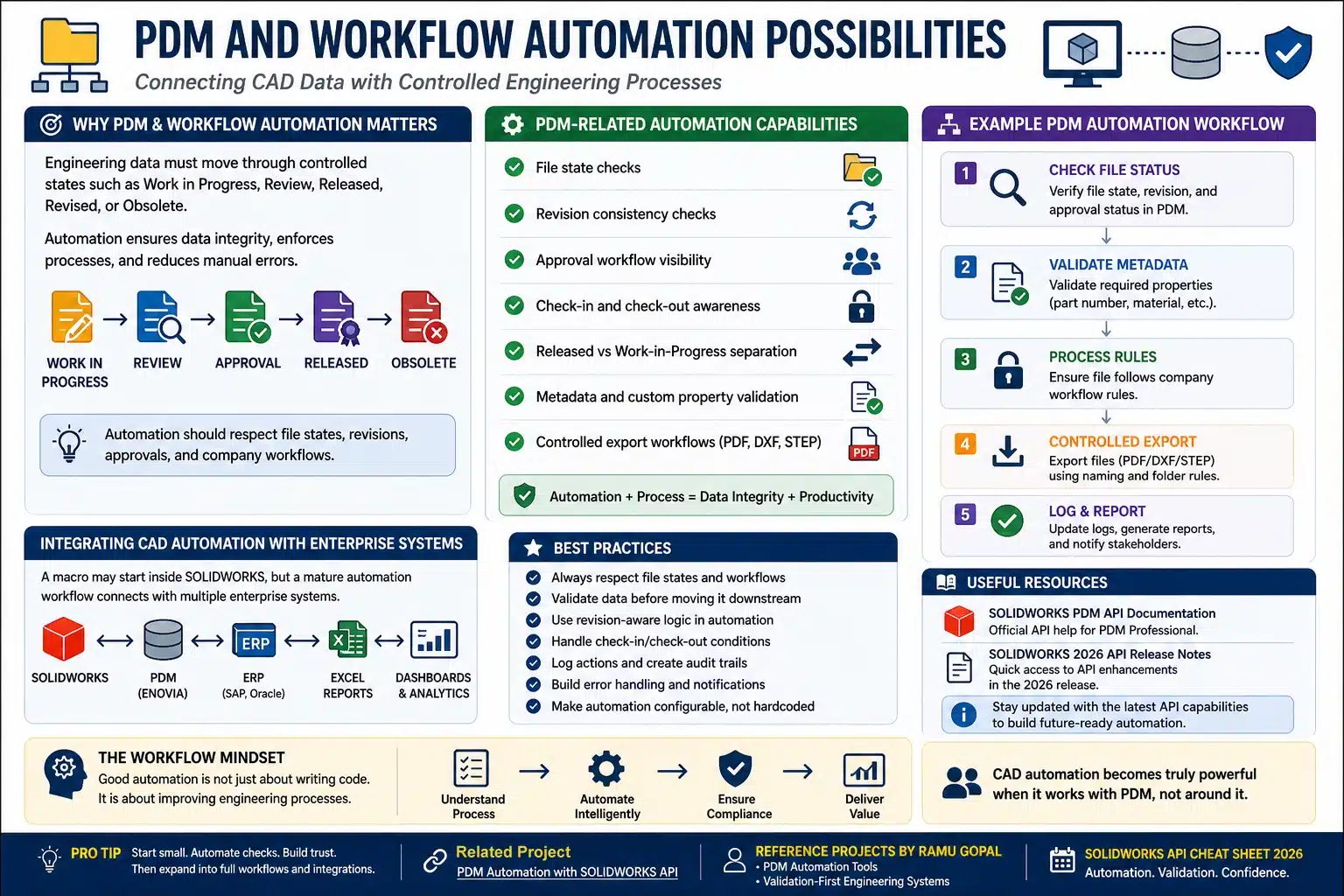
A macro may start inside SolidWorks, but a mature automation workflow may later connect CAD data with PDM, ERP, Excel, dashboards, or reporting systems.
Best Practices for SolidWorks API Automation
The SolidWorks API Cheat Sheet 2026 should help engineers write safer automation, not just faster macros.
Use these best practices:
- Always check whether a document is open.
- Confirm the document type before running logic.
- Add error handling for important operations.
- Avoid unnecessary rebuilds.
- Do not hardcode values that may change later.
- Keep engineering rules separate from code where possible.
- Use Excel, JSON, or database tables for rule storage.
- Log results instead of relying only on message boxes.
- Test macros on copied files before production files.
- Use clear variable names.
- Separate UI, logic, and reporting.
- Create reports that engineers can review.
- Keep backups before batch operations.
- Validate inputs before processing outputs.
A reliable SolidWorks API tool should clearly explain what was checked, what passed, what failed, and what needs attention.
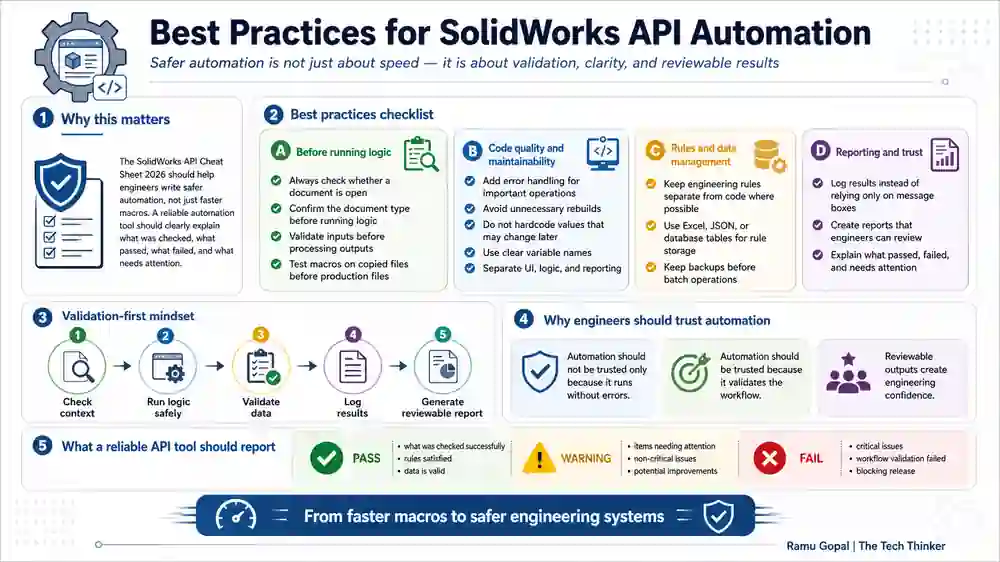
This reporting mindset is important. Engineers should not trust automation only because it runs without errors. They should trust it because it validates the workflow and produces reviewable results.
From Macros to Validation-First CAD Automation
A macro solves a task.
A system solves a workflow.
A validation-first system improves engineering confidence.
Traditional macro thinking usually asks: “Can this action be automated?”
Validation-first CAD automation asks a stronger question: “Can this workflow produce reliable engineering output?”
| Traditional Macro Thinking | Validation-First System Thinking |
|---|---|
| Run one task | Control a workflow |
| Save time | Improve reliability |
| Hardcoded logic | Rule-based checks |
| No structured report | Pass, warning, fail output |
| Manual verification later | Built-in validation |
| Developer-focused | Engineer-friendly |
| Output-focused | Decision-focused |
This matters because engineering outputs are connected.
A wrong custom property can affect a drawing. A missing drawing can affect a BOM. A wrong bend value can affect manufacturing. An uncontrolled file state can affect release quality.
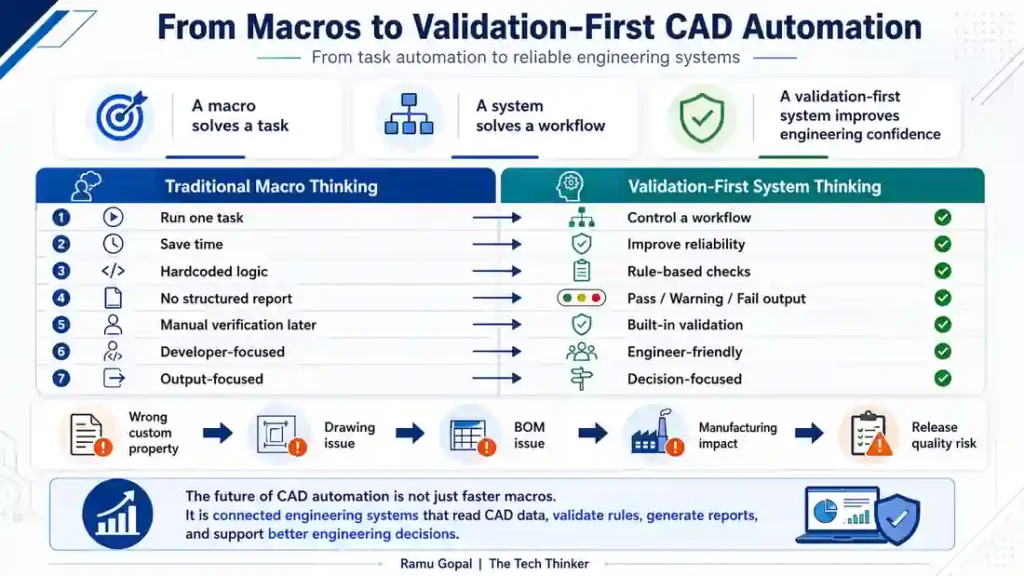
The future of CAD automation is not only about making SolidWorks faster. It is about building connected engineering systems that read CAD data, validate rules, generate reports, and support better engineering decisions.
Download SolidWorks API Cheat Sheet 2026
📥 Download SolidWorks API Cheat Sheet 2026 and keep it as a quick reference while building SolidWorks macros, CAD automation tools, and validation-first engineering workflows.
Conclusion
The SolidWorks API Cheat Sheet 2026 is more than a quick reference image. It is a practical starting point for engineers who want to understand SolidWorks API structure, write better macros, and build reliable CAD automation workflows.
Once you understand objects like ISldWorks, ModelDoc2, PartDoc, AssemblyDoc, DrawingDoc, Feature, SelectionMgr, and CustomPropertyMgr, SolidWorks API becomes easier to use in real engineering tasks. These objects form the foundation for part automation, assembly checks, drawing validation, BOM extraction, custom property control, and PDM-related workflows.
But the real value of automation is not only speed. A macro may save time, but a validation-first automation system improves engineering confidence. It helps engineers check inputs, validate outputs, generate reviewable reports, and reduce repeated manual errors before they affect downstream processes.
Created by Ramu Gopal for The Tech Thinker, this guide is designed to help engineers move from isolated macros toward structured, reliable, and decision-focused CAD automation systems.
Use the SolidWorks API Cheat Sheet 2026 as a daily reference while learning, testing, and building better SolidWorks automation workflows.
Master the API. Build automation. Deliver excellence.
SolidWorks API Cheat Sheet 2026 FAQs
1. What is SolidWorks API Cheat Sheet 2026?
SolidWorks API Cheat Sheet 2026 is a practical reference guide for engineers who want to understand SolidWorks API objects, VBA macro structure, document types, feature traversal, drawings, assemblies, BOM automation, and CAD automation workflows.
2. Who should use SolidWorks API Cheat Sheet 2026?
SolidWorks API Cheat Sheet 2026 is useful for mechanical design engineers, CAD automation engineers, CAD administrators, manufacturing engineers, and developers who want to build SolidWorks automation tools.
3. What is SolidWorks API used for?
SolidWorks API is used to automate CAD tasks such as updating custom properties, extracting BOMs, checking drawings, reading assembly components, exporting files, validating features, and creating engineering reports.
4. Is VBA enough for SolidWorks API automation?
Yes, VBA is enough for many internal macros and quick automation tools. However, for professional add-ins, scalable desktop tools, and enterprise-level automation, C# or VB.NET may be more suitable.
5. Why is ModelDoc2 important in SolidWorks API?
ModelDoc2 is important because it represents the active SolidWorks document. Most macros start by accessing ModelDoc2 before working with parts, assemblies, drawings, features, custom properties, or selections.
6. Can SolidWorks API automate drawings?
Yes. SolidWorks API can automate drawing-related tasks such as reading sheets, views, notes, dimensions, title block data, revision tables, referenced models, and PDF/DWG/DXF exports.
7. Can SolidWorks API help with BOM automation?
Yes. SolidWorks API can extract assembly components, quantities, part numbers, descriptions, materials, custom properties, drawing availability, and PDF/DXF export status for BOM automation.
8. Why is feature traversal important in SolidWorks API?
Feature traversal allows a macro to read the design tree and inspect features such as extrudes, cuts, holes, bends, patterns, and flat patterns. It is useful for model audits, validation checks, and manufacturing readiness reports.
9. How does SolidWorks API support validation-first CAD automation?
SolidWorks API supports validation-first CAD automation by reading CAD data, checking document types, validating properties, reviewing drawings, detecting missing information, generating reports, and helping engineers verify workflows before release.
10. Why should engineers use SolidWorks API Cheat Sheet 2026?
Engineers should use SolidWorks API Cheat Sheet 2026 because it gives a clear starting point for learning API hierarchy, common objects, VBA basics, document checks, feature traversal, drawing automation, BOM workflows, and safer CAD automation practices.