
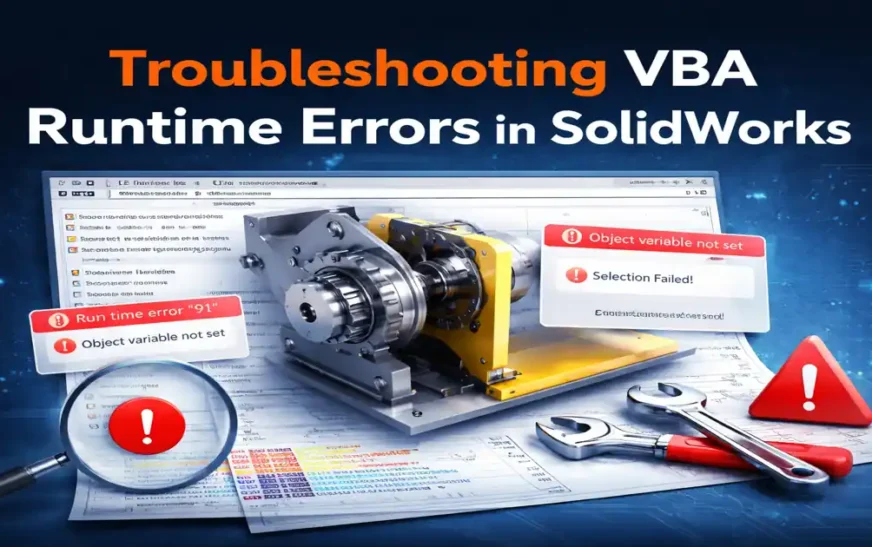
Common SolidWorks VBA errors are not random glitches — they are signals that something has gone wrong in the way a macro interacts with the SolidWorks API, the VBA runtime, or the underlying COM interfaces. Anyone who has spent serious time building automation with SolidWorks knows this pattern well: a macro compiles successfully, runs fine for days, and then suddenly fails with an obscure error message that offers little guidance on what actually broke.
The challenge is that SolidWorks VBA programming sits at the intersection of three complex systems:
-
The VBA language and its compiler
-
The SolidWorks API and its interface hierarchy
-
The COM automation layer that manages object lifetimes and execution context
An error can originate in any one of these layers, yet appear as a single cryptic message inside the VBA editor. Without a structured understanding of where the failure is coming from and why, debugging often turns into trial-and-error — wasting hours and, in some cases, destabilizing the SolidWorks session itself.
I belive, This article is written as a practical, evergreen error reference for SolidWorks API programmers. Instead of presenting isolated fixes or beginner-level explanations, it systematically documents the most frequently encountered compile-time, runtime, and automation errors, explains their true root causes, and outlines reliable, professional-grade solutions that hold up across SolidWorks versions and environments.
You will find:
-
Exact error messages and error codes engineers encounter in real projects
-
The API-level conditions that trigger each error
-
Clear distinctions between VBA errors, SolidWorks API misuse, and COM automation failures
-
Tables and structured sections designed for fast diagnosis and long-term reference
Whether you are maintaining legacy macros, building new automation tools, or standardizing SolidWorks workflows across a team, this guide is intended to reduce debugging time, improve macro stability, and help you approach SolidWorks VBA errors with an engineering mindset rather than guesswork.
Compile-Time Errors in SolidWorks VBA
Compile-time errors in SolidWorks VBA occur before any API call is executed. These errors are raised by the VBA compiler, not by SolidWorks itself. This distinction is important because compile-time failures are 100% deterministic — if they occur once, they will occur every time until the code is corrected.
From a professional automation perspective, compile-time errors usually indicate:
-
Incorrect API references
-
Mismatched object types
-
Incompatible VBA declarations
-
Architectural issues in macro structure
This section addresses the most frequently encountered SolidWorks VBA compile-time errors, explains why they occur specifically in API programming, and shows how experienced engineers prevent them permanently.
Compile Error: Variable Not Defined
Error Message
Compile error: Variable not defined
Typical Context
Occurs when:
-
Option Explicitis enabled (recommended) -
A variable is misspelled
-
An API object is assumed but never declared
SolidWorks-Specific Root Cause
In SolidWorks VBA, this error frequently appears when:
-
API interfaces (e.g.,
ModelDoc2,Feature,SelectionMgr) are referenced without declaration -
Object variables are declared in one module but used in another without scope exposure
-
Late-night macro edits introduce silent naming inconsistencies
Why This Matters in API Work
SolidWorks API programming involves long interface names and deep object hierarchies. A single typo can silently point to a non-existent symbol, which the compiler immediately blocks.
Professional Prevention Pattern
-
Always use
Option Explicit -
Centralize object declarations
-
Avoid similarly named variables (
swModel,swModel2,swModl)
This error is not a nuisance — it is your first line of defense against unstable automation.
Compile Error: Method or Data Member Not Found
Error Message
Compile error: Method or data member not found
Typical Context
Occurs when calling a method that:
-
Does not belong to the object type
-
Exists in a different interface
-
Is version-specific or deprecated
SolidWorks API Root Cause
SolidWorks exposes different methods on different interfaces, even when objects appear related. For example:
-
ModelDoc2methods are not interchangeable withDrawingDoc -
Feature-level methods cannot be called directly from document objects
-
Some API methods exist only in later SolidWorks versions
Why This Error Is Common in SolidWorks VBA
The SolidWorks API is interface-driven, not inheritance-driven. VBA does not auto-correct interface misuse, and the compiler enforces this strictly.
Prevention Strategy Used by Professionals
-
Verify the exact interface in the API Help
-
Cast objects deliberately
-
Avoid “guessing” method availability
This error teaches one critical lesson:
Knowing the object hierarchy is more important than knowing VBA syntax.
Compile Error: User-Defined Type Not Defined
Error Message
Compile error: User-defined type not defined
Typical Context
Triggered when:
-
API types are referenced without enabling the SolidWorks type library
-
Code is copied between machines with different references
-
The macro relies on constants or enums not available in the current environment
SolidWorks-Specific Cause
This error usually means the SolidWorks Object Library is missing, disabled, or mismatched. It can also occur when:
-
Using API enums without importing their library
-
Running macros across different SolidWorks versions
Why This Is an Evergreen Issue
This error frequently appears when:
-
Sharing macros across teams
-
Moving macros between workstations
-
Deploying macros in production environments
Professional Fix Pattern
-
Use early binding with verified references during development
-
Validate references before distributing macros
-
Avoid hard dependency on version-specific types
Compile Error: Can’t Find Project or Library
Error Message
Compile error: Can't find project or library
Typical Context
Occurs immediately when opening the VBA editor or compiling code.
SolidWorks Environment Root Cause
This error indicates:
-
A missing COM library
-
A removed or broken reference
-
A mismatch between 32-bit / 64-bit VBA declarations
In SolidWorks API work, this often surfaces after:
-
Upgrading SolidWorks
-
Migrating macros to another PC
-
Using Windows API declares without
PtrSafe
Why This Error Is Dangerous
Macros may appear intact but are completely non-functional until references are fixed. Many teams waste hours debugging “code” when the real issue is environmental.
Prevention Strategy
-
Minimize external dependencies
-
Audit references regularly
-
Treat macros as deployable software, not scripts
Compile Error: ByRef Argument Type Mismatch
Error Message
Compile error: ByRef argument type mismatch
Typical Context
Occurs when:
-
Passing the wrong data type to an API method
-
Confusing
ByRefandByValsemantics -
Using literals where object references are expected
SolidWorks API Perspective
SolidWorks API methods often expect specific interface pointers, not values. Passing an incompatible type breaks the contract immediately.
Why This Appears in API Programming
Many API methods return generic objects that must be cast correctly before being passed further. VBA does not perform implicit casting here.
Professional Fix
-
Match method signatures exactly
-
Explicitly cast returned objects
-
Avoid ambiguous helper functions
Compile Error: Code Must Be Updated for Use on 64-Bit Systems
Error Message
The code in this project must be updated for use on 64-bit systems.
Please review and update Declare statements and mark with the PtrSafe attribute.
SolidWorks Context
This error is common when:
-
Using legacy VBA macros
-
Calling Windows API functions
-
Migrating old macros into modern SolidWorks versions
Why This Is Still Relevant Today
Even in 2026, many SolidWorks automation teams inherit macros written for older environments. This error is a structural compatibility warning, not a bug.
Long-Term Prevention
-
Use
PtrSafeconsistently -
Avoid platform-dependent declares unless necessary
-
Future-proof macros during refactoring, not firefighting
Why Compile-Time Errors Are a Gift, Not a Problem
Unlike runtime or automation errors, compile-time errors:
-
Are immediately visible
-
Are reproducible
-
Do not corrupt models or sessions
Professional SolidWorks API developers treat compile-time errors as design feedback, not interruptions.
Fixing them correctly leads to:
-
More stable macros
-
Cleaner architecture
-
Fewer runtime failures downstream
Compile-Time Errors in SolidWorks VBA – Quick Reference Table
| Error Message (Exact) | Error Type | Typical Cause in SolidWorks VBA | Where It Commonly Appears | Permanent Fix Strategy |
|---|---|---|---|---|
| Compile error: Variable not defined | Compile-time | Variable misspelled or not declared with Option Explicit enabled |
Any macro using API objects | Enforce Option Explicit, centralize declarations, avoid similar variable names |
| Compile error: Method or data member not found | Compile-time | Calling a method on the wrong SolidWorks API interface | Part / Assembly / Drawing macros | Verify correct API interface (ModelDoc2, DrawingDoc, etc.) before calling methods |
| Compile error: User-defined type not defined | Compile-time | SolidWorks Object Library or enum reference missing | Copied or shared macros | Re-enable SolidWorks type library, avoid version-specific enums |
| Compile error: Can’t find project or library | Compile-time | Missing COM reference or broken library dependency | After system or SolidWorks upgrade | Audit references, remove unused libraries, standardize macro environments |
| Compile error: ByRef argument type mismatch | Compile-time | Passing incorrect data type to API method | Method calls with object parameters | Match method signatures exactly, use explicit casting |
| Compile error: Expected user-defined type, not project | Compile-time | Incorrect reference name or namespace confusion | Multi-module projects | Verify correct library names and object declarations |
| Compile error: Expected variable or procedure, not project | Compile-time | Naming conflict between project and variable | Large macro projects | Rename modules and variables to avoid collisions |
| Compile error: Object library feature not support | Compile-time | Unsupported or deprecated API library | Legacy macros | Remove obsolete references, update API usage |
| Compile error: The code in this project must be updated for use on 64-bit systems | Compile-time | Legacy Windows API Declare statements |
Old macros in new SolidWorks versions | Add PtrSafe, update data types for 64-bit compatibility |
Run-time Error ‘91’ – Object Variable or With Block Variable Not Set
Error Message
Run-time error '91':
Object variable or With block variable not set
SolidWorks API Root Cause
This error occurs when VBA attempts to dereference a NULL COM pointer returned by the SolidWorks API. In SolidWorks terms, this means an interface you expected to exist was never actually returned.
Common SolidWorks-specific triggers include:
-
ActiveDocreturningNothing -
Using a pointer to a document that has been closed
-
API calls executed during modal states (dialogs, rebuilds)
-
Methods that fail silently and return
Nothing
Why This Error Is So Common in SolidWorks VBA
SolidWorks does not guarantee object availability at all times. API calls are state-dependent, and VBA does not protect you from dereferencing invalid objects.
This error is not a bug — it is a signal that object validation is missing.
Run-time Error ‘438’ – Object Doesn’t Support This Property or Method
Error Message
Run-time error '438':
Object doesn't support this property or method
SolidWorks API Root Cause
This error occurs when:
-
A method is called on the wrong interface
-
An object is assumed to support functionality it does not
-
A returned object is of a different type than expected
In SolidWorks VBA, this often happens when:
-
Treating a
Featureas aPartDoc -
Calling drawing-specific methods on model documents
-
Using late-bound objects incorrectly
Key Insight
This error indicates an interface contract violation, not a syntax issue.
Run-time Error ‘424’ – Object Required
Error Message
Sheet Metal API Errors in SolidWorks VBA
(Thickness, Flat Pattern, Bends & “Why Is This Value Wrong?” Issues)
Sheet Metal automation failures are some of the most expensive SolidWorks VBA errors, because they often produce incorrect results without throwing errors. Unlike drawing or selection issues, sheet metal problems frequently return valid-looking values that are wrong.
This happens because the Sheet Metal API relies heavily on:
-
Feature hierarchy
-
Active configuration
-
Flat-pattern state
-
Derived parameter resolution
A macro can run successfully and still generate manufacturing-critical mistakes.
Sheet Metal Feature Not Detected (Silent Failure)
Typical Symptoms
-
Macro reports “not a sheet metal part”
-
No thickness or bend data returned
-
Flat pattern logic never executes
SolidWorks-Specific Root Cause
This occurs when:
-
The macro searches for the wrong feature type
-
The sheet metal feature exists inside a folder
-
The base feature is suppressed in the active configuration
-
The model uses derived sheet metal features
Sheet metal detection is feature-tree–dependent, not document-type–dependent.
Flat Pattern Feature Not Found
Typical Symptoms
-
Flat pattern operations fail silently
-
DXF export does nothing
-
Bend data appears unavailable
SolidWorks Root Cause
The Flat Pattern feature:
-
May not exist yet
-
May be suppressed
-
May be configuration-specific
-
May regenerate dynamically
Flat patterns are derived features, not guaranteed objects.
Incorrect Thickness Values Returned
Typical Symptoms
-
Thickness returned is zero or incorrect
-
Thickness differs between configurations
-
Reported thickness doesn’t match UI value
SolidWorks-Specific Causes
-
Thickness overridden at feature level
-
Different thickness per configuration
-
Cached values returned before rebuild
-
Accessing sheet metal folder instead of base feature
This is one of the most dangerous sheet metal API failures, because the macro appears to work.
Incorrect Bend Radius or Bend Allowance Values
Typical Symptoms
-
Bend radius mismatch
-
Incorrect K-factor or bend allowance
-
Flat length calculations are wrong
SolidWorks Root Cause
Bend parameters can be defined at:
-
Sheet metal feature level
-
Individual bend feature level
-
Bend table level
Macros that assume a single source of truth will return incorrect results.
Run-time Error ‘91’ – Object Variable Not Set (Sheet Metal Variant)
Error Message
Run-time error ‘91’: Object variable or With block variable not set
Sheet Metal Context
Occurs when:
-
A bend or flat-pattern feature is accessed before creation
-
A feature pointer was invalidated after rebuild
-
The macro assumes a bend exists for every edge
Sheet metal features are conditional, not guaranteed.
Configuration-Specific Sheet Metal Failures
Typical Symptoms
-
Macro works in Default configuration only
-
Thickness or bends differ unexpectedly
-
Flat pattern missing in certain configs
Root Cause
Sheet metal parameters are often:
-
Configuration-specific
-
Suppressed selectively
-
Driven by design tables
Macros that do not explicitly manage configuration context will behave unpredictably.
Derived and Mirrored Sheet Metal Parts
Why These Break Macros
Derived, mirrored, or inserted sheet metal parts may:
-
Inherit parameters differently
-
Override base thickness
-
Suppress certain features
API calls that assume direct ownership of features will fail.
📊 Sheet Metal API Errors – Quick Reference Table
| Error / Symptom | Category | SolidWorks-Specific Root Cause | Typical Failure Pattern | Professional Fix Strategy |
|---|---|---|---|---|
| Sheet metal not detected | Feature traversal | Wrong feature type or folder | Macro exits early | Search feature tree correctly |
| Flat pattern not found | Derived feature | Suppressed or config-based | DXF export fails silently | Validate flat pattern state |
| Incorrect thickness | Parameter resolution | Override / config mismatch | Wrong manufacturing data | Resolve active config values |
| Bend radius mismatch | Bend definition | Multiple bend sources | Wrong flat length | Identify parameter source |
| Run-time error ‘91’ | Feature reference | Feature not created yet | Null object | Validate feature existence |
| Config-only failure | Configuration | Parameters differ per config | Works in Default only | Control config context |
| Derived part failure | Ownership | Inherited parameters | Inconsistent results | Detect derived models |
Why Sheet Metal Errors Are So Dangerous
Sheet metal macros often:
-
Do not crash
-
Do not throw errors
-
Produce believable but incorrect data
This makes them far more dangerous than visible runtime failures.
Professional SolidWorks automation:
-
Treats sheet metal data as context-sensitive
-
Validates values against feature definitions
-
Never trusts a single API call for manufacturing data
Key Engineering Insight
If a sheet metal macro:
-
Works but produces wrong results
-
Changes behavior across configurations
-
Breaks after rebuilds
The issue is almost never VBA syntax.
It is feature hierarchy and parameter resolution.
How to Identify Common SolidWorks VBA Errors Quickly
Identifying common SolidWorks VBA errors early can save hours of debugging and prevent unstable automation. Most failures follow repeatable patterns, and recognizing them quickly is a critical skill for SolidWorks API programmers.
The fastest way to diagnose common SolidWorks VBA errors is to observe when and where the failure occurs:
-
If the macro fails before running, it is usually one of the common SolidWorks VBA errors related to compile-time issues such as missing references or incorrect declarations
-
If the macro fails during execution, the issue is often among common SolidWorks VBA errors caused by invalid object references, wrong API interfaces, or incorrect selection context
-
If the macro fails inconsistently, it is almost always due to common SolidWorks VBA errors related to rebuild timing, configuration changes, or COM object lifecycle
Another effective way to detect common SolidWorks VBA errors is to check whether the macro:
-
Depends on user selection
-
Assumes a specific configuration
-
Reuses object references after rebuild
-
Accesses features or views without validation
Macros that rely on assumptions instead of validation are far more likely to trigger common SolidWorks VBA errors over time.
Conclusion
Common SolidWorks VBA errors are rarely random. Whether they appear as compile-time failures, runtime exceptions, automation disconnections, or silent logical mistakes, each error is a signal that the macro has violated an assumption about object availability, execution context, feature state, or environment consistency.
What makes debugging common SolidWorks VBA errors particularly challenging is that many failures do not surface as clear messages. A macro may run successfully, return values, and still produce incorrect results — especially in drawing automation, sheet metal workflows, or configuration-driven models. These are not beginner mistakes; they are system-level issues inherent to API-based automation.
The key takeaway from this guide on common SolidWorks VBA errors is not memorizing error messages, but recognizing recurring error patterns:
-
Compile-time errors point to structural or reference issues
-
Runtime errors indicate invalid assumptions at execution time
-
Automation and COM-level errors reveal object lifecycle and state problems
-
Silent failures almost always stem from context, configuration, or rebuild timing
Professional SolidWorks automation is built on defensive design — validating assumptions, re-acquiring objects when necessary, respecting SolidWorks’ internal state machine, and treating models, drawings, and features as dynamic entities rather than static data. This approach significantly reduces common SolidWorks VBA errors in real-world automation.
If there is one mindset shift worth making, it is this:
Stable SolidWorks VBA macros are engineered, not scripted.
Once you approach common SolidWorks VBA errors as design feedback instead of obstacles, debugging becomes faster, automation becomes safer, and macros scale reliably across models, users, and environments.
This article is intended to serve as a long-term reference — something you can return to whenever common SolidWorks VBA errors cause a macro to fail unexpectedly or behave inconsistently. As SolidWorks continues to evolve, specific APIs may change, but the error patterns and root causes documented here remain the same.
Final Notes on Common SolidWorks VBA Errors
When working with long-running macros, most common SolidWorks VBA errors do not come from syntax mistakes but from incorrect assumptions about model state, selections, or feature availability. Engineers who consistently handle common SolidWorks VBA errors early—by validating objects, controlling rebuilds, and managing configurations—experience far fewer runtime and automation failures. Over time, recognizing common SolidWorks VBA errors becomes less about debugging and more about designing macros that are resilient to change.
Frequently Asked Questions (FAQs) on SolidWorks VBA Errors
1. What are the most common SolidWorks VBA errors?
The common SolidWorks VBA errors most engineers face include:
-
Run-time error ‘91’ (Object variable not set)
-
Run-time error ‘438’ (Method not supported)
-
Compile error: Variable not defined
-
Automation errors such as 80010108 and 80010105
These usually occur due to invalid object references, wrong API interfaces, or incorrect execution context.
2. Why do SolidWorks VBA macros work sometimes and fail other times?
Many common SolidWorks VBA errors appear intermittent because macros are state-dependent. Failures often occur due to:
-
Model rebuild timing
-
Selection context changes
-
Configuration switches
-
Invalidated COM objects
This behavior reflects SolidWorks’ internal state machine, not random failures.
3. What causes Run-time error ‘91’ in SolidWorks VBA?
One of the most common SolidWorks VBA errors, Run-time error ‘91’ occurs when:
-
An API call returns Nothing
-
A document, feature, or selection does not exist
-
An object pointer was invalidated after rebuild or close
It indicates missing object validation, not a VBA syntax issue.
4. How do I fix “Object doesn’t support this property or method” in SolidWorks VBA?
This common SolidWorks VBA error (Run-time error ‘438’) occurs when:
-
A method is called on the wrong API interface
-
A Feature is treated as a PartDoc or DrawingDoc
Fix it by verifying the exact SolidWorks API interface before calling any method.
5. What is the difference between compile-time and run-time errors in SolidWorks VBA?
In common SolidWorks VBA errors:
-
Compile-time errors occur before execution and are deterministic
-
Run-time errors occur during execution and depend on model state
Compile-time errors indicate structural problems, while run-time errors indicate invalid assumptions.
6. Why do SolidWorks VBA automation errors show COM error codes?
Some common SolidWorks VBA errors show COM codes because SolidWorks exposes its API via COM automation. Errors like:
-
80010108 (Disconnected from clients)
-
80010105 (Server threw an exception)
indicate object lifecycle or internal SolidWorks failures, not VBA mistakes.
7. What does Automation error 80010108 mean in SolidWorks VBA?
Automation error 80010108, one of the most common SolidWorks VBA errors, means:
-
The COM object was destroyed or recreated
-
VBA still holds an invalid pointer
This often happens after rebuilds, feature edits, or long-running macros.
8. Why do drawing macros fail more often than part macros?
Drawing-related common SolidWorks VBA errors are more frequent because:
-
Drawings depend on referenced models
-
Views depend on rebuild completion
-
BOMs depend on configuration state
A failure at any level causes cascading issues in drawing automation.
9. Why does SelectByID fail without throwing an error?
Silent SelectByID failures are common SolidWorks VBA errors that occur when:
-
The entity type is incorrect
-
The view is inactive
-
The feature is suppressed
-
The active configuration is wrong
Always validate selection results explicitly.
10. Why do sheet metal macros return wrong thickness values?
Wrong thickness values are common SolidWorks VBA errors caused by:
-
Configuration-specific overrides
-
Feature-level thickness changes
-
Cached values accessed before rebuild
Sheet metal data is context-sensitive and must always be validated carefully.
11. Why does a SolidWorks VBA macro fail after rebuild?
Common SolidWorks VBA errors after rebuild occur because rebuilds can:
-
Invalidate existing object pointers
-
Regenerate or reorder features
-
Reset the current selection context
Macros must re-acquire API objects after every rebuild instead of reusing old references.
12. What causes “Code execution has been interrupted” in SolidWorks VBA?
This message is one of the common SolidWorks VBA errors triggered when SolidWorks force-stops a macro due to:
-
Infinite or uncontrolled loops
-
UI-blocking operations
-
Deadlocks or long-running execution
It is a safety mechanism, not an application crash.
13. Why do SolidWorks VBA macros fail across configurations?
Common SolidWorks VBA errors across configurations happen because:
-
Features may be suppressed in some configs
-
Parameters can vary per configuration
-
Flat patterns may not exist in all configs
Professional macros always explicitly control and validate the active configuration.
14. Why do SolidWorks VBA macros fail on another computer?
Many common SolidWorks VBA errors appear on different machines due to:
-
Missing or broken API references
-
Different SolidWorks versions
-
32-bit vs 64-bit compatibility issues
Macros must be treated as deployable software, not local scripts.
15. Are SolidWorks VBA errors caused by bugs in SolidWorks?
Most common SolidWorks VBA errors are caused by:
-
Incorrect API usage
-
Invalid assumptions about state
-
Context-dependent execution
They are rarely SolidWorks bugs and are usually reproducible under the same conditions.
16. Why are automation errors harder to debug than VBA errors?
Automation-level issues are common SolidWorks VBA errors because they:
-
Do not always reproduce consistently
-
Lack clear line-level error messages
-
Originate inside SolidWorks, not VBA
Debugging requires understanding object lifecycle and execution context.
17. How can I prevent silent failures in SolidWorks VBA macros?
To prevent common SolidWorks VBA errors that fail silently:
-
Validate every API return value
-
Check feature suppression states
-
Control rebuild timing explicitly
-
Avoid hard-coded names and assumptions
Silent failures are more dangerous than visible errors.
18. Is VBA still reliable for SolidWorks automation?
Yes. VBA remains reliable when common SolidWorks VBA errors are handled using:
-
Defensive programming practices
-
Proper object lifecycle management
-
Context and state validation
Most failures stem from macro design, not the language itself.
19. What is the best way to debug SolidWorks VBA errors?
The most effective way to debug common SolidWorks VBA errors is to:
-
Identify the error category (compile, runtime, automation)
-
Validate assumptions step-by-step
-
Isolate state-dependent logic
Debugging SolidWorks VBA is an engineering discipline, not trial-and-error.
20. How should professional teams structure SolidWorks VBA macros?
To avoid common SolidWorks VBA errors, professional teams:
-
Separate core logic from UI
-
Centralize validation and checks
-
Re-acquire objects frequently
-
Treat models as dynamic state, not static data
Well-structured macros scale reliably across users and environments.
21. Are Common SolidWorks VBA errors the same across all SolidWorks versions?
Most common SolidWorks VBA errors are version-agnostic because they stem from:
-
API object lifecycle
-
Execution context
-
COM automation behavior
While APIs evolve, the underlying error patterns remain consistent across versions.
22. Why do Common SolidWorks VBA errors increase in large assemblies?
Large assemblies amplify common SolidWorks VBA errors due to:
-
Lightweight or unresolved components
-
Frequent rebuilds
-
Longer execution time affecting COM stability
Macros must account for performance and state changes.
23. Can Common SolidWorks VBA errors corrupt SolidWorks sessions?
Yes. Some common SolidWorks VBA errors, especially automation and COM-level errors, can:
-
Leave SolidWorks in an unstable state
-
Require application restart
-
Affect subsequent macro execution
This is why defensive programming is critical.
24. Why do Common SolidWorks VBA errors not always show line numbers?
Many common SolidWorks VBA errors originate:
-
Inside the SolidWorks API
-
Within COM automation layers
As a result, VBA cannot always map the failure to a specific code line.
25. How do rebuild operations trigger Common SolidWorks VBA errors?
Rebuilds trigger common SolidWorks VBA errors by:
-
Destroying and recreating internal objects
-
Clearing selections
-
Invalidating feature references
Macros must re-acquire objects after rebuilds.
26. Do Common SolidWorks VBA errors behave differently in drawings?
Yes. In drawings, common SolidWorks VBA errors are more frequent because:
-
Views depend on models
-
Annotations depend on views
-
BOMs depend on configurations
This layered dependency increases failure points.
27. Why are silent failures considered Common SolidWorks VBA errors?
Silent failures are classified as common SolidWorks VBA errors because:
-
No VBA error is thrown
-
Results appear valid but are wrong
-
Manufacturing data may be affected
They are more dangerous than visible runtime errors.
28. Can poor macro structure cause Common SolidWorks VBA errors?
Absolutely. Poor structure causes common SolidWorks VBA errors such as:
-
Object reuse after invalidation
-
Hidden state assumptions
-
Uncontrolled execution flow
Professional macro architecture significantly reduces errors.
29. Are Common SolidWorks VBA errors related to user interaction?
Yes. Many common SolidWorks VBA errors are triggered by:
-
Unexpected user selections
-
Clicking during macro execution
-
Switching documents mid-run
Robust macros limit or validate user interaction.
30. What is the best long-term strategy to reduce Common SolidWorks VBA errors?
The most effective strategy is:
-
Treating macros as engineered systems
-
Validating all assumptions
-
Designing for state change and failure
This mindset eliminates most common SolidWorks VBA errors over time.