
CAD Migration Converter: Solid Edge to SOLIDWORKS Batch Migration Automation by Ramu Gopal
CAD migration projects are becoming increasingly common as organizations standardize engineering platforms, consolidate design environments, and modernize legacy product data. While most CAD systems provide import capabilities, the real challenge often lies in managing large volumes of files, maintaining migration traceability, and preparing converted data for downstream engineering use.
While working on CAD automation, design validation, and engineering process improvement initiatives, Ramu Gopal observed that many migration activities still relied heavily on manual file handling and spreadsheet-based tracking. Even when conversion tools were available, engineering teams often lacked visibility into migration status, conversion results, and post-migration validation requirements.
To address these practical challenges, Ramu Gopal developed the CAD Migration Converter, an engineering-focused automation solution designed to support structured batch migration of Solid Edge design data into native SOLIDWORKS formats.
Rather than treating migration as a simple file conversion task, the project was designed around a workflow that includes file scanning, progress tracking, conversion logging, and validation-ready output review.
Why CAD Migration Matters
Organizations migrate CAD data for a variety of reasons, including platform standardization, customer requirements, digital transformation initiatives, mergers and acquisitions, and the replacement of legacy engineering systems.
However, successful migration involves far more than converting files from one format to another.
Migrated models frequently become the foundation for:
- Product redesign projects
- Manufacturing documentation
- BOM generation and management
- Engineering change workflows
- Simulation and analysis activities
- Supplier collaboration
- Product lifecycle management systems
As a result, migration quality directly affects engineering productivity, design integrity, and manufacturing readiness.
Project Overview
The CAD Migration Converter is a VBA-based CAD automation solution developed to streamline the migration of Solid Edge files into native SOLIDWORKS formats.
The system provides a structured workflow for:
- File discovery
- Batch processing
- Migration monitoring
- Status reporting
- Conversion traceability
- Validation readiness
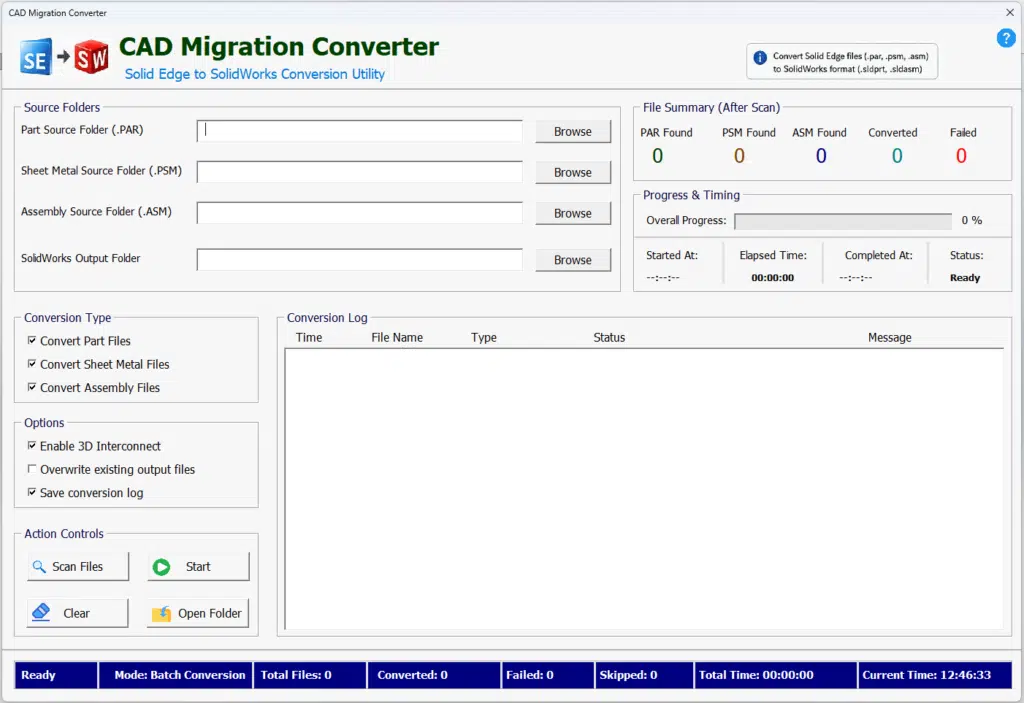
Instead of manually opening and saving files one by one, users can define source locations, review migration scope, execute batch conversion operations, and track results through a centralized interface.
Design Philosophy
The CAD Migration Converter was developed with a practical engineering objective: reduce repetitive migration effort while providing better visibility into the overall migration process.
Based on experience in CAD automation and engineering workflow development, Ramu Gopal designed the system to support a structured migration approach, where file discovery, conversion execution, progress monitoring, and post-conversion validation are treated as part of a single engineering workflow rather than isolated activities.
The goal was not simply to automate clicks. The goal was to create a migration process that engineering teams could monitor, review, and validate with confidence.
Supported Input Formats
The converter supports the following Solid Edge file types:
Part Files
.par
Solid Edge part models used for individual component design.
Sheet Metal Files
.psm
Solid Edge sheet metal models used for manufacturing-oriented design workflows.
Assembly Files
.asm
Solid Edge assembly files containing multiple components and design relationships.
Supported Output Formats
The converter generates native SOLIDWORKS formats:
SOLIDWORKS Part Files
.sldprt
Generated from:
- Solid Edge Part files
- Solid Edge Sheet Metal files
SOLIDWORKS Assembly Files
.sldasm
Generated from:
- Solid Edge Assembly files
Key Features
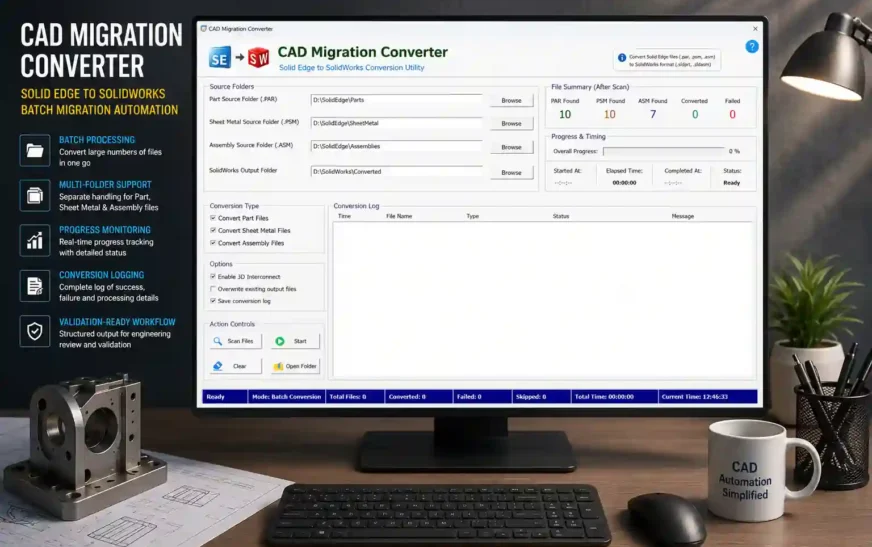
Batch Migration Processing
Convert multiple files in a single operation rather than processing files individually.
Multi-Folder Source Management
Separate source folders can be assigned for:
- Part files
- Sheet metal files
- Assembly files
This provides better control over migration datasets.
File Scanning and Discovery
Before conversion begins, the system scans selected folders and summarizes discovered files, helping users understand the migration scope before execution.
Progress Monitoring
The interface tracks:
- Total files
- Converted files
- Failed files
- Progress percentage
- Current processing status
This provides real-time visibility into migration activities.
Conversion Logging
Every migration activity is recorded within the conversion log.
The log provides visibility into:
- Successful conversions
- Failed conversions
- Processing sequence
- Migration status
Time Tracking
The system captures:
- Start time
- Completion time
- Elapsed processing duration
This information can be useful for migration planning and performance analysis.
Validation-Ready Workflow
The converter supports a validation-focused migration process by providing clear visibility into what was processed and what requires review.
Typical Migration Workflow
The migration process follows a structured engineering workflow.
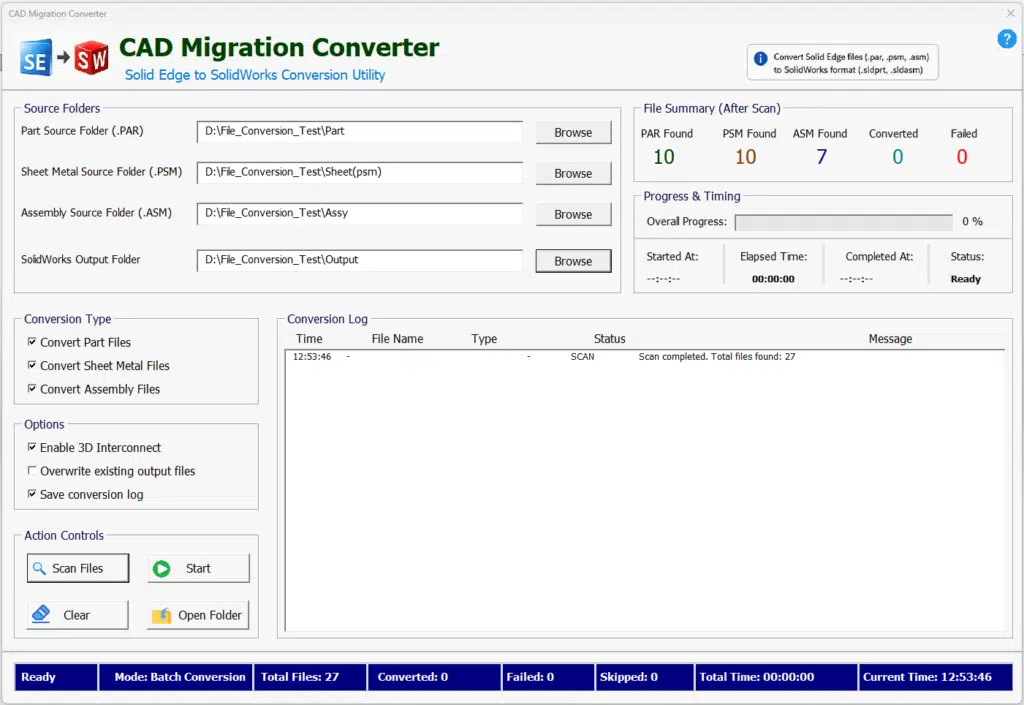
Step 1 – Select Source Folders
Users select Solid Edge source folders containing:
- Part files
- Sheet metal files
- Assembly files
Step 2 – Select Output Folder
A dedicated SOLIDWORKS output location is assigned.
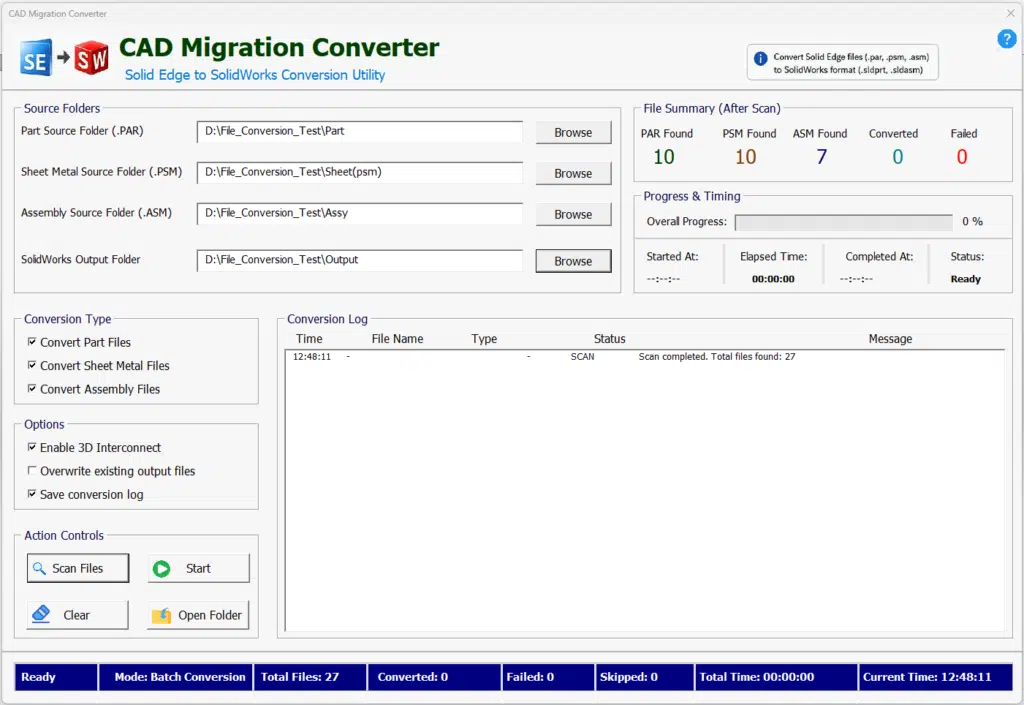
Step 3 – Scan Source Files
The system scans selected folders and summarizes available files.
Step 4 – Review Migration Scope
Users review:
- Number of part files
- Number of sheet metal files
- Number of assembly files
before beginning conversion.
Step 5 – Execute Batch Migration
The converter processes files according to the selected migration settings.
Step 6 – Monitor Progress
Users can track migration activity through progress indicators and status messages.
Step 7 – Review Results
After completion, the user can review:
- Converted file count
- Failed file count
- Conversion logs
- Processing duration
Step 8 – Perform Engineering Validation
Migrated CAD data should be reviewed before production use or downstream engineering activities.
Sample Migration Result
A representative migration batch produced the following results:
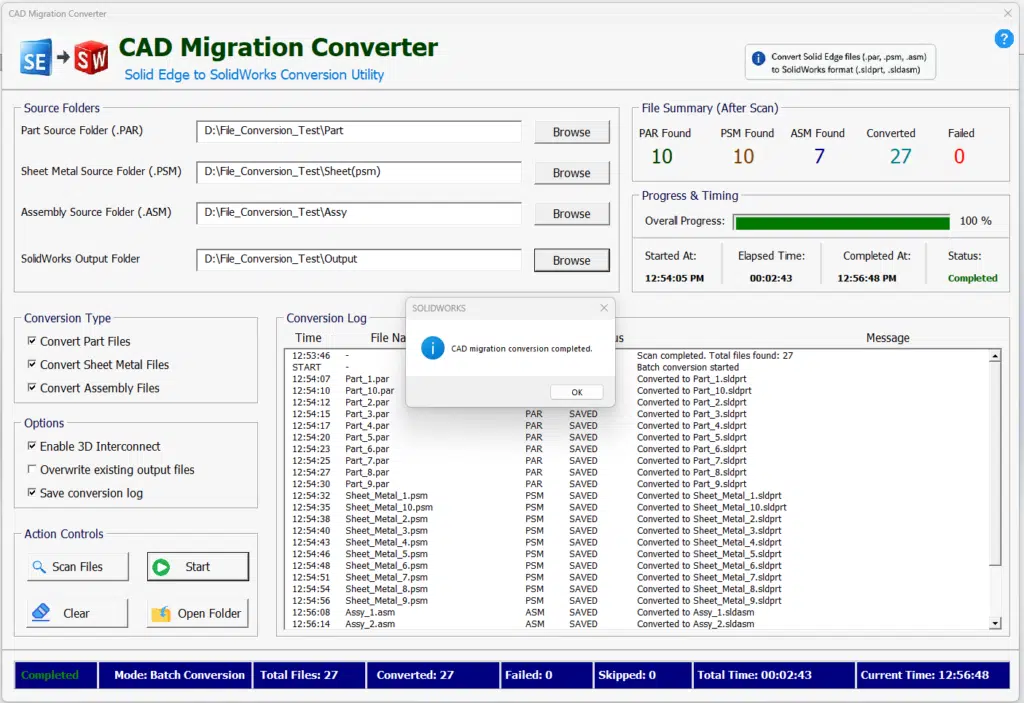
| File Type | Count |
|---|---|
| Solid Edge Part Files | 10 |
| Solid Edge Sheet Metal Files | 10 |
| Solid Edge Assembly Files | 7 |
| Total Files Processed | 27 |
| Successfully Converted | 27 |
| Failed Files | 0 |
The migration was completed with conversion logging and progress tracking enabled.
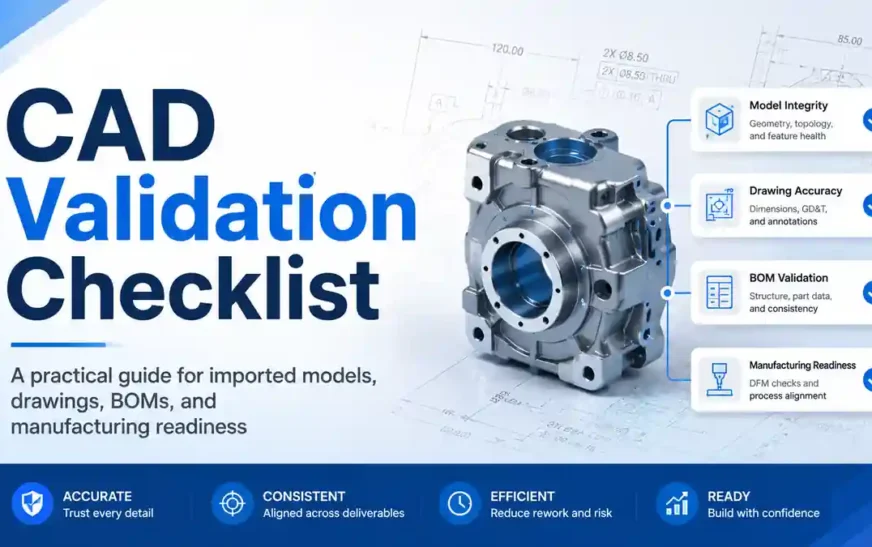
Recommended Post-Migration Validation
CAD migration should not end with successful file creation.
Engineering validation remains a critical step.
Geometry Validation
- Imported solid body quality
- Surface integrity
- Missing faces
- Geometry repair requirements
Assembly Validation
- Missing assembly references
- Broken external links
- Component placement accuracy
- Suppressed or unresolved components
Sheet Metal Validation
- Flat pattern generation
- Bend recognition
- Thickness consistency
- Manufacturing usability
Metadata Validation
- Custom property transfer
- Part number consistency
- Revision information
- Configuration mapping
Documentation Validation
- Drawing references
- BOM consistency
- Annotation review
- Manufacturing readiness
This validation-first approach helps reduce downstream engineering issues and improves confidence in migrated design data.
Engineering Perspective
Many CAD migration activities still rely on repetitive manual operations. While modern CAD platforms provide import capabilities, engineering teams often require additional visibility, traceability, and workflow control when processing large datasets.
The CAD Migration Converter demonstrates how CAD automation can support engineering migration initiatives by combining structured processing, conversion traceability, and validation-focused thinking into a single workflow.
This project also reflects a broader area of interest for Ramu Gopal, whose work focuses on CAD automation, engineering validation systems, design process improvement, and practical digital engineering solutions.
Conclusion
CAD migration is a critical activity in engineering organizations, particularly when large volumes of legacy design data must be reused within a new CAD environment.
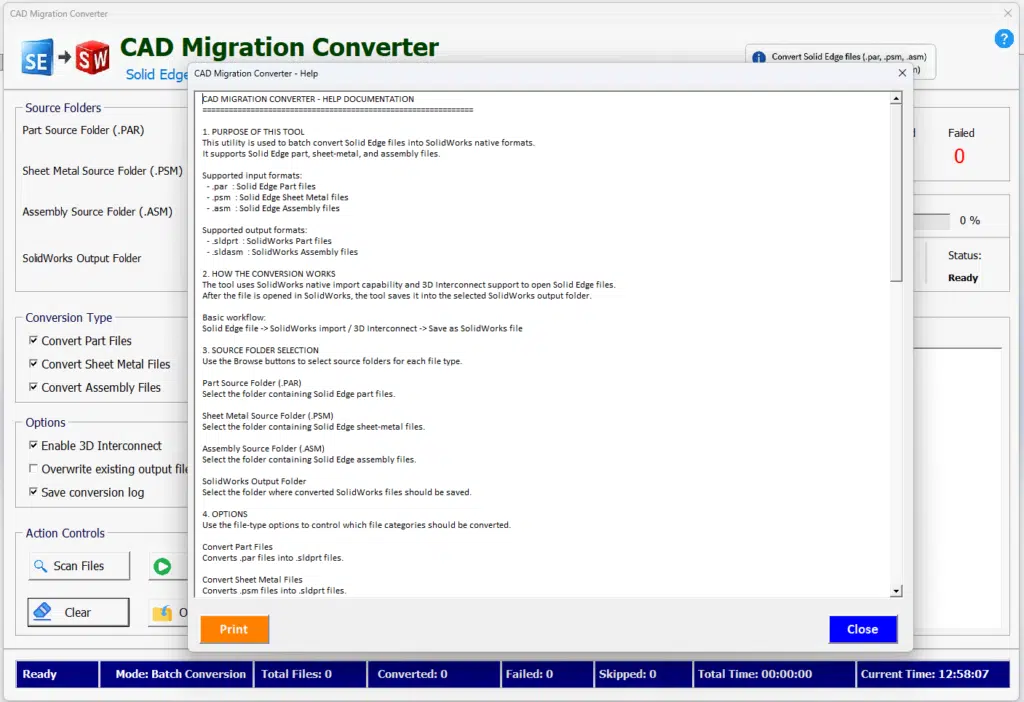
The CAD Migration Converter, developed by Ramu Gopal, demonstrates how automation can be applied to support migration workflows through batch processing, progress monitoring, conversion logging, and validation-ready output review.
As engineering organizations continue to modernize their CAD ecosystems, structured migration workflows and validation-focused approaches will become increasingly important for preserving design intent, maintaining data quality, and accelerating product development.
CAD Migration Converter: Solid Edge to SOLIDWORKS Batch Migration Automation

CAD Migration Converter developed by Ramu Gopal automates batch migration of Solid Edge part, sheet metal, and assembly files into native SOLIDWORKS formats with file scanning, progress tracking, conversion logging, and validation-ready workflows.
Price Currency: USD
Operating System: Windows 10, Windows 11
Application Category: EngineeringSoftware
Pros
- Batch migration of Solid Edge files
- Supports part, sheet metal, and assembly workflows
- File scanning before conversion
- Progress tracking and status monitoring
- Conversion logging and traceability
- Validation-ready engineering workflow
- Structured migration process
- Reduces repetitive manual effort
- Designed for CAD automation use cases
- Supports engineering data migration initiatives
Cons
- Migration results depend on source file quality
- Complex assemblies may require additional review
- Requires licensed SOLIDWORKS environment for workflow execution
Frequently Asked Questions
1. What is the CAD Migration Converter?
The CAD Migration Converter is an engineering-focused CAD automation solution developed by Ramu Gopal to support batch migration of Solid Edge design data into native SOLIDWORKS formats. The workflow includes file scanning, progress tracking, conversion logging, and validation-ready output review.
2. Which Solid Edge file formats are supported?
The converter supports the following Solid Edge formats:
.par— Part Files.psm— Sheet Metal Files.asm— Assembly Files
These files can be processed individually or in batch mode.
3. What output formats are generated?
The converter generates native SOLIDWORKS formats:
.sldprt— SOLIDWORKS Part Files.sldasm— SOLIDWORKS Assembly Files
This enables migrated data to be used directly within SOLIDWORKS workflows.
4. Why use a CAD migration workflow instead of manually opening and saving files?
Manual migration becomes inefficient when handling large datasets. A structured migration workflow helps improve consistency, provides conversion traceability, reduces repetitive effort, and simplifies project tracking during CAD platform transitions.
5. Does the converter support batch processing?
Yes. The system is designed to process multiple part, sheet metal, and assembly files in a single migration session. This helps reduce manual effort when working with large engineering datasets.
6. Can the converter track conversion progress?
Yes. The interface provides real-time visibility into:
- Total files processed
- Converted files
- Failed files
- Progress percentage
- Elapsed processing time
This helps users monitor migration activities more effectively.
7. Why is validation important after CAD migration?
Successful file conversion does not always guarantee engineering readiness. Post-migration validation helps identify issues such as:
- Missing assembly references
- Broken external links
- Sheet metal inconsistencies
- Custom property transfer issues
- BOM mismatches
- Drawing reference problems
A validation-first approach reduces downstream engineering risks.
8. Can CAD migration affect assemblies and references?
Yes. Depending on the source data and project complexity, assembly relationships, external references, configurations, and linked documents may require engineering review after migration. Validation is recommended before production use.
9. Is the CAD Migration Converter intended for production use?
The project demonstrates an engineering-focused approach to CAD migration automation. Organizations should perform appropriate testing, validation, and engineering review before using migrated data in manufacturing, production, or commercial environments.
10. Who developed the CAD Migration Converter?
The CAD Migration Converter was developed by Ramu Gopal, a Mechanical Design Engineer, CAD Automation Specialist, and Founder of The Tech Thinker. The project reflects ongoing work in CAD automation, engineering validation systems, SOLIDWORKS API development, and digital engineering workflows.
11. How does the CAD Migration Converter improve migration traceability?
The CAD Migration Converter records migration activities through progress tracking, status monitoring, and conversion logging. This allows users to review migration results, identify failed files, and maintain better visibility throughout the migration process.
12. Can the CAD Migration Converter process part, sheet metal, and assembly files in a single workflow?
Yes. The CAD Migration Converter is designed to handle Solid Edge part (.par), sheet metal (.psm), and assembly (.asm) files within a single migration workflow. This reduces the need for separate conversion processes and improves migration efficiency.
13. What information does the CAD Migration Converter log during conversion?
The CAD Migration Converter can provide file-level migration information, including processed files, conversion status, successful operations, failed operations, and overall migration progress. This information helps users review and validate migration activities more effectively.
14. Is the CAD Migration Converter suitable for large CAD migration projects?
The CAD Migration Converter was developed to support batch-processing workflows where multiple files must be migrated in a controlled and structured manner. The scanning, tracking, and logging capabilities help users manage larger migration datasets more efficiently than manual conversion methods.
15. How does the CAD Migration Converter support a validation-first approach?
The CAD Migration Converter was developed with a validation-ready workflow in mind. After migration, engineering teams can review converted files for geometry quality, assembly integrity, sheet metal usability, custom property transfer, BOM consistency, and manufacturing readiness before downstream use.
External Reference
Disclaimer: The CAD Migration Converter presented in this article is a technology demonstration and engineering automation project developed by Ramu Gopal for educational, research, and process improvement purposes. CAD migration results may vary depending on source data quality, CAD software versions, model complexity, assembly dependencies, and configuration settings. Engineering review and validation should always be performed before using migrated data for production, manufacturing, or commercial applications. Any trademarks, product names, or software names mentioned remain the property of their respective owners.