
Introduction
How to get virtual parts in SolidWorks using VBA is a common requirement when working with large assemblies that rely on placeholder, layout, or reference components. In many real-world engineering projects, virtual parts are intentionally created during early design stages or for assembly-driven modeling. However, as assemblies grow, manually identifying these virtual parts becomes time-consuming and error-prone.
This article explains a practical and reliable approach to how to get virtual parts in SolidWorks using VBA, focusing on assembly traversal through the SolidWorks API and presenting the results in a clean, review-friendly way. The goal is not to restrict design freedom, but to help engineers clearly understand where virtual parts exist inside an assembly.
Virtual Parts in SolidWorks Assemblies
A virtual part in SolidWorks is a component that exists inside an assembly file rather than as a separate external part file. These components are stored internally and are commonly used for:
-
Placeholder components
-
Skeleton or layout references
-
Early-stage design elements
-
Assembly-driven BOM items
Virtual parts are not mistakes. In fact, they are a normal and useful part of many engineering workflows. The challenge arises when assemblies become complex and engineers lose visibility over where these virtual parts are located.
In small assemblies, identifying virtual parts manually is manageable. In large, nested assemblies, it is not.
Why Engineers Need to Get Virtual Parts Programmatically
Manually locating virtual parts has several limitations:
-
Large assemblies may contain hundreds of components
-
Virtual parts can exist deep inside sub-assemblies
-
Naming alone does not reliably indicate virtual status
-
Manual checks are inconsistent across team members
This is where automation becomes useful. Instead of relying on visual inspection or memory, engineers can use VBA to programmatically scan the entire assembly and identify which components are virtual.
Understanding how to get virtual parts in SolidWorks using VBA allows teams to:
-
Review assembly structure more effectively
-
Prepare assemblies before drawing creation
-
Understand BOM behavior early
-
Maintain consistency across projects
How to Get Virtual Parts in SolidWorks Using VBA
This section is the core of the workflow.
The basic idea behind how to get virtual parts in SolidWorks using VBA is simple:
-
Access the active assembly
-
Traverse all components in the assembly structure
-
Check each component’s virtual status
-
Collect and present the results
Using VBA with the SolidWorks API makes this process repeatable and fast.
At a high level, the automation performs these steps:
-
Confirm an assembly document is open
-
Retrieve the list of components using the API
-
Loop through each component
-
Identify whether the component is virtual
-
Store the relevant information for review
The automation does not modify geometry or enforce rules. It simply detects and reports.
SolidWorks API Objects Used in Virtual Part Detection
Only a few SolidWorks API objects are required to implement this logic effectively.
| API Object | Purpose |
|---|---|
ModelDoc2 |
Access the active document |
AssemblyDoc |
Work with assembly-specific data |
Component2 |
Represent each component in the assembly |
The Component2 object is particularly important because it provides information about how a part exists within the assembly, including whether it is virtual. More about SolidWorks API object Library refer here
By combining these objects, VBA can reliably traverse the assembly structure and identify virtual components.
VBA Logic for Assembly Traversal
Assembly traversal is a critical part of how to get virtual parts in SolidWorks using VBA.
In simple assemblies, components may exist only at the top level. In real projects, assemblies often contain multiple nested sub-assemblies. A reliable VBA approach must therefore handle:
-
Top-level components
-
Nested sub-assemblies
-
Repeated component usage
-
Large component counts
The VBA logic typically follows this pattern:
-
Retrieve all components from the assembly
-
Decide whether to include sub-assemblies
-
Loop through the component collection
-
Evaluate each component individually
This approach ensures that no virtual part is missed, regardless of where it exists in the assembly hierarchy.
UI Design for Reviewing Virtual Parts in SolidWorks using VBA
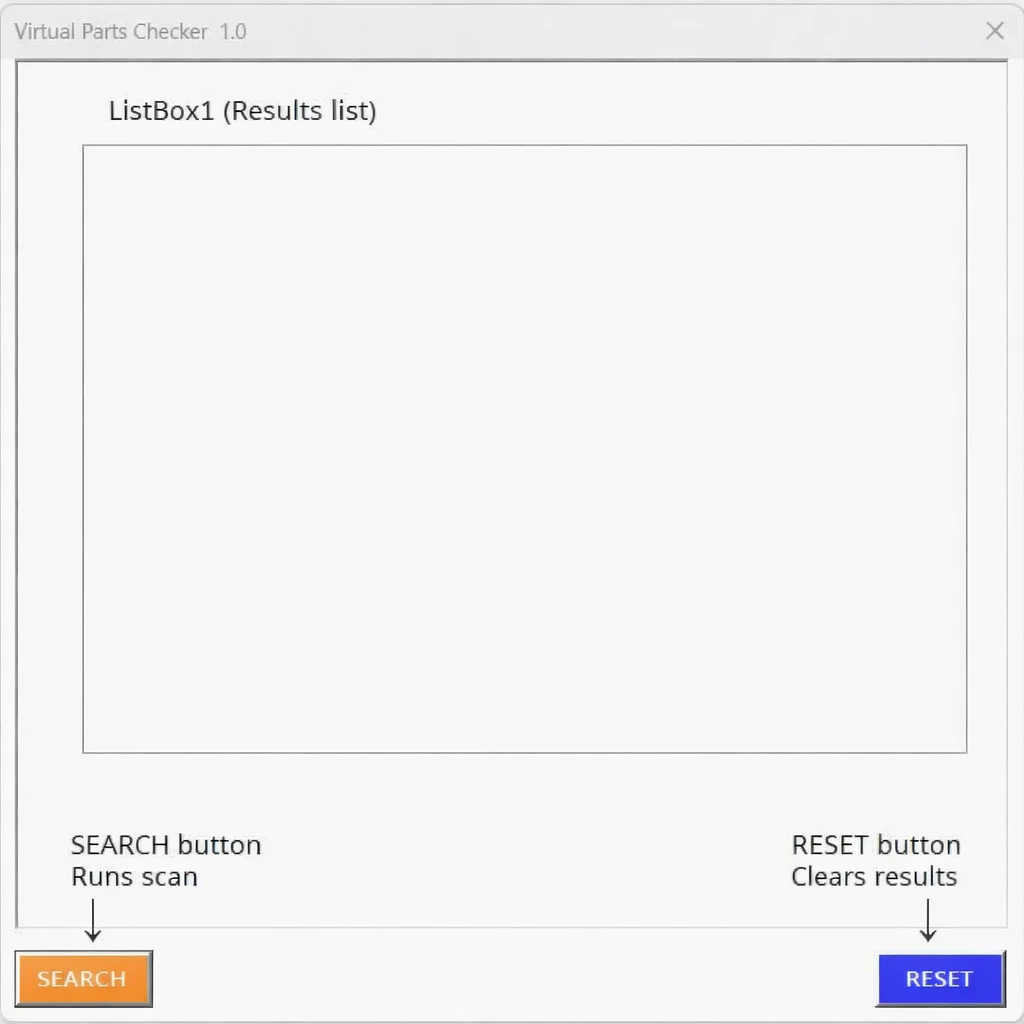
While the detection logic runs in the background, presenting the results clearly is just as important.
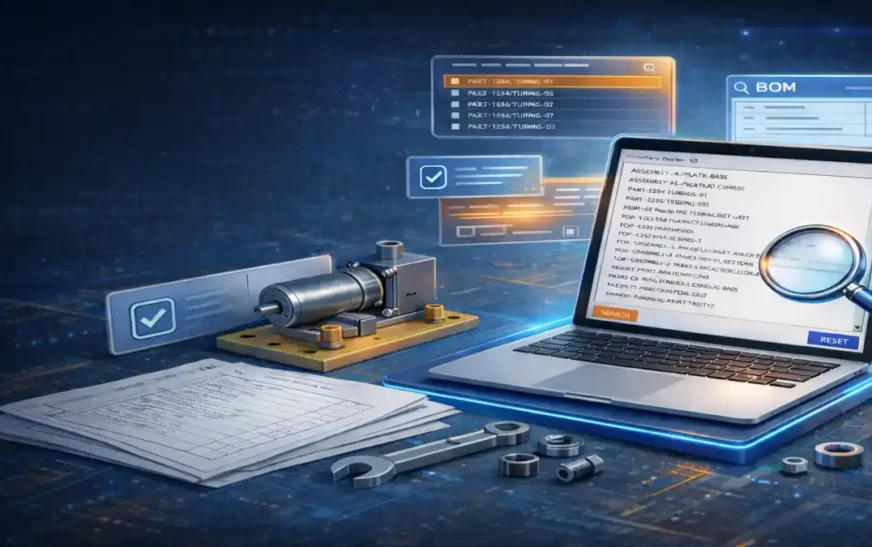
Instead of printing raw API output to the Immediate window, a simple UI makes the results easier to review. A practical UI design for how to get virtual parts in SolidWorks using VBA focuses on clarity:
-
Display only the virtual part name and configuration
-
Avoid showing full internal assembly paths
-
Present results in a scrollable list
-
Allow reset and re-scan actions
The goal of the UI is not decoration. It exists to answer one question clearly:
Which virtual parts currently exist in this assembly?
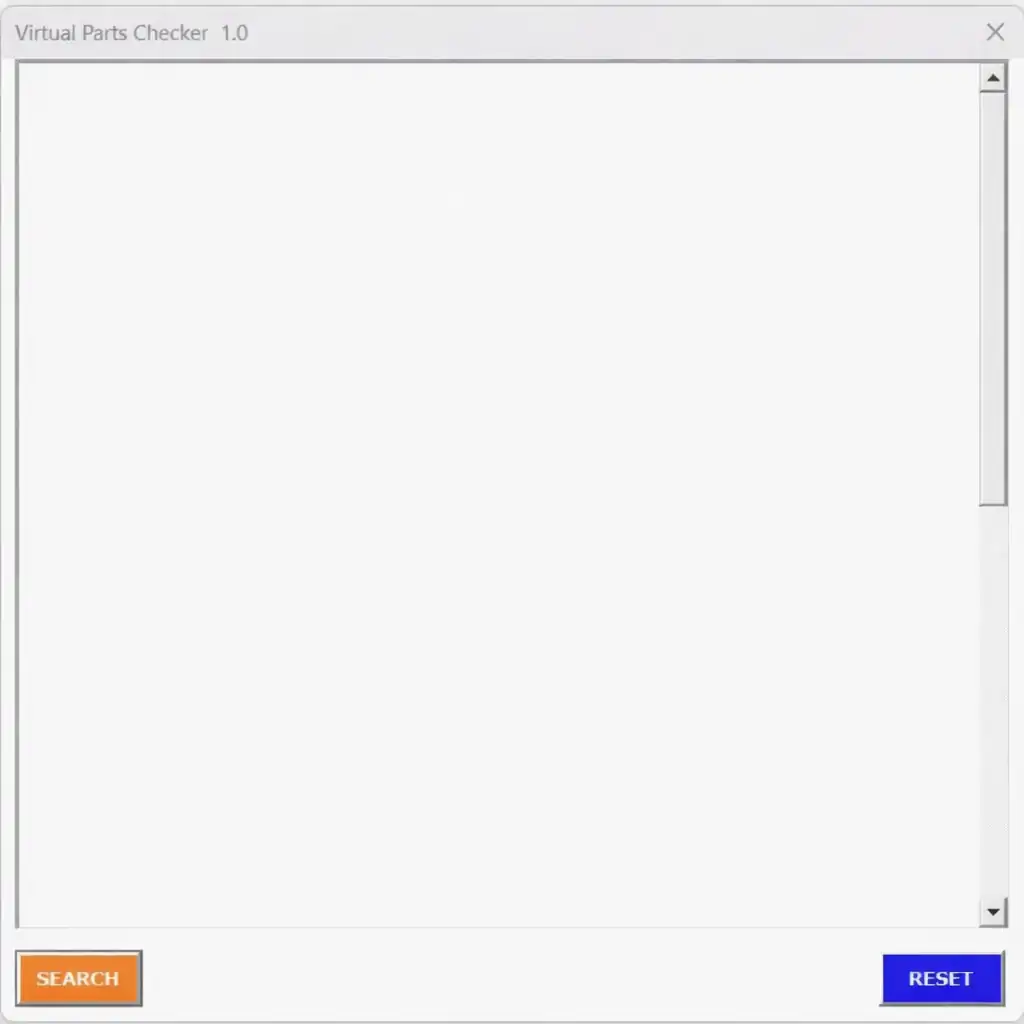
By simplifying the output, engineers can focus on decision-making rather than interpretation.
SolidWorks VBA Program to get virtual parts in Assembly
Option Explicit
'------------------------------------------------------------
' Forces you to declare every variable before use.
' Benefit: prevents typos (e.g., swModle vs swModel) and makes VBA safer.
' Author: thetechthinker.com
'------------------------------------------------------------

Private Sub CommandButton1_Click()
    '--------------------------------------------------------
    ' This procedure runs when the user clicks the main button
    ' (your "SEARCH" / "SCAN" button).
    ' Goal: Scan the active SolidWorks assembly and list all
    '       Virtual Parts (virtual components) in ListBox1.
    '--------------------------------------------------------

    Dim swApp As SldWorks.SldWorks          ' SolidWorks application object
    Dim swModel As SldWorks.ModelDoc2       ' Active document (could be part/assy/drawing)
    Dim swAssy As SldWorks.AssemblyDoc      ' Assembly document interface
    Dim swComp As SldWorks.Component2       ' Individual component in the assembly
    Dim swCompArray As Variant              ' Holds the array returned by GetComponents()
    Dim i As Long                           ' Loop index (Long avoids overflow in big assemblies)

    Set swApp = Application.SldWorks        ' Connect to the running SolidWorks instance
    Set swModel = swApp.ActiveDoc           ' Get the currently active document in SolidWorks

    If swModel Is Nothing Then              ' If no file is open in SolidWorks...
        MsgBox "No document open."
        Exit Sub                            ' Stop macro to prevent errors
    End If

    ' swModel.GetType returns the doc type:
    ' swDocPART, swDocASSEMBLY, swDocDRAWING
    If swModel.GetType <> swDocASSEMBLY Then
        MsgBox "Please open an assembly document."
        Exit Sub                            ' Stop because this tool works only on assemblies
    End If

    ' Cast the active document (ModelDoc2) into an AssemblyDoc interface
    ' This enables assembly-specific API calls like GetComponents()
    Set swAssy = swModel

    ' GetComponents(False):
    '   False = return only top-level components (no sub-assembly children)
    '   True  = return all components including nested components recursively
    swCompArray = swAssy.GetComponents(False)

    ' Critical check:
    ' If the assembly has no components OR the API returns nothing,
    ' swCompArray may be Empty (not a real array). Calling UBound() on Empty causes errors.
    If IsEmpty(swCompArray) Then
        MsgBox "Assembly has no components."
        Exit Sub
    End If

    ListBox1.Clear                          ' Clear old results in the UI before adding fresh results

    ' Loop through the component array and inspect each component
    For i = 0 To UBound(swCompArray)
        Set swComp = swCompArray(i)         ' Assign the current component object

        ' Safety check: component object could be Nothing in rare cases (suppressed/invalid)
        If Not swComp Is Nothing Then

            ' IsVirtual returns True if this component is a virtual part
            ' (stored inside the assembly file rather than an external part file)
            If swComp.IsVirtual Then

                ' Debug.Print outputs to the VBA Immediate Window (Ctrl+G in VBA editor)
                Debug.Print "Virtual Part: " & swComp.Name2

                ' Add the component name to the ListBox for user review
                ' Note: Name2 often includes hierarchy path and config using "/" and "^"
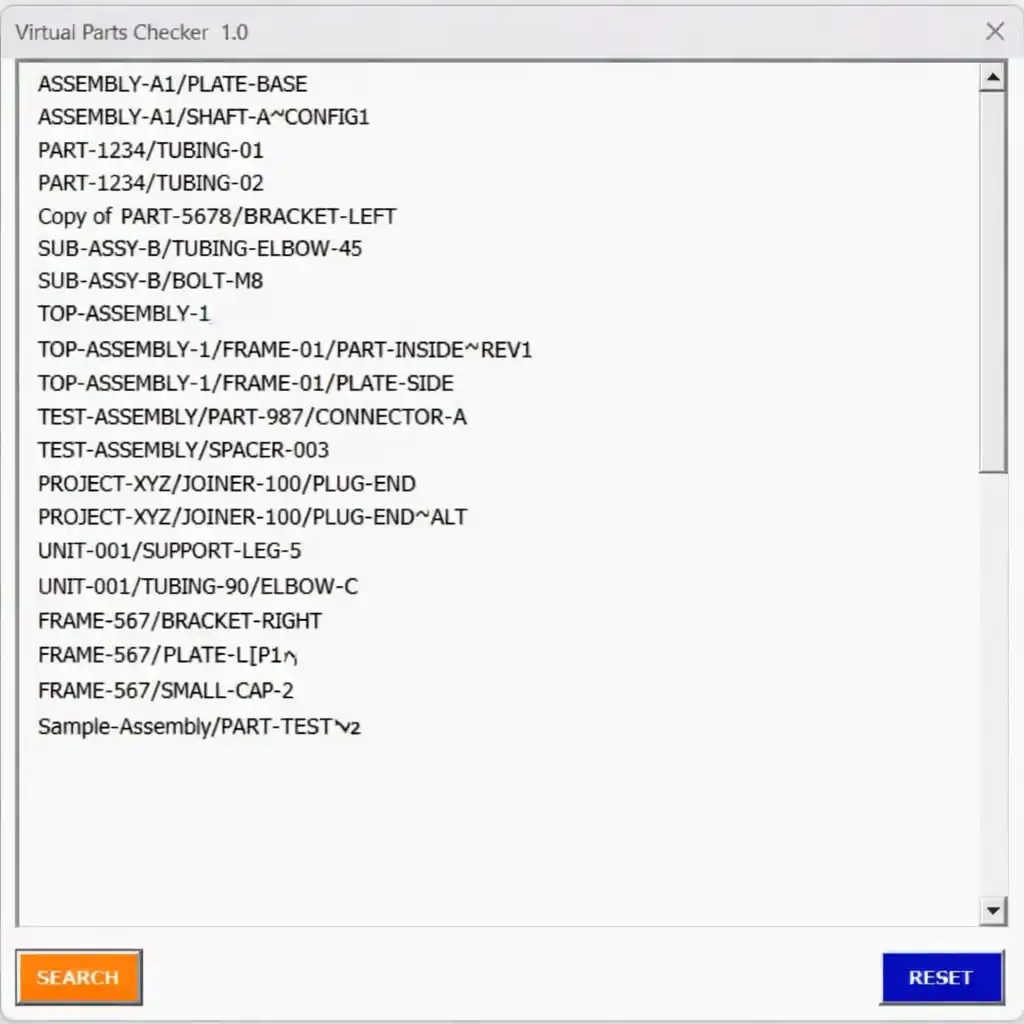
                ListBox1.AddItem swComp.Name2
            End If
        End If
    Next i

End Sub

Private Sub Reset_Click()
    '--------------------------------------------------------
    ' Runs when the user clicks the RESET button.
    ' Clears the ListBox results.
    '--------------------------------------------------------
    ListBox1.Clear
End Sub
Understanding the VBA Code line by line
Instead of explaining every single line, this section explains the important actions performed by the VBA macro and the UI elements involved. The goal is to understand what the macro does, why each step exists, and how the UI displays results.
1) Enforcing Safe VBA Coding Practices
Option Explicit
This forces explicit variable declaration. It helps avoid silent errors caused by typos and makes SolidWorks API automation more stable.
2) UI Trigger: Running the Scan from a Button Click
Private Sub CommandButton1_Click()This is the button click event in the UserForm. When the user clicks the main UI button (Search/Scan), this procedure runs and starts the virtual-part detection workflow.
3) Connecting to SolidWorks and Reading the Active Document
Set swApp = Application.SldWorks
Set swModel = swApp.ActiveDoc
The macro connects to the running SolidWorks session and retrieves the currently active document. This ensures the scan always runs on the file the engineer is currently working on.
4) Context Validation: Ensuring an Assembly Is Open
If swModel.GetType <> swDocASSEMBLY Then
This check ensures the active document is an assembly. If it’s a part or drawing, the macro stops safely because component traversal is only valid for assemblies.
5) Switching to Assembly API (AssemblyDoc)
Set swAssy = swModel
This treats the active document as an AssemblyDoc, enabling assembly-specific API methods such as retrieving the component list.
6) Getting Components from the Assembly
swCompArray = swAssy.GetComponents(False)
This retrieves the assembly’s top-level components into an array.
False = only top-level components
True = includes all nested components inside sub-assemblies (full traversal)
This is an important design choice: top-level scanning keeps results simpler and faster.
7) Defensive Check: Handling Empty Assemblies Safely
If IsEmpty(swCompArray) Then
SolidWorks may return an Empty variant if the assembly has no components (or if nothing is returned). This check prevents runtime errors and keeps the macro stable.
8) Iterating Through Components (Scalable for Big Assemblies)
For i = 0 To UBound(swCompArray)
The macro loops through every component returned by GetComponents. The loop index is declared as Long to avoid overflow in large assemblies.
9) Core Logic: Identifying Virtual Parts
If swComp.IsVirtual Then
This is the key filter. A component is considered a virtual part when it is stored inside the assembly rather than saved as an external part file. Only components that return True here are reported.
10) UI Output: What ListBox1 Is and Why It’s Used
ListBox1.Clear
ListBox1.AddItem swComp.Name2
ListBox1 is a UserForm control (a list component in your VBA UI).
Its job is to display the scan results to the engineer in a readable format.
How it works in this macro:
ListBox1.Clear removes any previous scan results, so the UI always shows fresh output.
ListBox1.AddItem … adds one detected virtual part per line.
Why ListBox is the right UI choice here:
It can display a long list efficiently (scrollable)
It is simple for engineers to review
It avoids relying only on Debug.Print (which many users never open)
In short: ListBox1 is the main “results panel” of your UI.
11) Developer Logging: Debug.Print vs UI Display
Debug.Print "Virtual Part: " & swComp.Name2
This prints results in the VBA Immediate Window for debugging.
It is optional for end-users, but useful for developers when verifying the scan output.
12) Reset Button: Clearing Results Without Closing the Form
Private Sub Reset_Click()
    ListBox1.Clear
End Sub
This is the click event for the Reset button. It clears the ListBox results so the user can run a fresh scan after making changes to the assembly.
Summary: What This Macro Does (In One View)
This macro follows a clean automation structure:
Validate assembly context
Retrieve assembly components safely
Detect virtual parts using the SolidWorks API
Show results clearly in the UI (ListBox1)
Support re-scan using Reset
It does not modify models, enforce rules, or change files. It is a visibility tool designed for quick assembly review.
Output:
Practical Engineering Use Cases
Understanding how to get virtual parts in SolidWorks using VBA is useful in many everyday scenarios:
-
Pre-drawing review
Before creating drawings, engineers can review which components are virtual. -
Pre-BOM verification
Virtual parts often appear automatically in BOMs. Identifying them early prevents confusion later. -
Assembly audits
Large assemblies can be reviewed quickly without manual inspection. -
Design handover
When projects move between engineers, automation provides clarity.
These use cases highlight why detection is more valuable than enforcement.
Limitations and Best Practices
It is important to understand what this VBA approach does and does not do.
What it does well:
-
Identifies virtual parts reliably
-
Works on large assemblies
-
Provides consistent results
-
Supports review workflows
What it intentionally does not do:
-
Modify component geometry
-
Convert virtual parts to external files
-
Enforce company-specific rules
-
Interact directly with PDM or databases
Best practices when implementing this automation include:
-
Keep detection and enforcement separate
-
Use automation to assist engineers, not replace judgment
-
Maintain simple, predictable UI behavior
-
Avoid adding unnecessary complexity
These practices help ensure the automation remains useful and trusted.
Where This Virtual Parts Checker Is Used
This Virtual Parts Checker is used inside SolidWorks assemblies, typically during design and review stages.
It is most relevant in environments where:
-
Assemblies are large and multi-level
-
Virtual parts are intentionally used as placeholders or layout components
-
Engineers need visibility without manually expanding the FeatureManager tree
The tool operates entirely within the SolidWorks session and works on the currently active assembly document. No external files or configurations are required.
When This Tool Is Useful in the Engineering Workflow
This automation is useful at specific points in the design workflow, not continuously.
Common scenarios include:
-
Before creating drawings
Engineers can quickly check which components are virtual before generating assembly or part drawings. -
Before generating a BOM
Since virtual parts often appear automatically in BOMs, identifying them early avoids confusion later. -
During assembly structure reviews
Lead engineers or reviewers can scan an assembly without manually opening sub-assemblies. -
Before handover to another engineer or team
Provides clarity when projects move between designers. -
During early-stage or layout-driven design
Helps track placeholder components that may need replacement later.
This tool is intended for review and awareness, not for enforcing design rules.
Why Manual Checking Is Not Enough
In small assemblies, virtual parts are easy to spot.
In real projects, assemblies can contain:
-
Hundreds of components
-
Deeply nested sub-assemblies
-
Reused components with similar names
Manually identifying virtual parts in such cases is:
-
Time-consuming
-
Inconsistent
-
Easy to miss
Automation ensures the same check is performed every time, regardless of assembly size.
Benefits of Using This VBA-Based Virtual Parts Checker Macro
1. Faster Assembly Review
The tool scans the assembly in seconds, eliminating the need to expand and inspect each component manually.
2. Clear Visibility of Virtual Components
Results are presented in a simple UI list, making it immediately obvious which components are virtual.
3. Reduced Human Error
Automation removes reliance on memory or naming conventions to identify virtual parts.
4. Better BOM Awareness
Engineers gain early insight into which virtual parts may appear in BOMs, avoiding surprises downstream.
5. Non-Intrusive and Safe
The macro does not modify models, convert files, or enforce rules. It only reads data and presents information.
6. Scales with Assembly Size
Using proper API traversal and Long indexing, the tool works reliably even in large assemblies.
Who Will Benefit Most from This SolidWorks Macro to check Virtual Items
-
Design engineers working on complex assemblies
-
Lead engineers performing design reviews
-
Teams using placeholder or layout-driven modeling
-
Organizations standardizing assembly review practices
The tool supports engineering judgment rather than replacing it.
Summary: Why This Tool Exists
This Virtual Parts Checker exists to answer one practical question:
“Which components in this assembly are virtual?”
By answering that question clearly and consistently, the tool helps engineers make informed decisions at the right time in the workflow.
Conclusion
How to get virtual parts in SolidWorks using VBA is not about restricting design freedom or forcing rigid rules on engineers. Instead, it focuses on improving visibility, clarity, and consistency when working with complex assemblies. Virtual parts are a valid and often necessary part of many SolidWorks workflows, but without automation, they can easily be overlooked—especially in large or multi-level assemblies.
By using VBA and the SolidWorks API to traverse assemblies and identify virtual components, engineers gain a clear and reliable view of their assembly structure. This automated approach removes guesswork and manual inspection, allowing teams to understand where virtual parts exist and how they may affect downstream processes such as drawings and BOMs.
When how to get virtual parts in SolidWorks using VBA is combined with a simple, well-designed user interface, the result is a practical review tool that supports better decision-making without disrupting established workflows. The automation remains read-only, safe, and engineer-controlled—enhancing awareness rather than enforcing changes.
Ultimately, this approach demonstrates how lightweight VBA automation can add real value to everyday SolidWorks usage by making complex assemblies easier to understand, review, and manage.
Related Posts
- Link Drawing Views to BOM in SolidWorks
- SolidWorks VBA Macro Object Library
- Common SolidWorks VBA Errors
- SolidWorks Add-in
- SolidWorks VBA Extrude Feature: Automate Part Creation
- How to Cut-Extrude from Sketch in SolidWorks using VBA macro?
External Reference
Frequently Asked Questions (FAQs)
1. What does it mean to get virtual parts in SolidWorks using VBA?
To get virtual parts in SolidWorks using VBA means programmatically identifying components that are stored inside an assembly file rather than as separate external part files. VBA uses the SolidWorks API to detect and list these components automatically.
2. Why should engineers get virtual parts using VBA instead of manual checking?
Manual checking becomes unreliable in large assemblies. When you get virtual parts in SolidWorks using VBA, the scan is consistent, fast, and independent of assembly size or nesting depth.
3. Are virtual parts always bad in SolidWorks assemblies?
No. Virtual parts are often intentionally used for placeholders, layout references, or early design stages. The goal of getting virtual parts using VBA is visibility, not restriction.
4. Which SolidWorks API object is used to detect virtual parts?
Virtual parts are detected using the Component2 API object. The VBA macro checks the IsVirtual property while traversing assembly components.
5. Can VBA get virtual parts from sub-assemblies as well?
Yes. By using recursive traversal (GetComponents(True)), you can extend the logic to get virtual parts in SolidWorks using VBA even from nested sub-assemblies.
6. Will this VBA method modify or convert virtual parts?
No. This approach is read-only. It only reads component metadata and does not convert, save, or modify any virtual part or assembly file.
7. How does this VBA tool display virtual parts to the user?
Detected virtual parts are displayed in a ListBox UI. This makes it easier for engineers to review results without relying on the FeatureManager tree or debug output.
8. Does getting virtual parts using VBA affect performance?
The performance impact is minimal. Even when you get virtual parts in SolidWorks using VBA for large assemblies, the operation completes quickly because only metadata is accessed.
9. Can this VBA logic be used before generating a BOM?
Yes. Many teams use this check before BOM generation to understand which virtual parts may appear automatically in drawings or reports.
10. Is this approach suitable for production assemblies?
Yes, as long as it is used for review and validation. Getting virtual parts using VBA helps engineers make informed decisions before release.
11. Can this VBA macro be integrated with other SolidWorks automation tools?
Absolutely. The logic to get virtual parts in SolidWorks using VBA can be combined with drawing checks, BOM validation, or other assembly review macros.
12. Does this work with suppressed or lightweight components?
Suppressed components may return limited data. The macro includes safety checks to avoid runtime errors, but results depend on the component state.
13. Is VBA the only way to get virtual parts in SolidWorks?
No. C# and C++ add-ins can also do this. However, VBA is quick to deploy and ideal for lightweight automation inside SolidWorks.
14. How accurate is the VBA method for detecting virtual parts?
The detection is highly accurate because it relies on SolidWorks’ internal IsVirtual flag rather than naming conventions or assumptions.
15. When should engineers use a tool to get virtual parts in SolidWorks using VBA?
This is most useful before drawing creation, before BOM release, during assembly reviews, or when handing over projects to other engineers.