
CAD Automation is one of the most important skills for modern engineers. It helps you eliminate repetitive work, reduce human errors, speed up design cycles, and build scalable engineering systems. Whether you work in SolidWorks, AutoCAD, Creo, or NX, CAD Automation transforms the way you design, document, and deliver products.
In this complete guide, you will learn the fundamentals, advanced workflows, AI integration, product configurators, PDM automation, and enterprise-level architecture used by top engineering companies worldwide.
CAD Automation refers to the process of using macros, scripts, APIs, rule engines, and AI tools to automate tasks inside CAD software such as SolidWorks, AutoCAD, Creo, NX, CATIA, and Fusion 360.
Instead of manually repeating the same modeling, drafting, exporting, or data-entry steps every day, automation performs them instantly, consistently, and error-free.
✔ Simple Example
Updating custom properties in 100 SolidWorks files manually = 4–5 hours of effort.
Using automation (like The Tech Thinker’s SolidWorks Custom Properties Batch Tool) = complete in 30 seconds.
✔ Real Industry Perspective
Engineering companies lose thousands of hours yearly to repetitive CAD tasks:
-
Rev changes
-
Drawing corrections
-
Exporting PDFs
-
BOM cleanup
-
Sheet metal checks
-
Model validation
-
GD&T formatting
CAD Automation solves this systematically.
Why CAD Automation Matters
Modern engineering runs on speed, accuracy, and standardization. CAD Automation delivers all three.
1. Save Time Dramatically
Tasks that normally take hours can be done in seconds:
-
Property updates
-
Drawing creation
-
View placements
-
PDF/DXF exports
-
Rebuild/check cycles
2. Eliminate Human Errors
Automation ensures:
-
Correct templates
-
Standard GD&T
-
Correct cut lists
-
Consistent naming
-
Zero manual mistakes
3. Reduce Engineering Cost
Companies reduce labor hours and improve output without hiring more designers.
4. Improve Design Quality
Features like drawing checkers, sheet metal rule validation, and PDM workflows catch issues early.
5. Scale Engineering Workflows
Automation becomes essential when handling:
-
High-volume design
-
Product variations
-
Revision engineering
-
Large assemblies
-
Multi-team collaboration
6. Essential for Digital Manufacturing
Its role connects CAD → CAM → PDM → ERP.
Levels of CAD Automation (Beginner → Pro)
Automation is not one thing. It evolves in levels.
Level 1 — Macro Automation (Beginner Stage)
Macros are the easiest way to start CAD Automation.
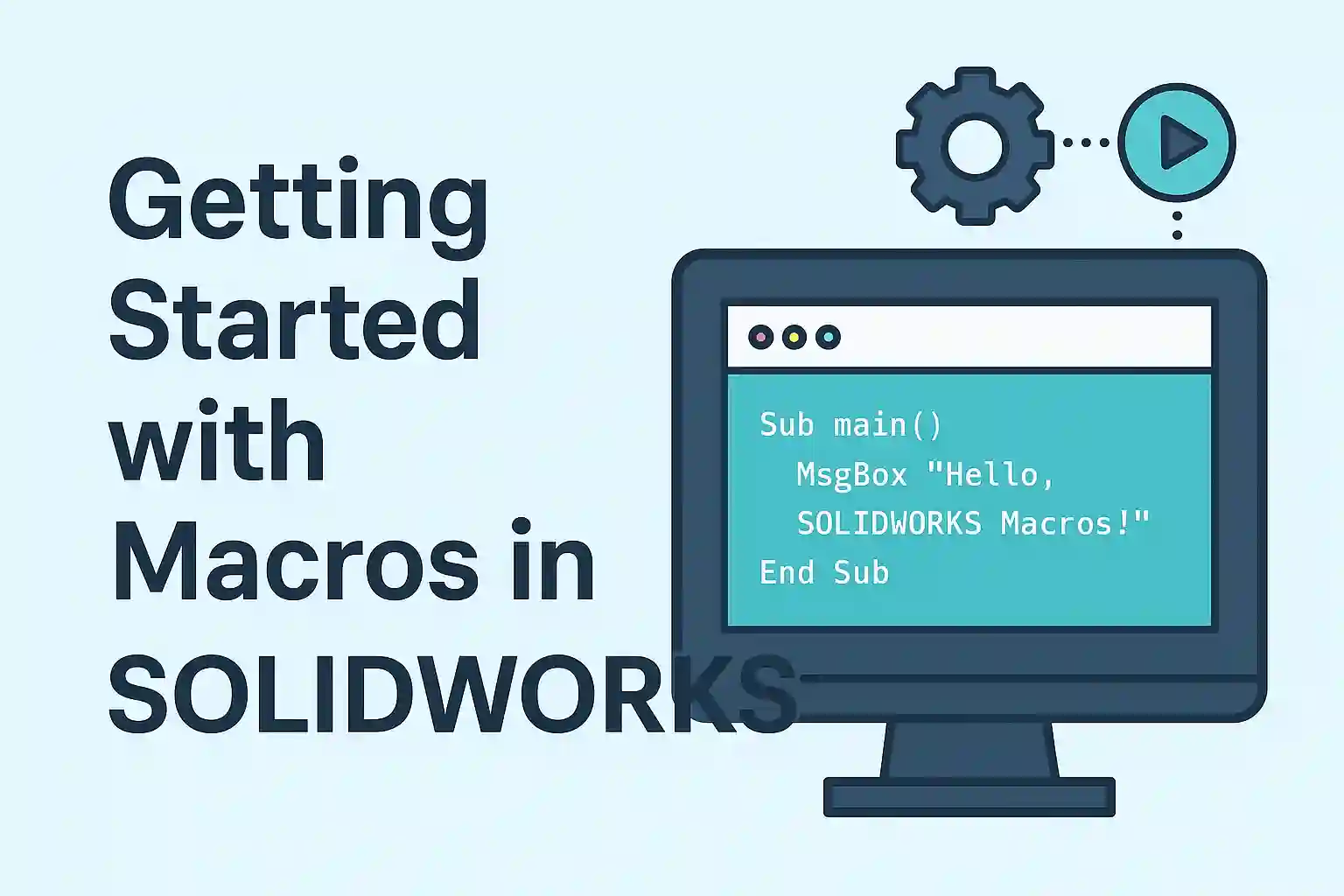
For SolidWorks, this is typically VBA macros.
Common Macro Tasks
-
Update custom properties
-
Batch export PDF/STEP/DXF
-
Apply material
-
Rename features
-
Auto dimension drawings
-
Pack & go automation
-
Batch rebuild mode
Level 2 — API Automation (Intermediate to Advanced)
APIs unlock complete control over CAD software.
SolidWorks API lets you:
-
Build full add-ins
-
Create standalone automation apps
-
Interact with assemblies, drawings, features, BOM
-
Connect CAD to Excel, SQL, or file systems
-
Run batch operations on 1000+ files
-
Build automation frameworks
The official API reference:
👉 SolidWorks API Documentation (DoFollow)
https://help.solidworks.com/
Level 3 — Enterprise Workflow Automation
Automation becomes bigger than macros or add-ins.
Enterprise-level systems involve:
-
CAD + PDM + ERP connections
-
Automated revision control
-
Engineering Change Order workflows
-
Drawing QC automation
-
BOM validation engines
-
Product configurators
-
Multi-user automation servers
Level 4 — AI-Driven Automation (Latest Trend)
AI is transforming CAD Automation with:
✔ Vision Models
-
Detect drawing errors
-
Find GD&T violations
-
Compare revision drawings
-
Recognize title block issues
-
Sheet metal flat pattern checks
✔ RAG (Retrieval Augmented Generation)
-
Engineering standards lookup
-
Design rule explanation
-
CAD troubleshooting
-
Macro guidance
✔ LLM + CAD
Future systems can:
-
Suggest modeling steps
-
Auto generate documentation
-
Convert text → CAD actions
CAD Automation Use Cases
| Use Case | Example | Automation Impact |
|---|---|---|
| Custom Property Automation | Batch update SW files | Saves 90% time |
| Drawing Automation | Auto templates, views, notes | Consistent output |
| Revision & ECO Automation | PDM workflows | Zero manual errors |
| Sheet Metal Checker | Bend rule validation | Manufacturing quality |
| BOM Automation | Auto-sync with ERP | Accurate data flow |
| Product Configurators | Excel/Web rule engines | Faster sales → engineering |
| PDF Extraction | Auto compare PDF revisions | Faster QC |
| GD&T Validation | Standard checks | Better tolerance quality |
CAD Software With Automation Capabilities
1. SolidWorks (Most Automation Friendly)
Supports:
-
VBA macros
-
VB.NET / C# API
-
SolidWorks Object Library
-
EPDM API
-
Add-ins
-
Task Scheduler
2. Autodesk Inventor / AutoCAD
-
AutoLISP
-
Inventor iLogic
-
VB.NET / C# API
3. PTC Creo
-
J-Link API
-
Toolkit
-
Python features
4. Siemens NX
-
NX Open API
-
Journals
-
C#, Python
5. CATIA / 3DEXPERIENCE
-
CAA APIs
-
VB automation
Technologies Used in CAD Automation
Programming Languages used in CAD Automation
-
VBA
-
VB.NET
-
C#
-
Python
-
JavaScript (for cloud CAD like Onshape)
API Frameworks
-
SolidWorks API
-
EPDM API
-
AutoCAD .NET API
-
Fusion 360 API
AI & Automation Tools
-
OCR models
-
Vision inspection
-
LLM-based drafting assistants
-
RAG systems
-
Prompt → CAD workflows
Rule Engines
Used in product configurators:
-
Excel-driven rules
-
JSON/XML logic
-
SQL data engines
How to Start CAD Automation
If someone asks “How do I learn CAD automation?” — this is the path.
Step 1: Identify repetitive tasks
-
Property editing
-
Drawing cleanup
-
Exporting formats
-
Modeling patterns
-
Sheet metal rules
Step 2: Begin with SolidWorks Macros (VBA)
Learn:
-
Selection
-
Feature traversal
-
Custom properties
-
Events
-
ModelDoc2 basics
Step 3: Move to SolidWorks API (C#/VB.NET)
Understand:
-
Object model
-
Assembly & drawing control
-
Feature automation
-
File iteration
-
Error handling
Step 4: Build Excel + CAD Automation
-
Excel rule engines
-
Connected model updates
-
Configurator basics
Step 5: Learn PDM Automation
-
Revision workflows
-
Lifecycle control
-
PDM API
Step 6: Integrate AI & OCR Tools
Examples:
-
PDF drawing diff
-
Metadata extraction
-
RAG for engineering knowledge
Enterprise CAD Automation Architecture
Large companies follow a digital thread architecture.
Core Layers
-
Authoring Layer (CAD)
-
Automation Layer (Macros / Add-ins / Services)
-
Data Layer (PDM / PLM / ERP)
-
Manufacturing Layer (CAM / CNC / MES)
-
Quality Layer (QC Engines / Audits)
-
AI Layer (Vision + RAG)
-
Delivery Layer (PDF/Reports/Exports)
Benefits
-
Faster change approvals
-
Automated compliance
-
Complete traceability
-
Zero manual errors
-
Reusable engineering knowledge
Future of CAD Automation (AI + Cloud + No-Code)
1. AI-Driven Modeling
LLMs + CAD APIs can:
-
Suggest features
-
Predict design intent
-
Auto-correct errors
2. Vision-Based QC
Camera/OCR models detect:
-
Misaligned dimensions
-
Wrong title block formats
-
Missing weld/GD&T symbols
-
Wrong bend deduction
3. No-Code CAD Automation
Platforms will let users automate like:
-
“Update all properties”
-
“Create drawing with template”
-
“Check sheet metal rules”
4. Cloud CAD APIs
Onshape, Fusion 360, Vectary → easy scripting.
5. RAG-Assisted Engineering
-
Search engineering rules
-
Standards lookup
-
CAD troubleshooting
-
Macro suggestion
CAD Automation vs CAD Customization: What’s the Difference?
Although people often mix the terms, CAD Automation and CAD Customization are not the same.
They solve different engineering problems and use different technical approaches.
Below is the simplest and most accurate breakdown.
What Is CAD Automation? (Short Recap)
CAD Automation means making CAD do repetitive tasks automatically using:
-
Macros (VBA)
-
API scripts (C#/VB.NET)
-
Rule engines
-
Batch tools
-
AI-driven workflows
-
PDM-connected operations
Automation = Speed + Consistency + Zero manual errors
Example:
-
Auto-export 100 PDF files
-
Auto-update custom properties
-
Auto-generate drawings
-
Auto-check sheet-metal rules
-
Auto-rename assembly components
What Is CAD Customization?
CAD Customization means changing how the CAD software behaves, usually by:
-
Adding custom menu items
-
Custom toolbars / ribbons
-
Custom UI panels
-
Template modifications
-
Property tabs
-
Context menu extensions
-
PDM UI customizations
-
Company-specific symbols & features
Customization = Make CAD match your company’s way of working
Example:
-
Adding a custom “Company Name Tools” menu in SolidWorks
-
Company-specific drawing templates
-
Custom weld symbol library
-
Part numbering panels
-
Custom PDM states and transitions
CAD Automation vs CAD Customization
| Feature | CAD Automation | CAD Customization |
|---|---|---|
| Purpose | Reduce manual work & speed up tasks | Modify CAD interface & behavior |
| Focus | Doing work automatically | Making CAD easier for humans |
| Typical Tools | Macros, APIs, AI, scripts, batch apps | Templates, UI changes, forms, add-in UI |
| Examples | Auto-create drawings, batch export | Custom toolbar, custom title block |
| Outcome | Higher productivity, fewer errors | Better usability, company-standard experience |
| Skill Level | Beginner→Advanced | Beginner→Intermediate |
| Used By | Engineers, automation teams | CAD admins, customization specialists |
Easy Way to Remember
-
Automation = CAD doing the work for you
-
Customization = CAD adjusted to work the way you want
Both are equally important, but automation gives higher ROI by saving time and reducing errors.
Conclusion
CAD Automation is no longer optional—it is the backbone of modern engineering. From SolidWorks macros to AI-driven drawing QC, automation helps engineers reduce errors, accelerate design, and unlock enterprise-level efficiency.
Whether you’re a beginner exploring simple macros or a professional building full add-ins, CAD Automation is a career multiplier. The next-generation engineer is not just a designer—they are an automation specialist.
Your upcoming tools, guides, SolidWorks macro cluster, and AI-driven engineering content on The Tech Thinker will become an authoritative resource for the entire industry.