

SolidWorks API Functions: 20 Expert Commands You Must Know
SolidWorks automation has become one of the most powerful productivity multipliers in modern CAD engineering. Whether you are building complex parametric models, processing thousands of drawings, or automating metadata across large assemblies, one thing remains constant: SolidWorks API Functions are the backbone behind every serious automation workflow.
In this cornerstone guide, we dive deep into the 20 expert-level SolidWorks API Functions every engineer should know if they want to automate real-world tasks, eliminate repetitive work, and build reliable VBA macros or full-scale CAD tools.
This guide is written with accuracy, clarity, and real engineering experience — designed to help professionals, teams, and future automation leaders build a strong foundation in SolidWorks API.
Let’s begin.
Introduction to SolidWorks API Functions
The SolidWorks API (Application Programming Interface) exposes the entire CAD system to automation. Through a structured set of functions, known as SolidWorks API Functions, engineers can programmatically control sketches, features, assemblies, drawings, configurations, metadata, and more.
These functions are the key building blocks behind:
-
VBA macros
-
Add-ins
-
Batch tools
-
Data migration programs
-
Drawing check automations
-
Manufacturing or QC workflows
Understanding these functions not only improves productivity but also positions your engineering team for scalable automation.
Why Learning SolidWorks API Matters
Engineering teams adopting automation are seeing major productivity gains:
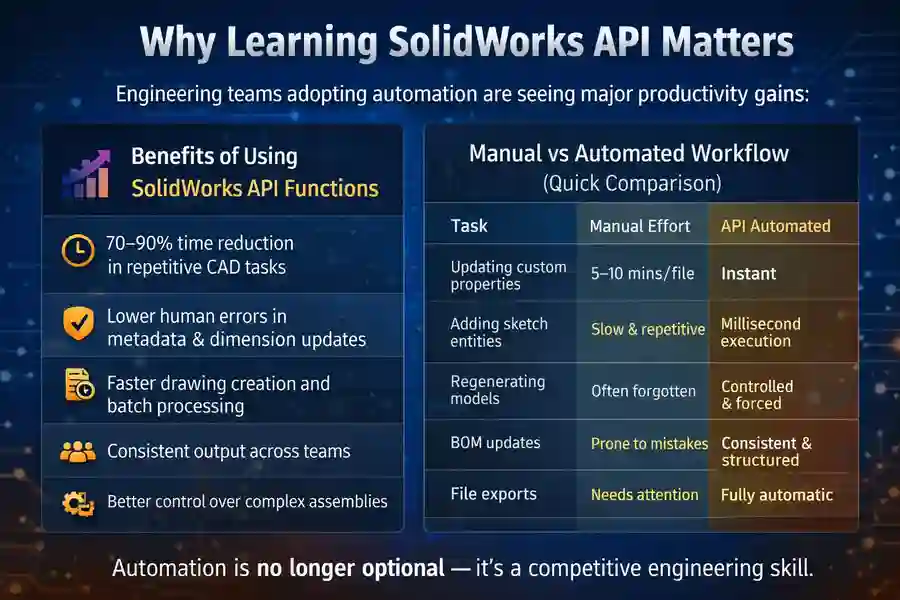
Benefits of Using SolidWorks API Functions
-
70–90% time reduction in repetitive CAD tasks
-
Lower human errors in metadata & dimension updates
-
Faster drawing creation and batch processing
-
Consistent output across teams
-
Better control over complex assemblies
-
Cleaner workflows for manufacturing
Manual vs Automated Workflow (Quick Comparison)
| Task | Manual Effort | API Automated |
|---|---|---|
| Updating custom properties | 5–10 mins/file | Instant |
| Adding sketch entities | Slow & repetitive | Millisecond execution |
| Regenerating models | Often forgotten | Controlled & forced |
| BOM updates | Prone to mistakes | Consistent & structured |
| File exports | Needs attention | Fully automatic |
Automation is no longer optional — it’s a competitive engineering skill.
How SolidWorks API Works (Simple Object Model)
Understanding the SolidWorks object hierarchy helps you know where each API Function belongs.
Core Object Flow
→ FeatureManager → SketchManager → SelectionMgr
Key API Access Points
-
ISldWorks → Opening files, creating documents
-
ModelDoc2 → Editing models
-
ModelDocExtension → Advanced property, export, selection
-
FeatureManager → Features & rebuild
-
SketchManager → Create sketches
-
IAssemblyDoc → Component manipulation
This structure ensures your automation touches the right layer of SolidWorks.
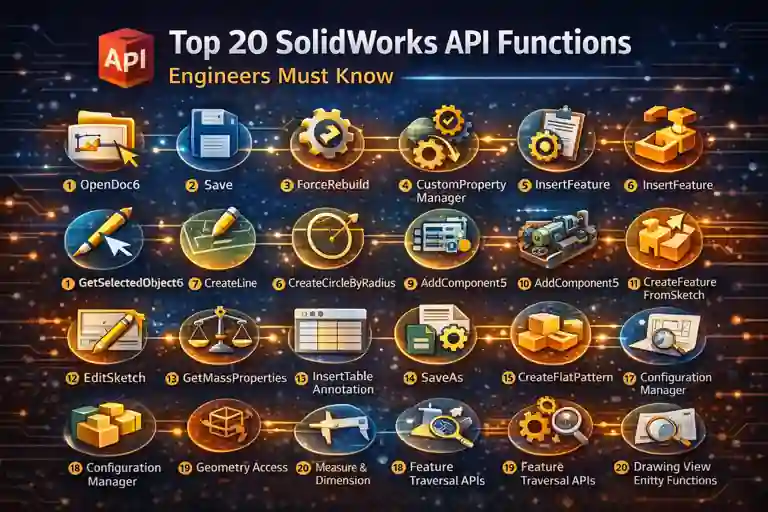
Top 20 SolidWorks API Functions Engineers Must Know
Below are the 20 expert-level SolidWorks API Functions — each explained with purpose, use cases, and mini-snippets.
1. ISldWorks::OpenDoc6
What It Does
Opens any SolidWorks document programmatically.
Why It Matters
Essential for batch tools, migrations, and automation.
Mini VBA Snippet
Set swModel = swApp.OpenDoc6(path, swDocPART, 0, "", err, warn)Use Cases
-
Batch open hundreds of files
-
Data extraction tools
-
Mass metadata updates
2. ModelDoc2::Save
The simplest yet most crucial save API.
Mini VBA Snippet
boolStatus = swModel.Save()Use for:
-
Auto-saving after edits
-
Batch repair tools
-
Standardization scripts
3. ModelDoc2::ForceRebuild
Forces SolidWorks to rebuild every feature..
Mini VBA Snippet
swModel.ForceRebuild3 FalseUse when:
-
Parameters changed
-
Sketches updated
-
Features dependent on external references
4. CustomPropertyManager
Used for reading & writing metadata.
Mini VBA Snippet
Set propMgr = swModel.Extension.CustomPropertyManager("")
propMgr.Add "Description", "Text", "Flange Bracket"
Use in:
-
ERP integration
-
PDM migration
-
Batch naming
-
Drawing automation
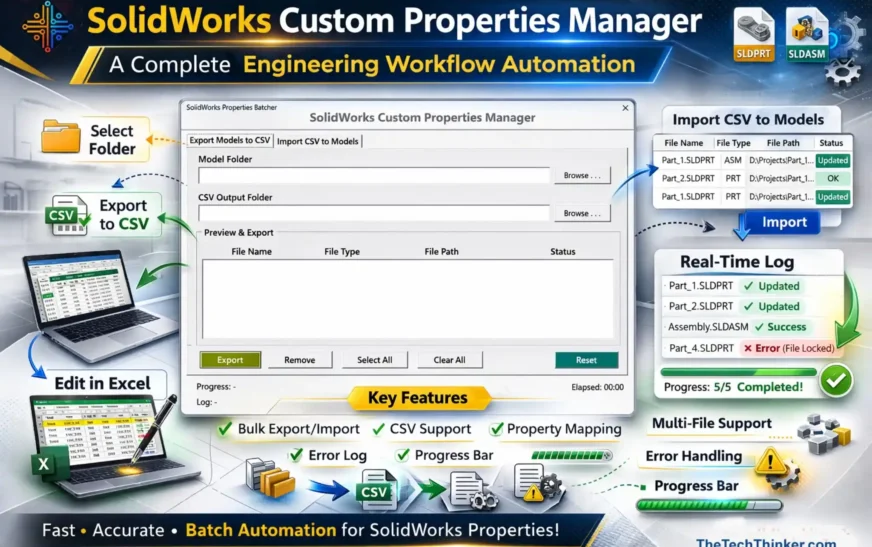
If you want to automate metadata at scale, you can also explore our SolidWorks Custom Properties Manager tool, which helps update properties in bulk and integrates fully with the same API functions used here.
5. FeatureManager::InsertFeature
Inserts new features (boss, cut, etc).
What It Does
FeatureManager::InsertFeature is one of the most versatile SolidWorks API Functions used to create 3D features directly from sketches or geometry. This includes operations like extrude, revolve, cut, shell, fillet, chamfer, and many more.
It gives automation engineers the ability to generate parametric features programmatically, making it essential for design automation, product configurators, or template-based modeling.
If you want a practical, step-by-step example of automating cut features, you can follow our detailed guide on creating a Cut-Extrude from a sketch in SolidWorks using VBA. It shows how to apply these SolidWorks API Functions in a real modeling workflow.
👉 https://thetechthinker.com/cut-extrude-from-sketch-in-solidworks-using-vba-macro/
Why It Matters
This is the function that allows your macro to behave like an actual CAD designer.
Any tool that auto-builds models — from simple brackets to large product generators — will require this API.
Key reasons it is important:
-
Enables fully automated model creation
-
Ensures parametric consistency across variants
-
Avoids manual sketch-feature steps
-
Reduces modelling time for repeat families
-
Core of advanced CAD automation engines (CPQ, product builders, etc.)
When paired with sketch APIs (CreateLine, CreateCircle, CreateEllipse, etc.), it forms the foundation of automated geometry creation.
Mini VBA Snippet
Dim swApp As SldWorks.SldWorks
Dim swModel As ModelDoc2
Dim swFeatureMgr As FeatureManager
Dim swFeature As Feature

Set swApp = Application.SldWorks
Set swModel = swApp.ActiveDoc
Set swFeatureMgr = swModel.FeatureManager

' Create a boss-extrude from the active sketch
Set swFeature = swFeatureMgr.FeatureExtrusion2( _
        True, False, False, _
        0, 0, _
        0.02, 0.0, _
        False, False, False, False, _
        0.0, 0.0, _
        False, False, False, _
        False, True, True _
)
This snippet assumes an active sketch exists.
Automation pipelines typically create a sketch, apply constraints, and then call FeatureExtrusion2 or similar methods.
Common Variants of InsertFeature
Depending on the feature type, SolidWorks exposes different API calls:
| Type | API Function |
|---|---|
| Boss Extrude | FeatureExtrusion2 |
| Cut Extrude | FeatureCut3 |
| Revolve | FeatureRevolve2 |
| Fillet | InsertFeatureFillet |
| Chamfer | InsertFeatureChamfer |
| Shell | InsertFeatureShell2 |
| Hole Wizard | InsertFeatureHoleWizard2 |
(All of these fall under the FeatureManager API umbrella.)
Typical Engineering Use Cases
1. Configurable product generators
Automatically create a 3D model based on input parameters (width, height, hole size, flange length, etc.).
2. Template-driven modeling
Used when manufacturing standards require identical modeling structure for every part.
3. Automated bracket, plate, and frame generation
Common in sheet-metal industries where geometry follows strict rules.
4. Rapid prototyping tools
Engineers can quickly generate multiple design variants without manually modeling each one.
5. Smart macros for daily engineering
Examples: auto-cut slot generator, boss-placement tools, stiffener creation macros, weld feature automation.
Best Practices for Using InsertFeature APIs
✔ Always create and close sketches properly before calling a feature API.
✔ Avoid unnecessary rebuilds — group multiple actions before calling ForceRebuild.
✔ Use meaningful names for features using:
swFeature.Name = "My_Automated_Feature"✔ Validate sketch fully before feature creation to prevent failures.
✔ Use error handling — feature creation is sensitive to bad geometry.
✔ Use preview modes during debugging (swApp.SetUserPreferenceToggle).
Warnings / Pitfalls
⚠ Feature creation will fail silently if:
-
The sketch is open
-
The sketch is not selected
-
The model is unsaved or locked
-
Rebuild errors exist in earlier features
-
Invalid parameters (e.g., negative depth) are passed
⚠ For large assemblies, avoid frequent feature insertions — use lightweight mode or suppress other parts.
6. SelectionMgr::GetSelectedObject6
Critical for tools that depend on user selection.
What It Does
SelectionMgr::GetSelectedObject6 retrieves whatever entities the user (or macro) has selected — faces, edges, vertices, bodies, features, components, or sketch entities. This is one of the most commonly used SolidWorks API Functions when building interactive tools that depend on user input.
It enables your automation to “understand” what the engineer clicked — forming the basis for geometry-driven macros, measurement tools, feature analyzers, and drawing automation.
Mini VBA Snippet
Dim swSelMgr As SelectionMgr
Dim swObj As Object

Set swSelMgr = swModel.SelectionManager
Set swObj = swSelMgr.GetSelectedObject6(1, -1)

If Not swObj Is Nothing Then
    Debug.Print "Selected Type: "; swSelMgr.GetSelectedObjectType3(1, -1)
End If
This retrieves the first selected object, regardless of its type.
Used For
-
Tools that require clicking specific geometry (faces, edges, vertices)
-
Feature-based automations (detect hole features, chamfers, fillets, etc.)
-
Measurement or thickness-check tools
-
Drawing view selection handling
-
Multi-selection macros (loop through all selected items)
-
QC scripts that validate selected entities
Common Selection Types
| Type | Use Case |
|---|---|
| Face | Thickness check, surface ID |
| Edge | Chamfer/fillet validation |
| Component | Assembly macros |
| Sketch Entity | Line/circle detection |
| Feature | Suppress/rename/inspect |
Best Practices
✔ Always check if the selection count > 0
✔ Use GetSelectedObjectType3 to avoid type errors
✔ For multi-selection tasks, loop through GetSelectedObjectCount2
✔ Use ClearSelection2 after automation steps
7. SketchManager::CreateLine
Creates lines in sketches.
What It Does
SketchManager::CreateLine creates straight sketch lines using two coordinate points. It is one of the most fundamental SolidWorks API Functions for building automated sketches, parametric layouts, and feature-ready geometry.
This function is widely used in macros that generate profiles, sheet-metal outlines, base sketches, or construction geometry.
Mini VBA Snippet
Dim swSk As SketchManager
Set swSk = swModel.SketchManager

'Create a line from (0,0) to (0.1,0.05)
swSk.CreateLine 0#, 0#, 0#, 0.1, 0.05, 0#
Coordinates are always in meters.
Used For
-
Building automated 2D profiles
-
Creating reference layouts for extrude/revolve
-
Sheet metal blank outlines
-
Construction geometry in parametric sketches
-
Auto-generating bracket, plate, or frame profile macros
Best Practices
✔ Always open a sketch before creating entities
✔ Use construction geometry when needed:swSk.MakeSketchBlock3 or CreateCenterLine
✔ Apply dimensions/relations after line creation for parametric control
✔ Keep coordinate values consistent (meters)
8. SketchManager::CreateCircleByRadius
Create circles with precision.
What It Does
CreateCircleByRadius adds a circle to the active sketch by specifying its center point and radius. It is one of the most essential SolidWorks API Functions for hole features, cutouts, revolved shapes, and parametric sketch profiles.
Mini VBA Snippet
swModel.SketchManager.CreateCircleByRadius _
    0#, 0#, 0#, 0.015
This creates a 15 mm circle centered at the origin.
Used For
-
Hole creation (extrude-cut)
-
Shaft or pipe profiles
-
Sheet-metal pierce holes
-
Revolved shapes
-
Automated bracket or flange generators
Best Practices
✔ Ensure sketch is active
✔ Maintain radius in meters
✔ Add relations/dimensions after creation
9. IAssemblyDoc::AddComponent5
Adds components to assemblies.
What It Does
AddComponent5 inserts a part or sub-assembly into the active assembly. It is one of the most important SolidWorks API Functions for automating assembly construction.
Mini VBA Snippet
swAssy.AddComponent5 path, 0, "", x, y, zWhat It Does
AddComponent5 inserts a part or sub-assembly into the active assembly. It is one of the most important SolidWorks API Functions for automating assembly construction.
10. CreateFeatureFromSketch
Creates features from sketches.
What It Does
Creates a 3D feature (like an extrude, cut, or revolve) from the currently active sketch. It bridges sketch creation and solid feature generation.
Mini VBA Snippet
swModel.FeatureManager.FeatureExtrusion2 (...)Used For
-
Automated part creation
-
Template-based model generators
-
Sheet-metal profile operations
Summary
Essential for turning sketches into manufacturable 3D features during automation.
11. EditSketch
Switches sketch to edit mode.
What It Does
EditSketch enters sketch edit mode for the selected sketch or creates a new editable state.
Mini VBA Snippet
swModel.EditSketchUsed For
-
Editing existing sketch geometry
-
Applying constraints/dimensions
-
Preparing profiles for auto-features
Summary
A simple but necessary function for any macro modifying sketch geometry.
12. IComponent2::GetMassProperties
Gets mass, volume, and inertia.
What It Does
Retrieves mass, center of gravity, volume, moments of inertia, and other physical properties.
Mini VBA Snippet
arr = swComp.GetMassPropertiesUsed For
-
Weight calculation tools
-
BOM automation
-
Material optimization scripts
-
Structural or FEA checks
Summary
A must-know API for any automation involving material or weight-driven engineering.
13. InsertTableAnnotation
Used for BOM, weld tables, hole tables.
What It Does
Adds tables into drawings or models — including BOM, hole table, weld table, and general tables.
Mini VBA Snippet
swModel.InsertTableAnnotation2(...)Used For
-
Automated BOM creation
-
Hole tables in sheet metal drawings
-
Welding documentation
-
Standardized drawing templates
Summary
Critical in drawing automation where structured tabular data is required.
14. ModelDocExtension::SaveAs
Export STEP, DXF, IGES, PDF.
What It Does
Exports models or drawings to formats like STEP, IGES, DXF, PDF, Parasolid, etc.
Mini VBA Snippet
swModel.Extension.SaveAs fileName, 0, 0, Nothing, err, warnUsed For
-
Batch exports
-
NC/DXF generation
-
Customer deliverable automation
-
Neutral file conversions
Summary
Essential for any export-related automation, especially in manufacturing workflows.
15. IPartDoc::CreateFlatPattern
Creates flat patterns for sheet metal.
What It Does
Generates a flat pattern for sheet-metal parts programmatically.
Mini VBA Snippet
swPart.CreateFlatPatternUsed For
-
CAM-ready flat patterns
-
Sheet-metal costing
-
Batch DXF flattening tools
Summary
A key API for any sheet-metal automation suite.
16. ConfigurationManager Functions
-
Add
-
Rename
-
Activate
Critical for variant design.
What It Does
Allows you to add, rename, or activate configurations inside a model.
Mini VBA Snippet
swCfgMgr.AddConfiguration "Size_100"
swCfgMgr.ActivateConfiguration "Default"
Used For
-
Variant design automation
-
CPQ/configurator models
-
Multi-size product families
Summary
Critical for engineering teams handling product variants and design permutations.
17. Body & Geometry Access Functions
-
GetBodies
-
GetFaces
-
GetEdges
-
Traverse loops
Used in advanced automation like collision, drafting checks.
What It Does
APIs like GetBodies, GetFaces, GetEdges, and loop traversal functions give access to geometric entities.
Mini VBA Snippet
Set bodies = swModel.GetBodies2(swSolidBody, False)Used For
-
Collision checks
-
Draft analysis automation
-
Geometry validation tools
-
Feature detection
Summary
Essential for advanced geometry computation and CAD quality-check tools.
18. Measure & Dimension Functions
Retrieve dimensions, rebuild values, and compare.
What It Does
Retrieve and compare dimensions, measure distances, angles, thickness, and rebuild parametric values.
Mini VBA Snippet
Set swDim = swModel.Parameter("D1@Sketch1")
val = swDim.GetSystemValue
Used For
-
Automated tolerance validation
-
Fit-check tools
-
Interference/clearance checks
-
Design rule enforcement
Summary
A core API group for automated measurement or QC workflows.
19. Feature Traversal APIs
Enumerate features for QC tools.
What It Does
Enumerates all features in a model using functions like IEnumFeatures.
Mini VBA Snippet
Set feat = swModel.FirstFeature
Do While Not feat Is Nothing
    feat = feat.GetNextFeature
Loop
Used For
-
Feature-based quality checks
-
Model audits
-
Automation that targets specific feature types
Summary
Essential for scanning models and performing automated validations.
20. Drawing View Entity Functions
Extract notes, dimensions, balloons, symbols.
What It Does
APIs like View::GetVisibleEntities2 extract notes, dimensions, balloons, symbols, and other entities in drawing views.
Mini VBA Snippet
entities = swView.GetVisibleEntities2(...)Used For
-
Drawing QC automation
-
Balloon/annotation validation
-
Hole callout extraction
-
Automated dimension checks
Summary
Indispensable for macros and tools that analyze or standardize drawing annotations.
Practical Engineering Use Cases
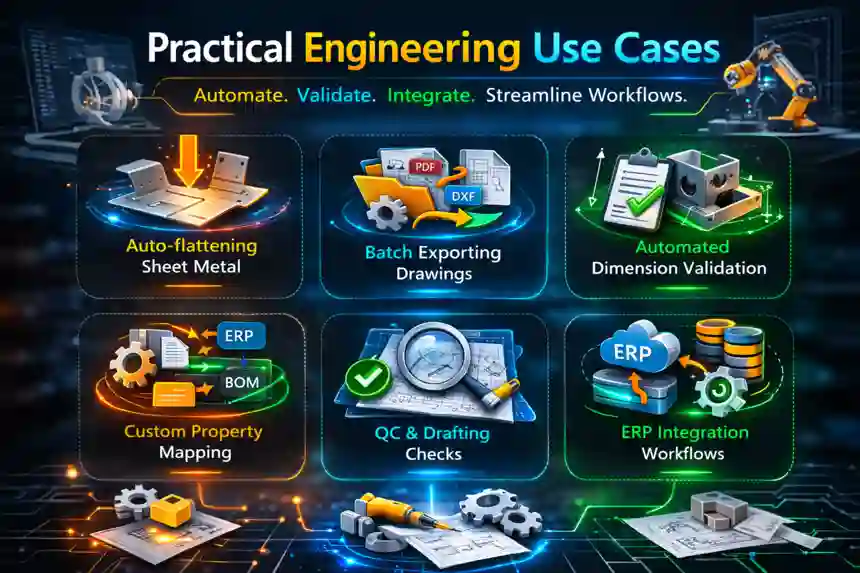
-
Auto-flattening sheet metal
-
Batch exporting drawings
-
Automated dimension validation
-
Custom property mapping
-
QC and drafting checks
-
ERP integration workflows
Best Practices for Using SolidWorks API Functions
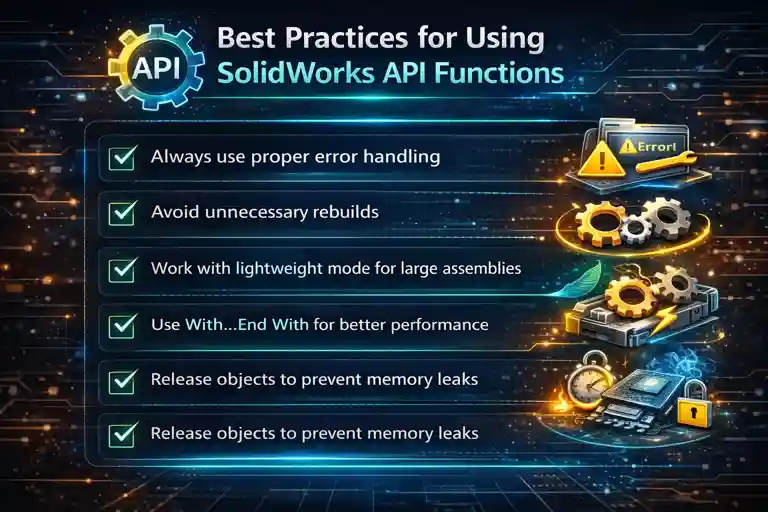
Checklist:
-
Always use proper error handling
-
Avoid unnecessary rebuilds
-
Work with lightweight mode for large assemblies
-
Use With/End With for performance
-
Release objects to avoid memory leaks
Common Errors & Debugging Tips
Even with the most reliable SolidWorks API Functions, automation can fail if the model, sketch, selection, or rebuild state is not what the macro expects. Most issues engineers face are not “API bugs” — they are workflow sequence problems, invalid geometry, or missing selections.
This section highlights the most common API errors, why they occur, and how to fix them quickly so you can build stable, production-ready macros.
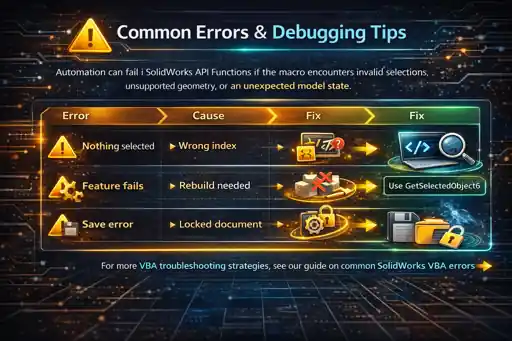
If you’re serious about building dependable CAD automation tools, this part of the guide is essential reading.
| Error | Cause | Fix |
|---|---|---|
| Nothing selected | Wrong index | Use GetSelectedObject6 |
| Feature fails | Rebuild needed | Use ForceRebuild |
| Save error | Locked document | Use SaveAs |
When working with SolidWorks API Functions, errors often arise from invalid selections, unsupported geometry, or unexpected model states. For a deeper discussion of common VBA error types and how to resolve them, see our detailed guide on the most common SolidWorks VBA errors. That article provides practical examples and patterns you’ll encounter when building real automation tools.
Conclusion
Mastering SolidWorks API Functions is no longer optional for modern engineering teams — it’s the fastest path to eliminating repetitive work, improving model quality, and scaling design automation across an entire organization. Whether you’re generating parametric parts, processing large assemblies, or automating drawing standards, these 20 expert-level functions give you the building blocks to create smarter, faster, and more reliable workflows.
By combining API knowledge with structured macros, clean model practices, and a clear understanding of the SolidWorks object model, any engineer can move from manual CAD tasks to fully automated solutions. And as AI and RAG systems become increasingly integrated with engineering workflows, a strong API foundation will position you for the next wave of intelligent design automation.
If you want to deepen your automation journey, explore our other SolidWorks articles, experiment with small macros, and gradually build your own tools — because every improvement compounds into major productivity gains.
Related Articles
- SolidWorks Custom Properties Manager
- Get Virtual Parts in SolidWorks Using VBA
- DriveWorks SOLIDWORKS automation
- SolidWorks Add-in
- Common SolidWorks VBA Errors
External References
- SolidWorks Official API Help Documentation
- Xarial SolidWorks API Browser
- MySolidWorks API Learning Path (Dassault Systèmes)
FAQs for “SolidWorks API Functions”
1. What are SolidWorks API Functions used for?
SolidWorks API Functions let you automate modeling, drawings, metadata, and assembly tasks. They reduce manual work and bring consistency to engineering workflows.
Key uses:
-
Automating repetitive CAD steps
-
Building custom tools and macros
-
Extracting metadata and geometry
-
Integrating SolidWorks with other systems
2. Do I need programming experience to use SolidWorks API Functions?
Not much. Basic VBA is enough to start, and most engineers learn by modifying small macros.
Beginners can start by:
-
Recording macros and studying the code
-
Editing small snippets
-
Testing functions like OpenDoc6 and Save
-
Following structured API examples
3. What is the best way to learn SolidWorks API Functions?
Learn by doing — start with simple macros and gradually automate more tasks.
Effective learning methods:
-
Understanding the object model (ISldWorks → ModelDoc2).
- Practice with The Tech Thinker tricks, tips, explore tools
-
Exploring API Help & Xarial browser
-
Practicing sketch and feature automation
-
Studying real engineering macros
4. Can SolidWorks API Functions automate drawings?
Yes, many powerful API Functions exist for notes, dimensions, balloons, and tables.
Drawing automation includes:
-
Adding BOM or hole tables
-
Extracting dimensions and callouts
-
QC checks on annotations
-
Auto-PDF export workflows
5. Are SolidWorks API Functions reliable for production work?
Yes — if macros are structured correctly with rebuilds, error checks, and stable logic.
To increase reliability:
-
Validate selections
-
Add rebuild steps
-
Handle errors gracefully
-
Use lightweight modes for assemblies
6. What programming languages support SolidWorks API Functions?
VBA, VB.NET, C#, and C++ can all access the SolidWorks API.
Most engineers use:
-
C# for robust SolidWorks add-ins
-
C++ for advanced integrations
-
Python (via wrappers) for research tools
7. How much time can SolidWorks API automation save?
Anywhere from 50% to 95% depending on the workflow.
Common time-savers:
-
Batch exporting dozens of drawings
-
Auto-updating custom properties
-
Creating repeatable sketches/features
-
Auto-generating assemblies
8. Can SolidWorks API Functions work with large assemblies?
Yes — with some best practices to prevent slowdowns.
Recommended methods:
-
Use lightweight/suppressed mode
-
Minimize rebuilds
-
Use selection filters correctly
-
Access geometry efficiently
9. Are SolidWorks API Functions useful for sheet metal automation?
Extremely. Sheet metal workflows have predictable patterns ideal for automation.
Typical automations:
-
Creating flat patterns
- Check all bendlines, edgebend, onebend
-
Placing cutouts/piercing holes
-
Measuring thickness/bend regions
-
Exporting DXF files
Wait, The Tech Thinker will be releasing SolidWorks Sheet Metal Checker soon….
10. What are the most commonly used SolidWorks API Functions?
Functions related to opening, saving, selecting, creating features, and exporting files.
Most-used APIs:
-
OpenDoc6
-
ForceRebuild
-
SaveAs
-
SelectionMgr functions
11. Can SolidWorks API Functions update custom properties automatically?
Yes — this is one of the most popular use cases.
Metadata automation includes:
-
Reading property values
-
Writing new values
-
Cleaning missing properties
-
Standardizing naming conventions
12. How do SolidWorks API Functions help with design variants?
API tools can create, rename, and activate configurations instantly.
Benefits include:
-
Faster parametric changes
-
Product family automation
-
Automated size variants
-
Configuration-based exports
13. What are the limitations of SolidWorks API automation?
API tools depend on model quality, rebuild stability, and geometry validity.
Main limitations:
-
Bad sketches cause feature failures
-
Unsupported geometry types
-
Missing selections
-
Large assemblies may lag
14. Are SolidWorks API Functions safe to run on production models?
Yes — as long as macros include checks to prevent accidental overwrites.
Safety guidelines:
-
Work on backups during testing
-
Validate document type before running
-
Avoid destructive operations
-
Log all macro actions
15. How can SolidWorks API Functions integrate with AI or RAG systems?
By exposing structured model data, parameters, and metadata to an AI pipeline.
AI integrations can:
-
Recommend design changes
-
Auto-validate models
-
Provide macro suggestions
-
Retrieve code snippets using RAG