
How to Check SolidWorks Drawing BOM Availability Using VBA
In production design workflows, verifying SolidWorks Drawing BOM Availability is one of the most important quality checks before releasing drawings for manufacturing. A drawing might appear complete—with views, dimensions, and annotations—yet still be missing a Bill of Materials (BOM). When this happens, downstream teams such as procurement, assembly planning, or manufacturing may receive incomplete documentation.
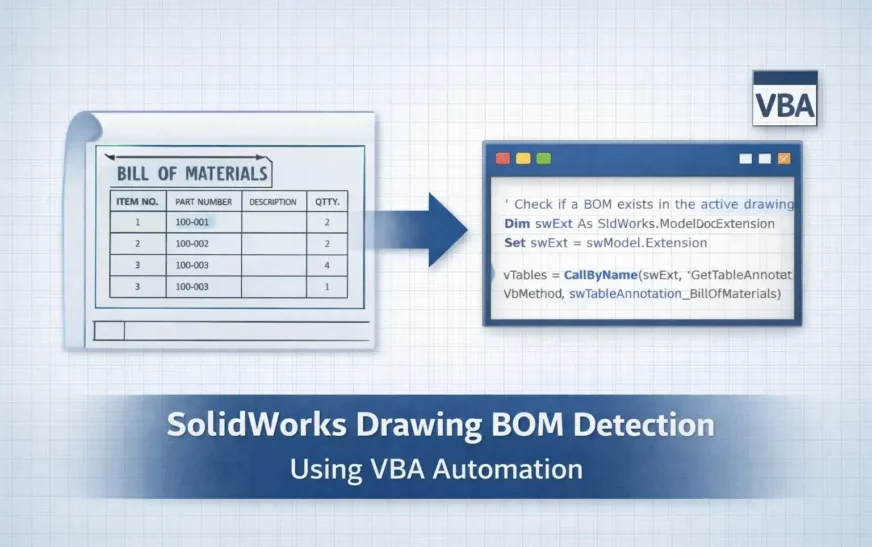
This guide explains how to check SolidWorks Drawing BOM Availability using SolidWorks VBA through the SOLIDWORKS API. The macro provided here analyzes the active drawing and determines whether a BOM exists by examining table annotations and BOM features.
By implementing this simple automation check, engineering teams can integrate CAD automation validation into their workflow and prevent costly release mistakes.
Why SolidWorks Drawing BOM Availability Matters
In many engineering organizations, drawings pass through multiple stages before release. Designers generate the geometry, drafters finalize drawings, and review teams check compliance with standards.
However, during these transitions, BOM tables may be accidentally removed or never inserted.
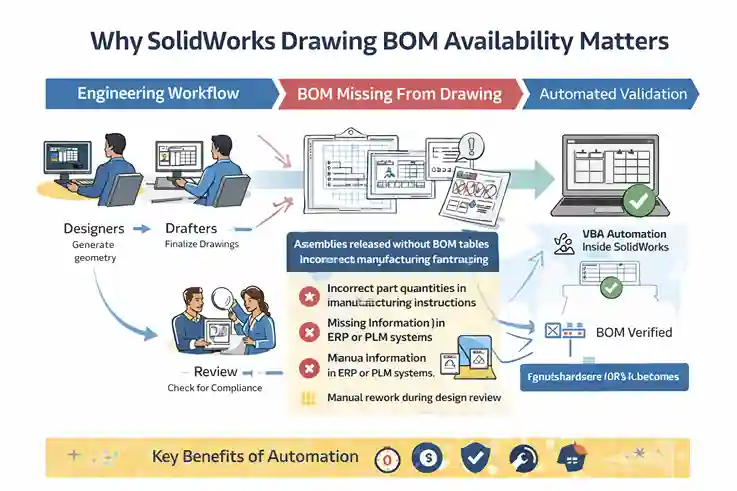
Common risks include:
-
Assemblies released without BOM tables
-
Incorrect part quantities in manufacturing instructions
-
Missing information in ERP or PLM systems
-
Manual rework during design review
Automating SolidWorks Drawing BOM Availability checks helps eliminate these issues early.
Key Benefits of Automation
-
Faster drawing validation
-
Reduced human error
-
Standardized quality checks
-
Integration with automated CAD workflows
This is where VBA automation inside SolidWorks becomes extremely useful.
Understanding BOM Structures in SolidWorks Drawings
In SOLIDWORKS, a Bill of Materials (BOM) represents structured information extracted from an assembly.
Bill Of Material may differ orgnization to Organization, based on their requirement.
The BOM typically includes:
| Column | Description |
|---|---|
| Item Number | Sequential part index |
| Part Number | Component identifier |
| Description | Part description |
| Quantity | Number of instances |
| Material | Component material |
When a BOM is inserted into a drawing, it appears as a table annotation. Internally, SolidWorks also stores this information as a feature tree element, commonly referred to as BomFeat.
Therefore, detecting SolidWorks Drawing BOM Availability requires examining both:
-
Table annotations (visible BOM tables)
-
Feature tree elements (BOM features)
The macro in this article we uses both detection mechanisms.
Common Reasons BOM Tables Are Missing
During everyday CAD work, BOM tables can disappear for several reasons.
Typical Causes
-
Template mismatch
A drawing template may not include a default BOM. -
Sheet duplication issues
Copying sheets sometimes removes BOM references. -
Assembly configuration changes
If configurations change, the BOM may become invalid. -
Manual deletion
Designers sometimes remove tables temporarily and forget to restore them. -
View restructuring
Changing the base view may break BOM associations.
By verifying SolidWorks Drawing BOM Availability, engineers can ensure every released drawing contains the required BOM structure.
API Concepts Behind SolidWorks Drawing BOM Availability check using VBA
The macro relies on several API objects from the SOLIDWORKS API.
Key API Objects
| Object | Purpose |
|---|---|
| SldWorks | Main application interface |
| ModelDoc2 | Active document representation |
| ModelDocExtension | Access to advanced document functions |
| Feature | Feature tree traversal |
BOM Detection Methods
The macro performs detection in two stages:
Method A – Table Annotation Search
The macro queries the drawing for table annotations of type:
BillOfMaterialsMethod B – Feature Tree Scan
The macro scans features in the model tree looking for:
BomFeatVBA Macro to Check SolidWorks Drawing BOM Availability
Below is the complete macro used to detect BOM tables in the active drawing.
'---------------------------------------------------------------------------
' Macro Name : Check SolidWorks Drawing BOM Availability
' Author     : Ramu Gopal
' Website    : The Tech Thinker
'
' Description:
' This macro checks whether a Bill Of Materials (BOM) exists in the active
' SolidWorks drawing document (.SLDDRW).
'
' The macro performs BOM detection using TWO methods:
'
'   Method 1 (Preferred):
'       Checks for BOM Table Annotations placed on drawing sheets.
'
'   Method 2 (Fallback):
'       Scans the Feature Tree for BOM features (BomFeat).
'
' This dual approach improves reliability because:
' - Some SolidWorks versions expose different API methods
' - A BOM feature may exist even if the table is hidden or removed
'
' Result:
' A message box displays whether a BOM exists and how many were detected.
'
' NOTE:
' This macro performs validation only. It does NOT modify the drawing.
'
'---------------------------------------------------------------------------

Option Explicit

'---------------------------------------------------------------------------
' Entry Point of the Macro
'---------------------------------------------------------------------------

Sub main()

    ' Reference to the SolidWorks application
    Dim swApp As SldWorks.SldWorks

    ' Reference to the currently active document
    Dim swModel As SldWorks.ModelDoc2


    '-----------------------------------------------------------------------
    ' Try to obtain the running SolidWorks application instance
    '-----------------------------------------------------------------------
    On Error Resume Next
    Set swApp = Application.SldWorks
    On Error GoTo 0

    ' If SolidWorks cannot be accessed, stop execution
    If swApp Is Nothing Then
        MsgBox "Could not get SolidWorks application.", vbCritical
        Exit Sub
    End If


    '-----------------------------------------------------------------------
    ' Get the active document
    '-----------------------------------------------------------------------
    Set swModel = swApp.ActiveDoc

    ' Ensure a document is currently open
    If swModel Is Nothing Then
        MsgBox "No active document.", vbExclamation
        Exit Sub
    End If


    '-----------------------------------------------------------------------
    ' Validate that the active document is a DRAWING
    '-----------------------------------------------------------------------
    ' BOM tables exist only inside drawing documents (.SLDDRW)
    If swModel.GetType <> swDocDRAWING Then
        MsgBox "Active doc is not a Drawing (.SLDDRW).", vbExclamation
        Exit Sub
    End If


    '-----------------------------------------------------------------------
    ' Count the number of BOMs detected in the drawing
    '-----------------------------------------------------------------------
    Dim bomCount As Long
    bomCount = CountBOMs(swModel)


    '-----------------------------------------------------------------------
    ' Display result to the user
    '-----------------------------------------------------------------------
    If bomCount > 0 Then
        MsgBox "BOM found. Count: " & bomCount, vbInformation
    Else
        MsgBox "No BOM found in this drawing.", vbInformation
    End If

End Sub


'---------------------------------------------------------------------------
' Function : CountBOMs
'
' Purpose:
' Counts BOM tables present in the drawing using two detection strategies.
'
' Method A (Preferred):
'   Detect BOM table annotations placed on drawing sheets.
'
' Method B (Fallback):
'   Scan the FeatureManager tree for BOM features (BomFeat).
'
' Returns:
'   Number of BOM objects detected
'---------------------------------------------------------------------------

Private Function CountBOMs(swModel As SldWorks.ModelDoc2) As Long

    Dim total As Long
    total = 0


    '-----------------------------------------------------------------------
    ' METHOD A : Detect BOM Table Annotations
    '
    ' Table annotations represent tables inserted in drawings such as:
    '   - BOM Tables
    '   - Revision Tables
    '   - Weldment Cut Lists
    '
    ' Here we specifically search for Bill Of Materials tables.
    '-----------------------------------------------------------------------

    On Error Resume Next

    Dim swExt As SldWorks.ModelDocExtension

    ' ModelDocExtension provides advanced document functions
    Set swExt = swModel.Extension

    Dim vTables As Variant


    '-----------------------------------------------------------------------
    ' Some SolidWorks versions support GetTableAnnotations2
    ' Others support GetTableAnnotations
    '
    ' We attempt both to maintain compatibility across versions.
    '-----------------------------------------------------------------------

    Err.Clear
    vTables = Empty

    ' Try the newer API method first
    vTables = CallByName(swExt, "GetTableAnnotations2", VbMethod, swTableAnnotation_BillOfMaterials)

    If Err.Number = 0 Then

        ' Count returned BOM table annotations
        total = total + SafeUBoundPlusOne(vTables)

    Else

        ' If the newer API is unavailable, try the older method
        Err.Clear
        vTables = Empty

        vTables = CallByName(swExt, "GetTableAnnotations", VbMethod, swTableAnnotation_BillOfMaterials)

        If Err.Number = 0 Then
            total = total + SafeUBoundPlusOne(vTables)
        End If

    End If

    On Error GoTo 0


    '-----------------------------------------------------------------------
    ' METHOD B : Feature Tree Scan (Fallback Detection)
    '
    ' Even if the BOM table is hidden or removed, the BOM feature may
    ' still exist inside the FeatureManager tree.
    '
    ' Therefore we scan the entire feature tree for "BomFeat".
    '-----------------------------------------------------------------------

    Dim swFeat As SldWorks.Feature

    ' Get the first feature in the FeatureManager tree
    Set swFeat = swModel.FirstFeature

    ' Traverse the entire feature tree
    Do While Not swFeat Is Nothing

        ' Compare feature type name with "BomFeat"
        If StrComp(swFeat.GetTypeName2, "BomFeat", vbTextCompare) = 0 Then
            total = total + 1
        End If

        ' Move to the next feature
        Set swFeat = swFeat.GetNextFeature

    Loop


    ' Return the total number of BOM detections
    CountBOMs = total

End Function


'---------------------------------------------------------------------------
' Helper Function : SafeUBoundPlusOne
'
' Purpose:
' Safely determine the number of elements in a Variant array.
'
' Why needed:
' API calls may return:
'   - Empty
'   - Non-array values
'   - Variant arrays
'
' This helper prevents runtime errors when counting returned objects.
'
' Returns:
'   Number of elements in the array
'---------------------------------------------------------------------------

Private Function SafeUBoundPlusOne(v As Variant) As Long

    On Error Resume Next

    If IsEmpty(v) Then

        SafeUBoundPlusOne = 0

    ElseIf IsArray(v) Then

        SafeUBoundPlusOne = UBound(v) - LBound(v) + 1

    Else

        SafeUBoundPlusOne = 0

    End If

    On Error GoTo 0

End Function
Explanation of the Macro Logic
Our macro follows a structured validation workflow to determine SolidWorks Drawing BOM Availability. Instead of relying on a single detection method, the macro uses two complementary strategies to ensure reliable BOM detection across different SolidWorks versions.
The overall process can be understood in six logical steps.
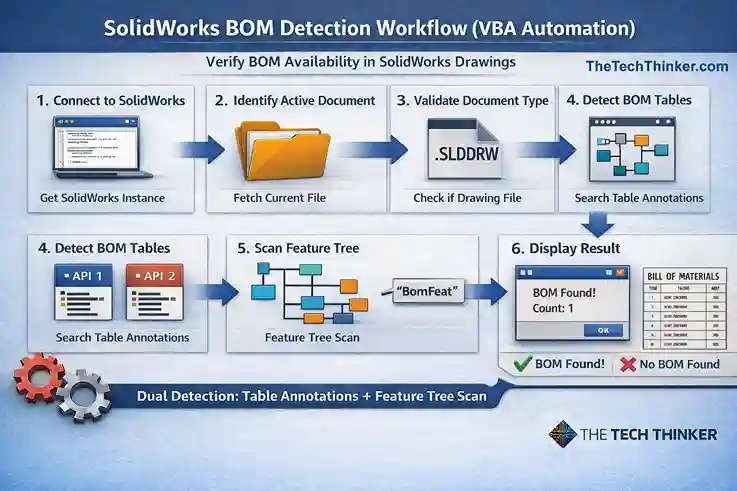
Step 1 – Connect to the SolidWorks Application
The macro first attempts to obtain the running instance of the SolidWorks application.
Set swApp = Application.SldWorksThis line creates a reference to the active SolidWorks session using the SolidWorks API application object.
Because API connections may fail if SolidWorks is not available, the macro temporarily enables error suppression:
On Error Resume NextAfter attempting the connection, the macro verifies that the application object was successfully obtained.
If the connection fails, the macro stops execution and informs the user:
MsgBox "Could not get SolidWorks application."This prevents the macro from continuing with invalid references.
Step 2 – Identify the Active Document
Once the SolidWorks application instance is available, the macro retrieves the currently active document.
Set swModel = swApp.ActiveDocThis object represents whichever document is currently open in SolidWorks.
If no document is active, the macro displays a warning message:
MsgBox "No active document."This ensures the validation process only runs when a document is available for inspection.
Step 3 – Validate Document Type
BOM tables exist only in drawing documents. Therefore, the macro verifies that the active document is a drawing file.
If swModel.GetType <> swDocDRAWING ThenThe GetType method returns the document type, and the constant swDocDRAWING represents .SLDDRW files.
If the active document is not a drawing, the macro stops execution and informs the user.
MsgBox "Active doc is not a Drawing (.SLDDRW)."This validation step prevents the macro from attempting BOM checks on parts or assemblies.
Step 4 – Detect BOM Tables Using API Methods
Once the drawing document is confirmed, the macro calls a helper function named CountBOMs.
bomCount = CountBOMs(swModel)This function performs the actual detection logic.
The macro first attempts to locate BOM table annotations within the drawing. These tables are the visible BOM tables placed on drawing sheets.
Inside the function, the code retrieves the ModelDocExtension object:
Set swExt = swModel.ExtensionThis extension object provides advanced API functionality, including access to table annotations.
The macro then attempts to retrieve BOM tables using the newer API method:
GetTableAnnotations2However, because different SolidWorks versions expose different methods, the macro safely attempts both versions:
-
GetTableAnnotations2(newer versions) -
GetTableAnnotations(older versions)
This compatibility logic ensures the macro works across multiple SolidWorks releases.
If BOM tables are found, they are stored in a variant array, and the macro counts the number of detected tables.
Step 5 – Scan the Feature Tree for BOM Features
Although table annotations usually represent BOM tables, some drawings may contain a BOM feature in the FeatureManager tree even if the table is hidden or removed.
To handle this case, the macro performs a second detection method by scanning the feature tree.
First, the macro retrieves the first feature in the document:
Set swFeat = swModel.FirstFeatureIt then traverses the entire feature tree using a loop.
Do While Not swFeat Is NothingDuring each iteration, the macro checks the feature type name:
swFeat.GetTypeName2If the feature type matches "BomFeat", it indicates the presence of a BOM feature.
StrComp(swFeat.GetTypeName2, "BomFeat", vbTextCompare)If a BOM feature is detected, the macro increments the BOM counter.
This fallback detection method ensures that BOMs are identified even if the visible table annotation is missing.
Step 6 – Display the Result
After the detection logic completes, the macro returns the total number of BOM elements found in the drawing.
Back in the main procedure, the macro evaluates the result.
If at least one BOM is detected:
MsgBox "BOM found. Count: " & bomCountOtherwise, the macro informs the user that no BOM was detected in the drawing.
MsgBox "No BOM found in this drawing."This final message provides a simple validation output that engineers can use during drawing review or automated QA checks.
Why This Detection Approach Is Reliable
This macro improves reliability by combining two independent detection strategies:
| Detection Method | Purpose |
|---|---|
| Table Annotation Detection | Finds visible BOM tables in drawing sheets |
| Feature Tree Scan | Finds BOM features even if the table is hidden |
Using both methods ensures that SolidWorks Drawing BOM Availability is detected accurately across different drawing conditions and SolidWorks versions.
Expected Behavior of the SolidWorks BOM Availability Automation using VBA
When the macro runs, it produces one of two messages:
Case 1 – BOM Exists
BOM found. Count: 1
Case 2 – No BOM Found.
No BOM found in this drawing.The count may be greater than one if multiple BOM tables exist across sheets.
Engineering Use Cases for SolidWorks BOM Availability check macro
Checking SolidWorks Drawing BOM Availability using VBA can support several engineering processes.
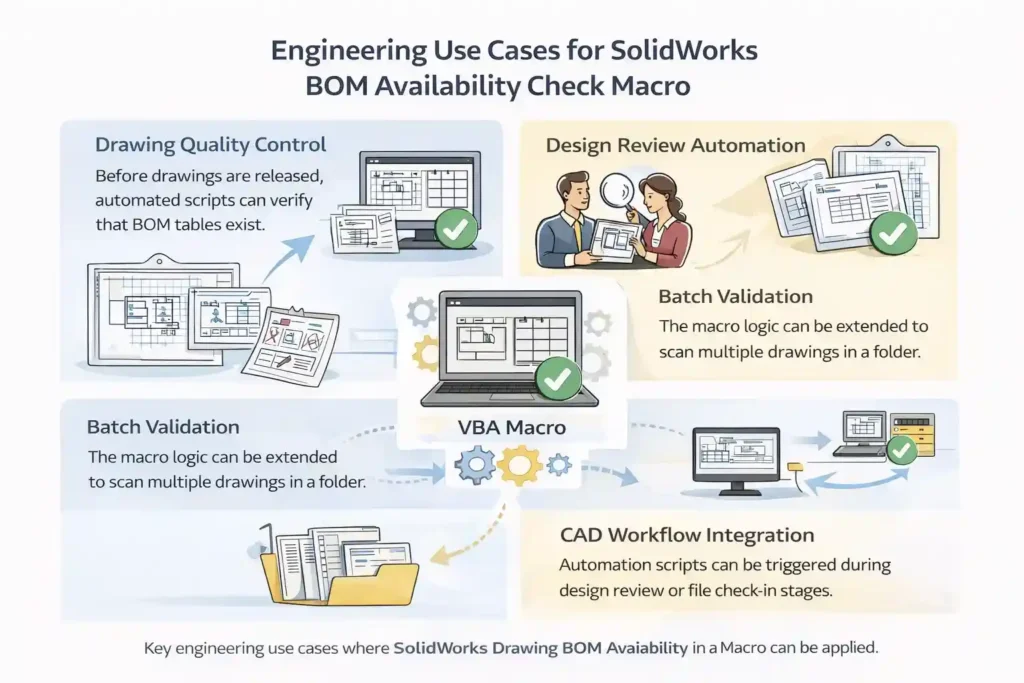
Drawing Quality Control
- Before drawings are released, automated scripts can verify that BOM tables exist.
Design Review Automation
- Review teams can run scripts to confirm documentation completeness.
Batch Validation
- The macro logic can be extended to scan multiple drawings in a folder.
CAD Workflow Integration
- Automation scripts can be triggered during design review or file check-in stages.
Advantages of Automating SolidWorks VBA BOM (Bill Of Material) Validation
- Using SolidWorks VBA macro automation offers several advantages.
Consistency
- Every drawing is checked using the same logic.
Speed
- Automation runs much faster than manual review.
Accuracy
- The API directly reads the drawing structure.
Scalability
- Macros can be integrated into larger CAD automation frameworks.
Possible Enhancements for Advanced CAD Automation
Although this macro performs a basic validation, it can be expanded.

Possible improvements include:
-
Detecting whether BOM exists on specific sheets
-
Validating BOM template type
-
Checking balloon linking with BOM
-
Exporting results to CSV validation reports
-
Integrating checks into drawing release workflows
These enhancements can form part of a larger CAD automation system.
In many automated drawing workflows, detecting BOM availability is only the first step. In advanced automation scenarios, engineers may also need to link drawing views directly to the BOM so that balloons, item numbers, and assembly references stay synchronized. For a practical example of this workflow, see our guide on Link Drawing Views to BOM in SolidWorks VBA Macro, which demonstrates how a VBA macro can automatically connect drawing views to the correct BOM feature.
Conclusion
Ensuring SolidWorks Drawing BOM Availability is a critical step in maintaining accurate and complete engineering documentation. A drawing without a Bill of Materials can lead to confusion in manufacturing, procurement delays, and costly production errors. By automating this validation using a simple VBA macro, engineers can quickly verify whether a BOM exists in the active drawing before releasing it to downstream teams.
In this guide, we demonstrated how the SolidWorks API can be used to detect BOM tables through two reliable approaches: table annotation detection and feature tree scanning. This dual-method strategy improves robustness and ensures compatibility across different SolidWorks versions and drawing conditions.
Automation checks like this are especially valuable in large engineering environments where hundreds of drawings may be reviewed daily. Integrating macros that validate SolidWorks Drawing BOM Availability into your workflow can significantly reduce manual checking effort and improve design quality.
As you expand your CAD automation toolkit, you can build on this foundation to implement more advanced checks—such as validating balloon links, verifying BOM templates, or performing full drawing QA audits. Together, these tools help create a more reliable and efficient engineering workflow powered by SolidWorks VBA automation.
Related Articles
- Link Drawing Views to BOM in SolidWorks with a VBA Macro
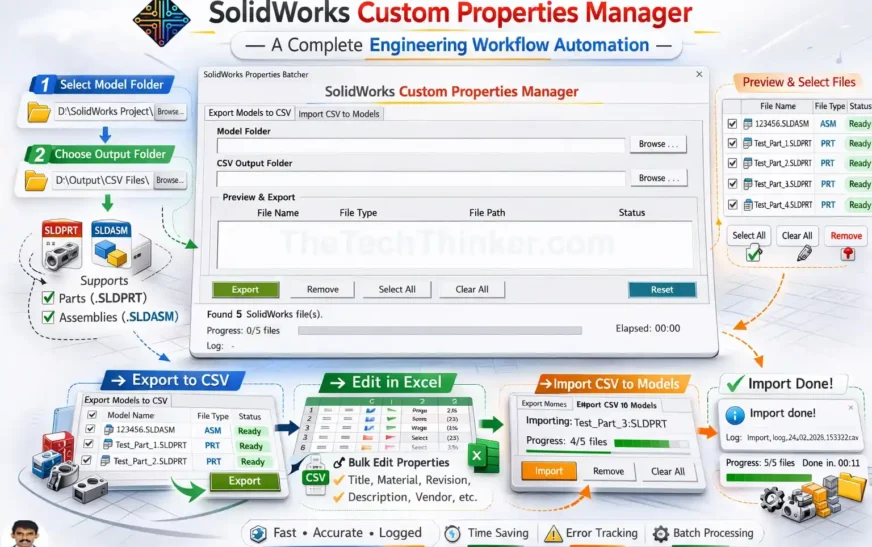
- SolidWorks Custom Properties Manager
- Top 20 SolidWorks API Functions Engineers Must Know
- Common SolidWorks VBA Errors and Fixes: 21 Best Solutions
- Overview of the SolidWorks VBA Macro Object Library & Model
External Reference
Frequently Asked Questions (FAQ)
1. How can I check SolidWorks Drawing BOM Availability using VBA?
You can check SolidWorks Drawing BOM Availability by using a VBA macro that interacts with the SolidWorks API. The macro connects to the active SolidWorks session, verifies the document type, and searches for BOM tables inside the drawing.
Typical steps include:
-
Connect to the SolidWorks application
-
Confirm the active document is a drawing (.SLDDRW)
-
Detect BOM table annotations
-
Scan the feature tree for BOM features
This automation helps engineers quickly verify whether a BOM exists in a drawing.
2. Does the SolidWorks Drawing BOM Availability macro work for parts or assemblies?
No. The SolidWorks Drawing BOM Availability check is designed only for drawing documents.
Bill of Materials tables are normally inserted in drawing files (.SLDDRW) because they represent the components of an assembly in a manufacturing document. Therefore, the macro first validates the document type before performing the BOM detection process.
3. Why is checking SolidWorks Drawing BOM Availability important?
Verifying SolidWorks Drawing BOM Availability ensures that engineering drawings contain complete manufacturing information.
If a drawing is released without a BOM:
-
Component lists may be missing
-
Assembly documentation becomes incomplete
-
Manufacturing teams may face delays or errors
Automating this validation step improves documentation accuracy.
4. Which SolidWorks API methods are used to detect BOM tables?
The macro checks SolidWorks Drawing BOM Availability using SolidWorks API table annotation methods.
Common methods include:
-
GetTableAnnotations2– used in newer SolidWorks versions -
GetTableAnnotations– used in older SolidWorks versions
These API calls retrieve BOM tables placed on drawing sheets.
5. Why does the macro scan the feature tree when checking SolidWorks Drawing BOM Availability?
In some cases, a BOM feature may exist even if the BOM table is hidden or temporarily removed from the drawing.
By scanning the FeatureManager tree for "BomFeat" features, the macro provides a secondary validation method. This improves the reliability of the SolidWorks Drawing BOM Availability check.
6. Can the SolidWorks Drawing BOM Availability macro work across different SolidWorks versions?
Yes. The macro is designed to work across multiple SolidWorks versions.
To ensure compatibility, the macro attempts both API methods:
-
GetTableAnnotations2for modern versions -
GetTableAnnotationsfor older versions
This approach ensures that the SolidWorks Drawing BOM Availability detection works reliably regardless of the SolidWorks release.
7. Can the macro detect multiple BOM tables in a drawing?
Yes. The macro counts all detected BOM tables when checking SolidWorks Drawing BOM Availability.
If multiple BOM tables exist, the macro returns the total number found in the drawing and displays the count to the user.
8. Can this macro be used in automated drawing validation workflows?
Yes. Checking SolidWorks Drawing BOM Availability is often part of a larger drawing quality verification process.
Engineering teams may automate checks such as:
-
BOM presence validation
-
Balloon-to-BOM linking
-
Dimension completeness
-
Revision table verification
These automated validations help maintain consistent drawing quality.
9. What are common reasons a drawing may fail the SolidWorks Drawing BOM Availability check?
A drawing may fail the SolidWorks Drawing BOM Availability check for several reasons.
Common causes include:
-
Assembly view not inserted in the drawing
-
BOM table accidentally deleted
-
BOM feature suppressed or hidden
-
Incorrect drawing template configuration
Automation helps identify these issues early in the design workflow.
10. Can SolidWorks Drawing BOM Availability detection be extended to advanced automation?
Yes. The SolidWorks Drawing BOM Availability macro can be expanded into a more advanced CAD automation system.
Engineers often extend similar macros to automate:
-
BOM validation checks
-
Balloon linking verification
-
Drawing release quality checks
-
Full engineering QA automation workflows
These enhancements help build powerful SolidWorks automation tools that improve productivity and reduce manual verification.