
SolidWorks Automation is the fastest way to turn repetitive CAD work into reliable, repeatable engineering workflows. If you’ve ever spent an hour fixing custom properties, chasing drawing errors, exporting PDFs one-by-one, or verifying release readiness across dozens of files—this guide is written for you.
The goal here is simple: reduce manual effort without reducing engineering control. That means fewer “oops” moments, cleaner releases, and more time for real design work.
What you’ll get in this pillar guide:
-
A clear definition of SolidWorks Automation (no hype, just practical meaning)
-
The major automation types (macros, API scripts, add-ins, EPDM gates)
-
A proven automation blueprint used in real engineering teams
-
11 high-value SolidWorks Automation techniques you can implement step-by-step
-
Best practices that keep automation stable (and not “fragile”)
What Is SolidWorks Automation?
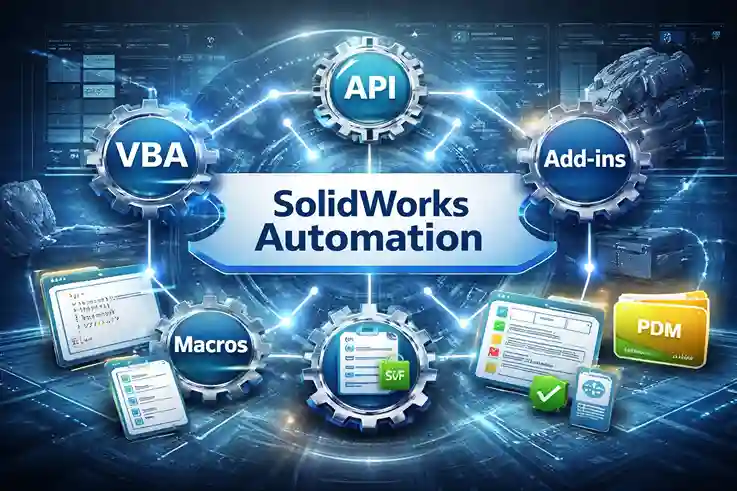
SolidWorks Automation means using macros, API-driven scripts, add-ins, templates, and workflow rules to run CAD tasks the same way—every time—without manual repetition.
Think of it like this:
-
Manual CAD work = “I know what to click”
-
SolidWorks Automation = “The system knows the rules and executes them consistently”
Where SolidWorks Automation fits in a real lifecycle
SolidWorks Automation isn’t just for “cool macros.” It fits directly into the stages where engineering teams lose time and make mistakes:
| Stage | Typical Problem | SolidWorks Automation Example |
|---|---|---|
| Modeling | repetitive features & setup | template-based model creation |
| Assembly | inconsistent structure | folder rules + assembly cleanup checks |
| Drawing | missing BOM, broken notes | drawing validation automation |
| Review | subjective checking | standardized pass/fail report |
| Release | incorrect metadata | batch custom properties update |
| Change | revision mismatch | EPDM gate checks + report |
When people say “automation saves time,” it’s true—but it’s incomplete. The bigger value is repeatability.
Why SolidWorks Automation Matters
1) Speed that doesn’t sacrifice quality
The best SolidWorks Automation doesn’t just make work faster. It makes work predictable.
-
Same checks every time
-
Same release output every time
-
Same metadata every time
That means fewer last-minute surprises.
2) Engineering standardization (without micromanagement)
Every team has “that one senior engineer” who knows the right way. Automation captures those rules into tools, templates, and checks—so the whole team performs at a higher baseline.
3) Release confidence
Most manufacturing issues start with bad data, not bad geometry:
-
wrong part number
-
missing revision
-
incorrect material
-
mismatched BOM
-
export mistakes
SolidWorks Automation catches these early and generates proof (logs/reports).
Real, practical benefits:
-
Fewer manual editing errors in metadata
-
Faster drawing release cycles
-
Cleaner handoff to manufacturing / ERP
-
Reduced rework during ECO / revision updates
-
Better audit trail in EPDM/PDM workflows
Types of SolidWorks Automation
SolidWorks Automation is not “one thing.” There are different approaches depending on scale, stability needs, and who will use it.
SolidWorks Macros (VBA): fastest to build, easiest to test
VBA macros are perfect when you need:
-
quick internal tools
-
repeatable checks
-
batch exports
-
property updates
-
drawing validation scripts
API scripts & batch tools: folder-level automation
If your goal is: “Scan 200 files and generate a report,” you’re in batch automation territory.
Common examples:
-
open each model
-
rebuild
-
read properties
-
validate a rule
-
export outputs
-
log pass/fail
Add-ins (C#/VB.NET): production-grade tools
An add-in is ideal when:
-
multiple users need a stable UI
-
you need event-based automation (on open, on save, on rebuild)
-
you want a ribbon button, property manager, or integrated dashboard
-
you’re building a tool you might later sell
EPDM/PDM workflow automation: release control gates
This is where SolidWorks Automation becomes “engineering governance”:
-
block release if fields are missing
-
enforce naming/revision rules
-
validate check-in state
-
create release packs consistently
Quick comparison
| Method | Best for | Pros | Limits |
|---|---|---|---|
| VBA Macro | quick tools | fastest to build | UI + robustness limits |
| API Batch Script | bulk processing | scalable | needs strong logging |
| Add-in (C#) | enterprise tools | stable UI + events | more effort to build |
| EPDM Workflow | compliance gates | release control | admin/config needed |
SolidWorks API Architecture
To do SolidWorks Automation confidently, you need one mental model—not 1,000 scattered functions.
The core idea
Almost every automation follows this pattern:
-
Connect to SolidWorks application
-
Get the active document (part/assembly/drawing)
-
Read state + metadata
-
Modify something (feature, property, export, check)
-
Rebuild
-
Save / export
-
Log result
-
Close document (for batch)
Key objects you’ll hear constantly
-
SldWorks.Application
-
ModelDoc2
-
PartDoc / AssemblyDoc / DrawingDoc
-
FeatureManager
-
CustomPropertyManager
-
SelectionMgr
➡️ Refer Article: SolidWorks API Functions: 20 Expert Commands You Must Know
The SolidWorks Automation Workflow Blueprint
This blueprint works whether you’re building a macro, a batch tool, or an add-in.
Step-by-step flow (used in real QA tools)
-
Define rules (what is “pass” vs “fail”)
-
Identify inputs (folder, selection, EPDM file list)
-
Validate state (open? read-only? suppressed errors?)
-
Execute checks/actions
-
Log results
-
Export report (CSV/Excel)
-
Optional: block release if failed (EPDM gate)
Non-negotiable checklist (prevents fragile tools)
-
Always rebuild before reading features/properties
-
Handle configuration-specific properties properly
-
Never assume a selection exists
-
Log per file (not just “overall success”)
-
Close documents after batch runs
➡️ Refer Article: Common SolidWorks VBA Errors and Fixes: 21 Best Solutions
11 SolidWorks Automation Techniques Engineers Use Most
This is the “money section.” If you implement even 3–4 of these, your SolidWorks Automation capability becomes real—fast.
1) Batch Custom Properties Update (Excel workflow)
If your team edits metadata inside SolidWorks manually, you’re burning time.
What automation does:
-
Export properties for many files to Excel
-
Let users update values safely
-
Import back in bulk
-
Generate a pass/fail report
Common properties:
-
Description, Part Number, Material, Revision, Vendor, Finish
➡️ Refer Article: SolidWorks Custom Properties Manager Tool
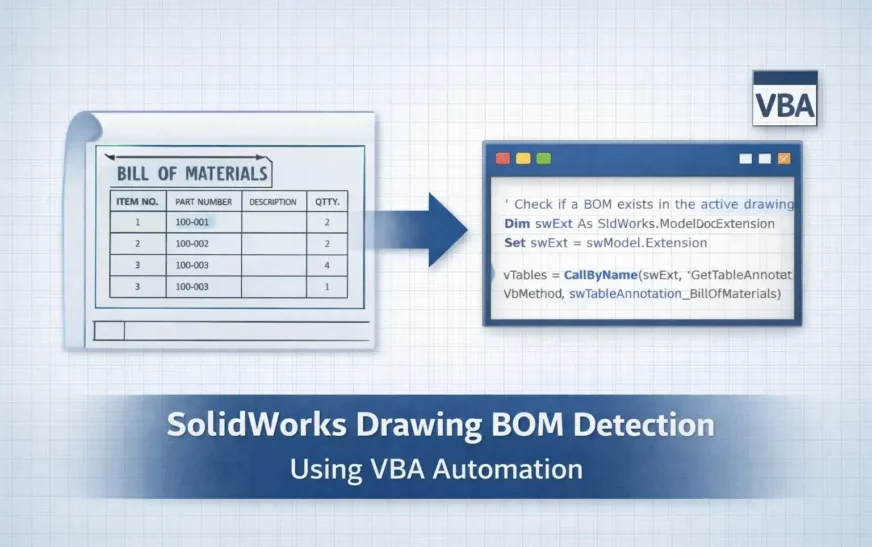
2) Drawing BOM Availability Check (Release QC)
Before release, drawings should not “look complete” — they should be complete.
A BOM availability check verifies:
-
a BOM table exists on required sheets
-
BOM is not empty
-
optional: correct BOM template type
Possible upgrades:
-
“BOM exists on Sheet 1 but not Sheet 2”
-
balloon linking validation
-
export BOM to CSV for procurement
➡️ Refer Article: SolidWorks Drawing BOM Availability: 6 Powerful VBA Checks
3) One-click release pack export (PDF/DXF/STEP)
This is one of the highest ROI SolidWorks Automation tasks.
A release pack can generate:
-
PDF drawing
-
DXF flat pattern
-
STEP for vendor/manufacturing
-
optional: eDrawing pack
Automation benefits:
-
same naming convention every time
-
no missing exports
-
consistent folder structure
4) Naming convention enforcement (files + configs)
Bad naming causes bad traceability.
SolidWorks Automation can enforce:
-
file naming rules
-
configuration naming rules
-
drawing sheet format naming patterns
-
output naming templates (PDF/DXF)
Pair this with EPDM rules for maximum impact.
5) Feature/Sketch health validation
The worst errors are silent errors.
Automated checks can catch:
-
rebuild errors
-
dangling dimensions
-
missing references
-
failed features
-
broken sketches
This becomes part of a “pre-release health scan.”
6) Assembly cleanup automation
Assemblies become heavy and messy over time.
Automation can validate:
-
suppressed components
-
missing mates
-
lightweight/resolved states
-
file path issues
-
rebuild status
Result: a healthier top-level assembly before release.
7) Drawing standards checker
This is where SolidWorks Automation becomes “engineering QA.”
Checks typically include:
-
high-quality view setting
-
sheet scale consistency
-
missing notes
-
broken annotation links
-
revision table presence
-
required symbols (if your standard demands it)
8) Configuration generator for variants
If you have product families, configuration automation is huge.
Typical workflow:
-
read parameters from Excel/CSV
-
generate configurations
-
set dimensions/properties per configuration
-
rebuild and save
This reduces “variant engineering” from hours to minutes.
9) Template-driven model creation
A lot of teams reinvent the same setup every time:
-
planes
-
standard sketches
-
materials
-
custom properties
-
default features
Automation can create models based on templates + rules so every new part starts clean.
10) EPDM workflow integration checks
This is where SolidWorks Automation meets process control.
Checks can verify:
-
checked-in / checked-out state
-
file state in workflow (WIP, Review, Released)
-
revision consistency across model and drawing
-
mandatory metadata completeness
➡️ Refer Article: EPDM Workflow Best Practices: 2026 Engineering Guide
11) Build an add-in for production-grade automation
Macros are great, but add-ins scale better for shared tools.
Add-ins support:
-
ribbon buttons
-
property manager pages
-
event triggers (on open/save)
-
consistent UI across users
➡️ Refer Article: SolidWorks Add-in Creation: #1 Powerful Guide for Engineers
SolidWorks Automation with EPDM / PDM (Release-Ready Engineering)
If you want “real process power,” combine SolidWorks Automation with EPDM workflow gates.
Where EPDM makes automation stronger
-
Enforces rules at transition points
-
Provides audit trail
-
Prevents uncontrolled changes
-
Connects CAD metadata to enterprise systems
Example EPDM gate rules (simple but effective)
| EPDM Gate | Prevents |
|---|---|
| Missing Part Number | wrong BOM/ERP mapping |
| Revision mismatch | release confusion |
| Not checked in | lost file history |
| Wrong workflow state | uncontrolled edits |
This is how you move from “automation as convenience” to “automation as quality system.”
Best Practices for Reliable SolidWorks Automation
If you want to build tools that don’t fail randomly, follow these rules.
Stability rules (do these every time)
-
Rebuild before reading critical data
-
Use defensive checks (document type, selections, suppression state)
-
Handle errors cleanly (don’t crash mid-batch)
-
Close documents after processing
-
Write logs per file (not just “completed”)
Logging & traceability (what pros do)
A strong SolidWorks Automation tool produces:
-
Summary: total files, pass, fail, warnings
-
Per file: what failed and why
-
Evidence: which rule triggered failure
Common failure reasons (and how to design around them)
-
“Nothing selected” (selection manager issues)
-
feature fails because rebuild not forced
-
files locked / read-only
-
templates missing (DXF/PDF export templates)
-
unexpected model states (suppressed configs, missing refs)
➡️ Refer Article: Common SolidWorks VBA Errors and Fixes
Tools & Learning Roadmap (VBA → API → Add-in)
You don’t need to learn everything at once. This path works.
Beginner (2–4 weeks)
-
Record macro
-
Modify small parts (save, export, message prompts)
-
Read basic properties
-
Simple drawing checks
Intermediate (1–2 months)
-
Folder batch processing
-
Custom property export/import logic
-
Drawing validation + CSV report
-
Error handling patterns
Advanced (3–6 months)
-
Add-in architecture (C#)
-
event-based automation
-
EPDM integration
-
packaging, versioning, deployment mindset
| Level | Outcome |
|---|---|
| Beginner | useful macros for daily work |
| Intermediate | batch tools that save team time |
| Advanced | production tools your org can standardize on |
Conclusion
SolidWorks Automation is not about replacing engineering judgment. It’s about removing the repetitive work that hides real problems and drains time. When automation is designed correctly, it creates a consistent workflow: clean inputs → validated rules → reliable outputs → confident release.
Related Articles
- SolidWorks Drawing BOM Availability
- SolidWorks Custom Properties Manager
- CAD Automation
- SolidWorks API Functions
- Top 20 SolidWorks API Functions Engineers Must Know
External References
SolidWorks Automation FAQs
1) What is SolidWorks Automation used for?
SolidWorks Automation is used to reduce repetitive CAD tasks and enforce standards—like properties, exports, drawing QA, and release workflows.
2) Is VBA still worth learning?
Yes. VBA is still one of the fastest ways to build real SolidWorks Automation tools, especially for internal workflows.
3) What’s the difference between a macro and an add-in?
A macro is typically a script you run manually. An add-in is a compiled tool integrated into SolidWorks with UI, events, and better scalability.
4) Can SolidWorks Automation work with EPDM?
Yes. EPDM is where automation becomes release-grade because it can enforce transitions, logging, and mandatory data rules.
5) How do I batch update custom properties safely?
Use an export → edit → import approach, validate required fields, and keep a pass/fail log per file.
6) Why do automation tools fail with “Nothing selected”?
Because many API actions depend on selection state. Defensive checks using SelectionMgr patterns are essential.
7) Can automation validate drawings before release?
Absolutely. Drawing validation is one of the best ROI areas: BOM checks, missing notes, broken refs, scale issues, and more.
8) What’s the best language for SolidWorks add-ins?
C# (.NET) is the most common for production add-ins, while VBA remains strong for rapid internal tools.
9) How do I generate reports from checks?
Log results into CSV/Excel with file path + rule name + status + message. Keep a summary at the top.
10) Is DriveWorks part of SolidWorks Automation?
Yes—DriveWorks is a specialized automation ecosystem for configuration and product rules.
➡️ Refer Article: DriveWorks SOLIDWORKS Automation: 9 Powerful Truths